Building serverless applications in Node.js has never been easier thanks to the Serverless Framework—a powerful toolkit for deploying and managing functions across cloud platforms like AWS, Azure, and more. It abstracts away the boilerplate and lets you focus on writing code, not managing infrastructure.
As your Node.js serverless application grows, managing user permissions and resource access can become complicated. While most providers have some built-in authorization mechanisms, they often aren't flexible enough for complex, real-world applications with dynamic roles (RBAC), relationships (ReBAC), and attributes (ABAC).
Relationship-Based Access Control (ReBAC) focuses on managing access based on relationships between users and resources, making it ideal for collaborative applications. Attribute-Based Access Control (ABAC), on the other hand, enforces policies based on attributes to a user or a resource, allowing you to create more “natural language” sounding access control policies.
In this guide, we’ll use the Serverless Framework to build a real-world document management app and implement access control using Permit.io. You'll learn how to effectively plan and implement authorization to control access to resources like documents and folders.
We'll utilize Permit.io, an authorization-as-a-service solution, to easily define roles, manage permissions, and enforce secure access controls—allowing your application to scale without compromising security or developer productivity.
We will cover:
- Deploying a serverless app using the Serverless Framework and AWS Lambda.
- Defining roles and permissions using the Permit.io API.
- Defining access control policies based on user attributes.
- Establishing a relationship between resources and implementing Role derivation.
This tutorial focuses on authorization in apps built with the Serverless Framework. We'll use AWS Lambda as our deployment target, but everything here applies to any Serverless Framework-supported provider.
What We’re Building
To understand serverless authorization, we’ll build a simple document management system using Node.js and the Serverless Framework.
We'll use AWS Lambda for deployment in this tutorial, but the same structure works with any cloud provider supported by the Serverless Framework.
The app will include two core resource types, Documents and Folders.
Each resource will support the create, read, and delete actions, which will be protected by role-based, attribute-based, and relationship-based policies.
We’ll implement the following access control behaviors:
- Users with the
owner or editor role on a document can read or delete it.
- Only users in a specific department (e.g., Engineering or QA) can create or read documents tied to that department.
- Folder admins automatically gain access to documents inside the folder without needing explicit document-level roles.
This flow lets us demonstrate how role assignments, attributes, and relationships work together to enable fine-grained authorization in a serverless environment.
Prerequisites and Tech Stack
Before we begin, here’s what you’ll need:
Tech Stack Overview
- Serverless Framework – to define, deploy, and manage cloud functions
- Node.js – for building our backend logic
- AWS Lambda – to run our API endpoints without managing servers
- DynamoDB – for storing documents and folders
- Permit.io SDK – to define and enforce authorization policies
Before we start the tutorial, let’s talk about “Serverless” for a second:
What Does Serverless Mean — and Where Does Authorization Fit In?
Despite the name, serverless doesn’t mean there are no servers. It means you don’t have to manage them. Instead, you focus on deploying individual functions, and the cloud provider takes care of provisioning, scaling, and maintaining the infrastructure.
The Serverless Framework simplifies this process by letting you define and deploy cloud functions using simple configuration files and familiar developer workflows. It supports providers like AWS Lambda, Google Cloud Functions, Azure Functions, and more—making it a good abstraction for building cloud-native applications in Node.js.
This model is useful for scalability and cost-efficiency—but it also introduces a challenge:
You still need to control who can access what, and now you’re doing it across dozens (or hundreds) of independently running functions.
Permit.io, an authorization-as-a-service platform, lets you manage roles, attributes, and relationships from a central place. Instead of hardcoding access control logic in every handler, you define policies once in Permit, and enforce them across your entire serverless stack with a simple API call (permit.check()).
It works with your identity provider (via JWTs), integrates with your serverless deployment, and even offers a local PDP (Policy Decision Point) so you can make fast decisions without calling an external service.
In the rest of this tutorial, we’ll show how to connect the dots—designing policies in Permit, syncing them with your Lambda functions, and enforcing them at runtime.
Understanding Serverless and where authorization comes in, let’s plan our implementation:
Planning the Authorization Model
What are you protecting? Who needs access? And under what conditions?
Here’s a breakdown of the resources, roles, and policies we’ll implement in our document management system.
Resources
We’ll define two main resource types in the Permit.io policy schema:
Each resource supports these actions: create, read, and delete.
Roles
Each resource will also have roles that group permissions together:
Document
owner: can create, read, and deleteeditor: can read and delete
Folder
admin: can create, read, and deleteeditor: can read and delete
User Attributes (for ABAC)
We’ll assign each user two key attributes:
department (e.g., "Engineering", "QA")classification (e.g., "Admin")
These will be used to define attribute-based access policies—for example:
Only users from the Engineering department with Admin classification can create or read documents from that department.
Resource Relationships (for ReBAC)
To demonstrate relationship-based access, we’ll link documents to folders with a parent relationship. This will allow us to derive permissions based on folder access.
A user with the admin role on a folder automatically gets owner permissions on documents inside that folder.
Or -
A user with the editor role on a folder gets editor permissions on the folder’s documents.
Summary of Policies -
Here’s what we’ll enforce in simple terms:
Only users in a specific department and with the right classification can create or read documents.
A folder admin automatically has full control over documents within the folder.
A folder editor can read and delete documents inside the folder.
Role checks and attribute conditions will be evaluated at runtime using Permit’s SDK.
Let’s get to it!
Setting up a Permit.io Account
With our model planned, it’s time to define the schema in Permit.io.
Permit.io offers multiple account creation options with third-party authentication providers or single sign-on (SSO).
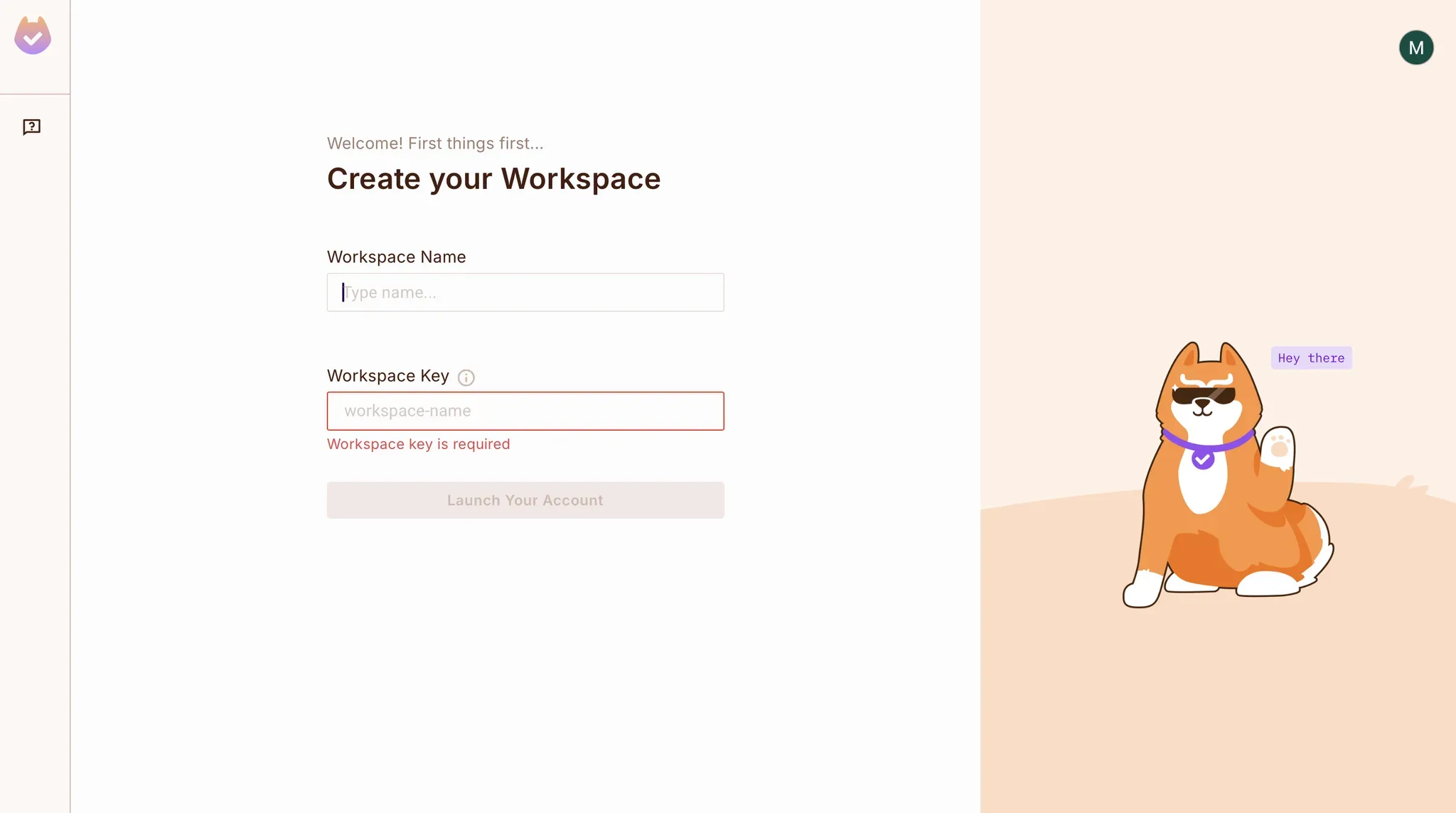
Permit.io allows you to define policies, manage roles, and assign permissions using both a web interface and a programmatic API. To get started:
- Go to Permit.io and create an account
- Choose a workspace name when prompted
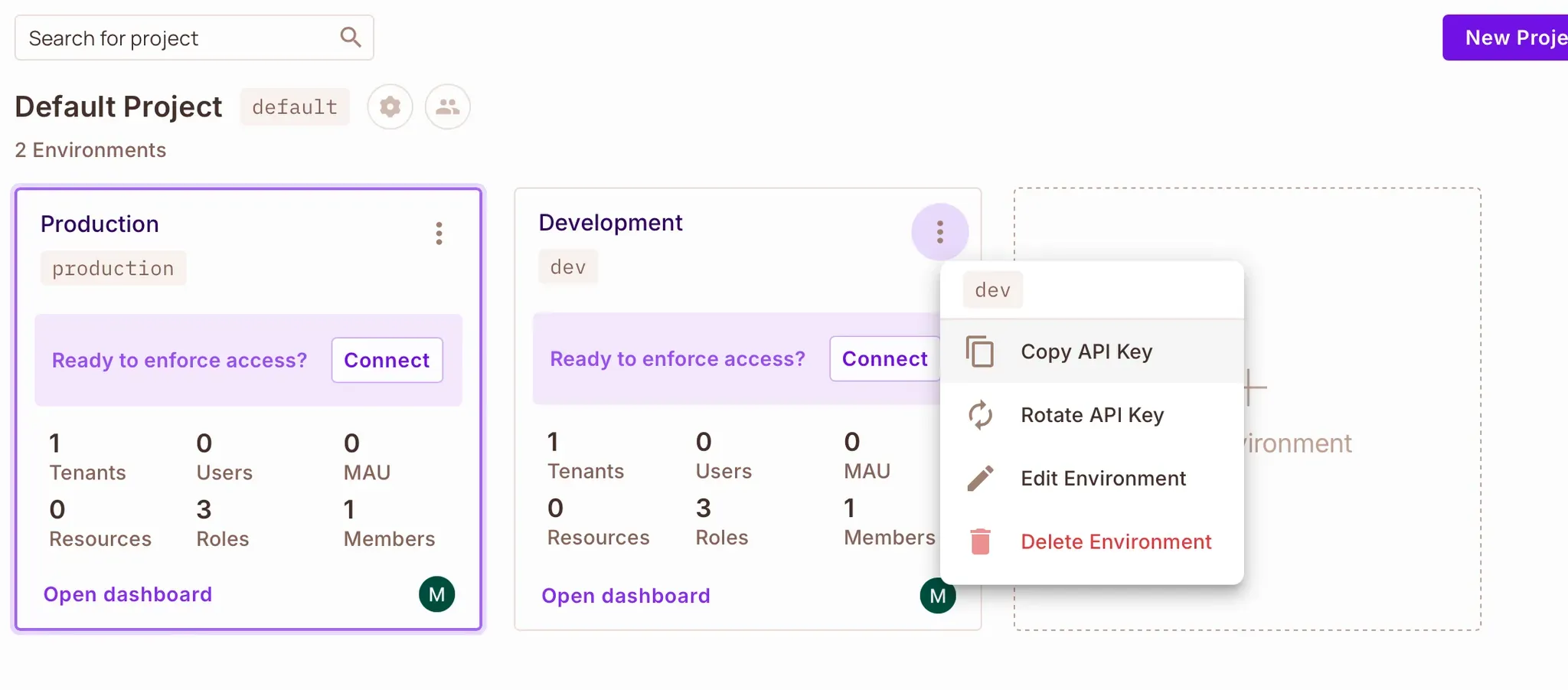
- Permit will automatically create a default project for you
You’ll find your API key inside your project’s environment. Copy this value — you'll use it to authenticate your SDK calls later.
Setting up the Document Management Application
We’ll use a starter Node.js project with built-in authentication and preconfigured Lambda functions.
git clone git@github.com:permitio/serverless-framework-authorization-example.git
cd serverless-framework-authorization-example
npm install
Note: the project includes a serverless.yml file and a simple JWT-based auth setup using bcrypt and jsonwebtoken.
This app uses:
- Lambda functions to handle API requests
- DynamoDB for document and folder storage
- A custom authorizer to parse JWTs and pass user data to your handlers
Add your Permit credentials
Create a .env file at the root of the project and add your Permit API key:
PERMIT_SDK_TOKEN=<your-permit-api-key>
You’ll also add your PDP URL here later.
Defining Your Policy Schema in Code
Rather than clicking through the Permit.io UI, we’ll define all policy schema elements using the Node.js SDK.
- Create a new file:
scripts/setup-permit-policies.js
- Paste the following:
require("dotenv").config();
const { Permit } = require("permitio");

const permit = new Permit({ token: process.env.PERMIT_SDK_TOKEN });

const resourceConfig = {
  Document: {
    key: "Document",
    name: "Document",
    actions: {
      create: {},
      read: {},
      delete: {},
    },
    roles: {
      owner: {
        permissions: ["create", "read", "delete"],
      },
      editor: {
        permissions: ["read", "delete"],
      },
    },
    attributes: {
      department: {
        type: "string",
        description: "Owning department",
      },
    },
  },
  Folder: {
    key: "Folder",
    name: "Folder",
    actions: {
      create: {},
      read: {},
      delete: {},
    },
    roles: {
      admin: {
        permissions: ["create", "read", "delete"],
      },
      editor: {
        permissions: ["read", "delete"],
      },
    },
  },
};
Pushing Schema to Permit
Still, in scripts/setup-permit-policies.js, add the logic to create your resources:
async function createResources() {
  for (const resourceKey of Object.keys(resourceConfig)) {
    const config = resourceConfig[resourceKey];
    await permit.api.resources.create(config);
    console.log(`Created resource: ${resourceKey}`);
  }
}

(async () => {
  console.log("Starting Permit policy setup...");
  try {
    await createResources();
  } catch (error) {
    console.error("Error during setup:", error);
  }
})();
Run the script:
node scripts/setup-permit-policies.js
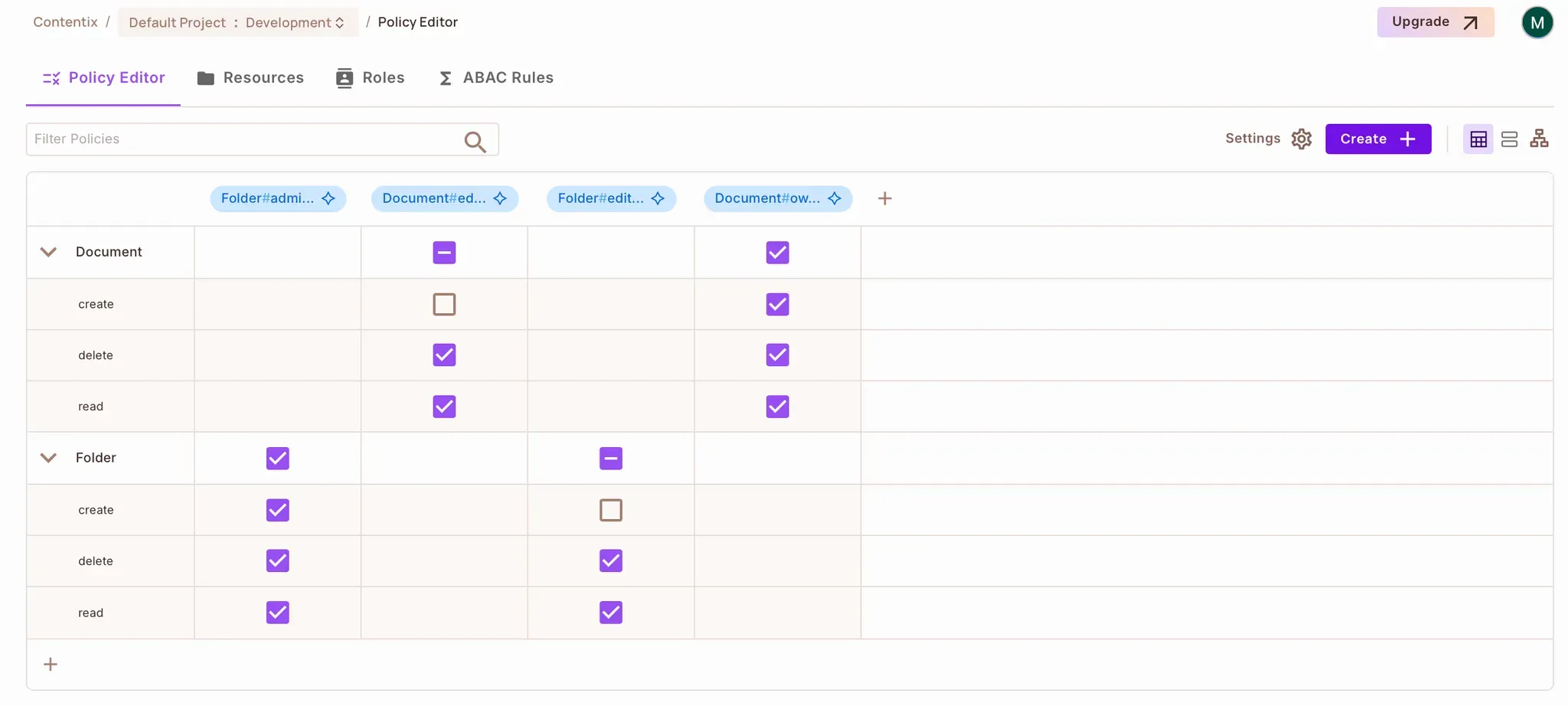
You should now see your resources in the Permit → Policy Editor → Resources section:
Setting Up Attribute-Based Access Control (ABAC)
Now that your resource schema is in place, let’s define some policies based on user attributes and resource attributes — this is where ABAC comes in.
In Permit, ABAC policies are created using:
- User sets: conditions based on user attributes (e.g., department, classification)
- Resource sets: conditions based on resource attributes (e.g., document.department)
- Rules: permissions are granted when user and resource conditions match
We’ll define these sets using the Permit.io SDK inside the same script: scripts/setup-permit-policies.js.
Add User Attributes in Permit
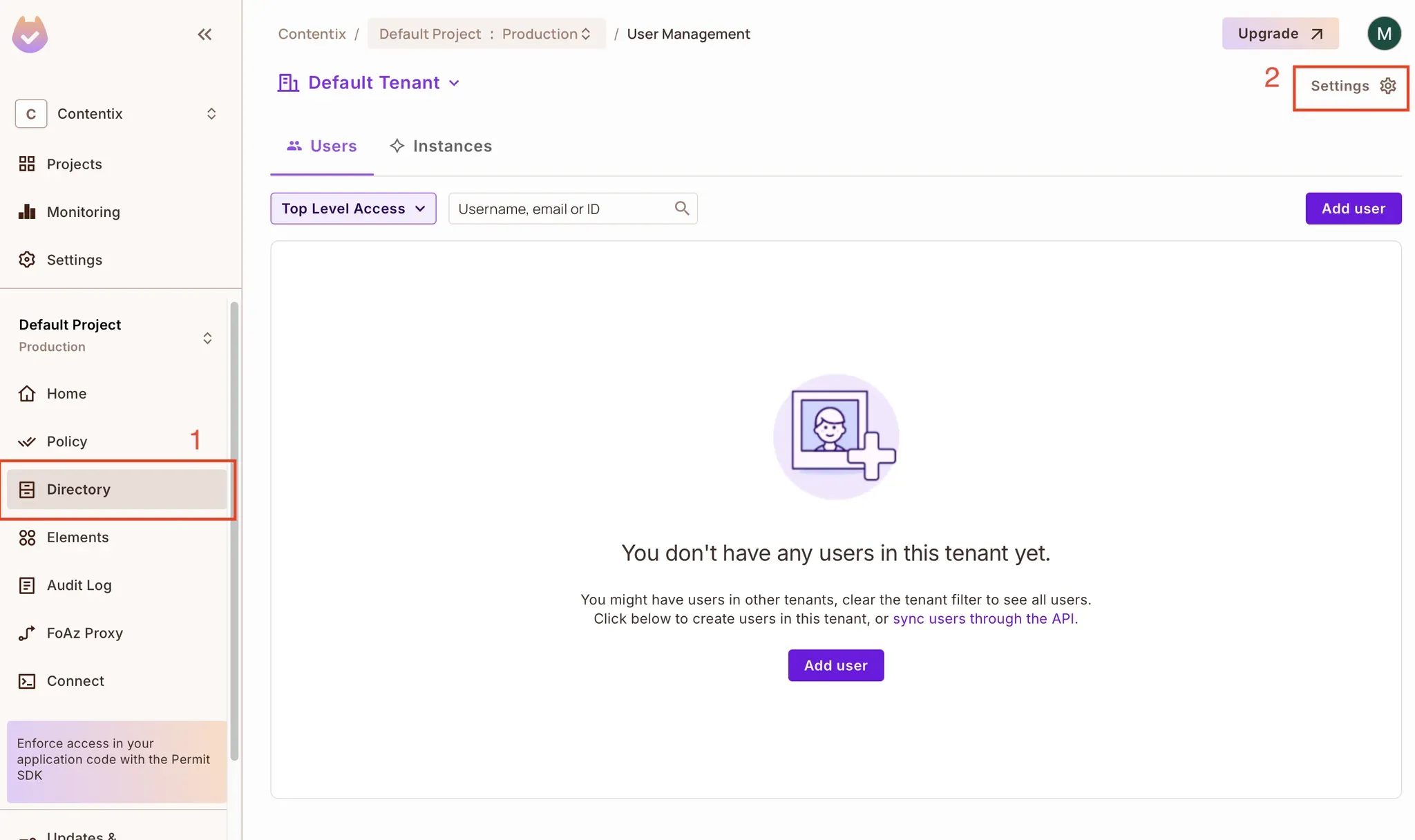
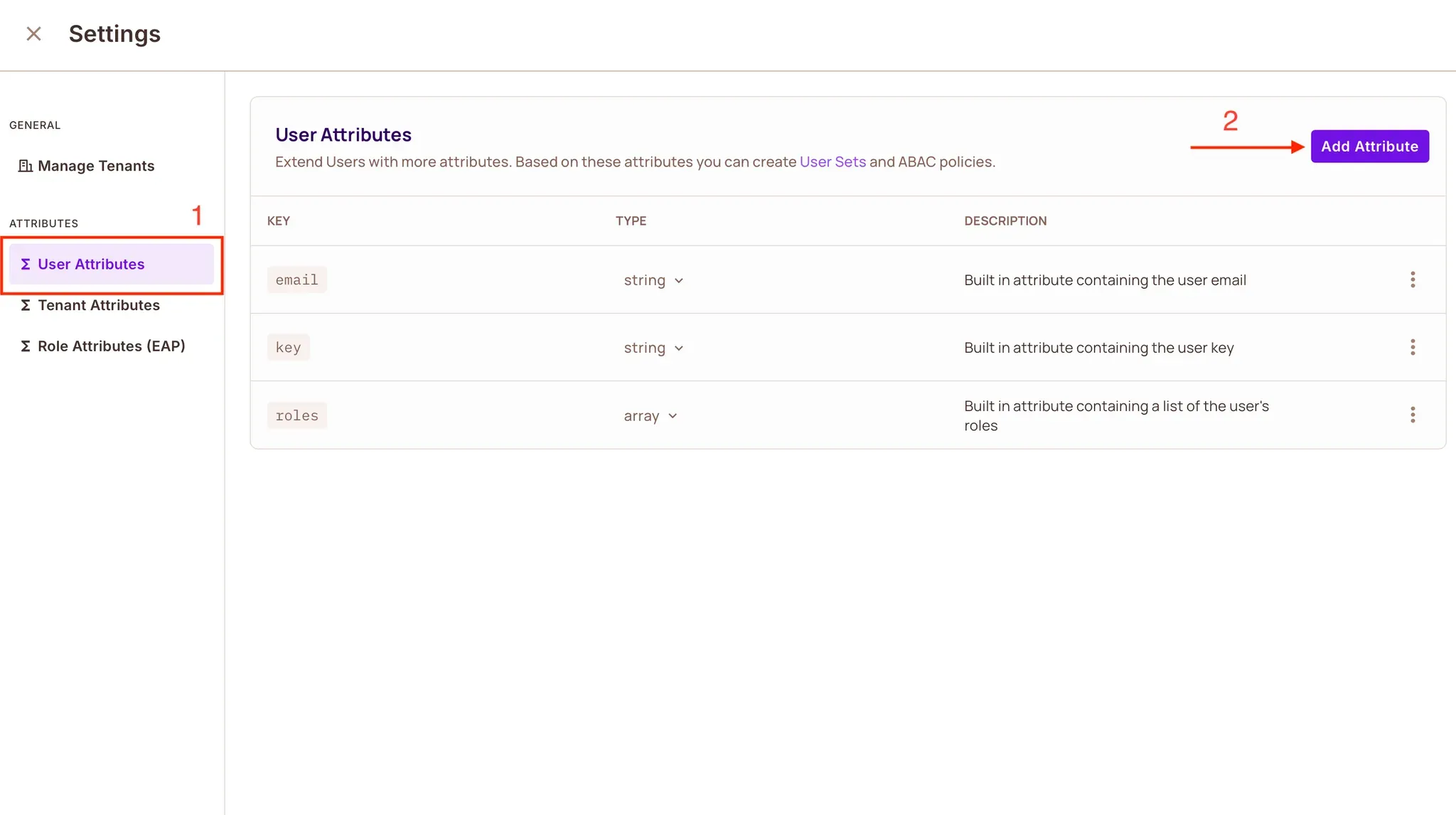
Before defining any ABAC conditions, go to the Permit.io Dashboard and make sure the required user attributes are registered:
2. Define ABAC User Sets
Now, back in your script, add two user sets based on department and classification:
const setupAbacPolicies = async () => {
  console.log("Creating ABAC user sets...");

  await permit.api.conditionSets.create({
    key: "QA_department_rules",
    name: "Q/A department rules",
    type: "userset",
    description: "QA admins",
    conditions: {
      allOf: [
        { "user.department": { equals: "QA" } },
        { "user.classification": { equals: "Admin" } },
      ],
    },
  });

  await permit.api.conditionSets.create({
    key: "engineering_department_rules",
    name: "Engineering Department Rules",
    type: "userset",
    description: "Engineering admins",
    conditions: {
      allOf: [
        { "user.department": { equals: "Engineering" } },
        { "user.classification": { equals: "Admin" } },
      ],
    },
  });

  console.log("ABAC user sets created");
};
3. Define ABAC Resource Set
Now define a condition set for resources so that only documents belonging to the same department as the user are accessible:
await permit.api.conditionSets.create({
  key: "departmental_hierarchy",
  name: "Departmental Hierarchy",
  type: "resourceset",
  resource_id: "Document",
  conditions: {
    allOf: [
      {
        "resource.department": {
          equals: { ref: "user.department" },
        },
      },
    ],
  },
});

console.log("ABAC resource set created");
4. Create ABAC Policy Rules
Once the user and resource sets are in place, you can tie them together using policy rules:
const createAbacPolicyRules = async () => {
  console.log("Creating ABAC policy rules...");

  const rules = [
    { user_set: "engineering_department_rules", resource_set: "departmental_hierarchy" },
    { user_set: "QA_department_rules", resource_set: "departmental_hierarchy" },
  ];

  for (const rule of rules) {
    await permit.api.conditionSetRules.create({
      ...rule,
      permission: "Document:create",
    });
    await permit.api.conditionSetRules.create({
      ...rule,
      permission: "Document:read",
    });
  }

  console.log("ABAC rules created");
};
5. Update Your Setup Script
Make sure your main setup function calls these helpers:
async function setupPermitPolicies() {
  await createResources();
  await setupAbacPolicies();
  await createAbacPolicyRules();
}
(async () => {
  console.log("Starting Permit policy setup...");
  try {
    await setupPermitPolicies();
  } catch (error) {
    console.error("Fatal error during policy setup:", error);
  }
})();
Run the script again:
node scripts/setup-permit-policies.js
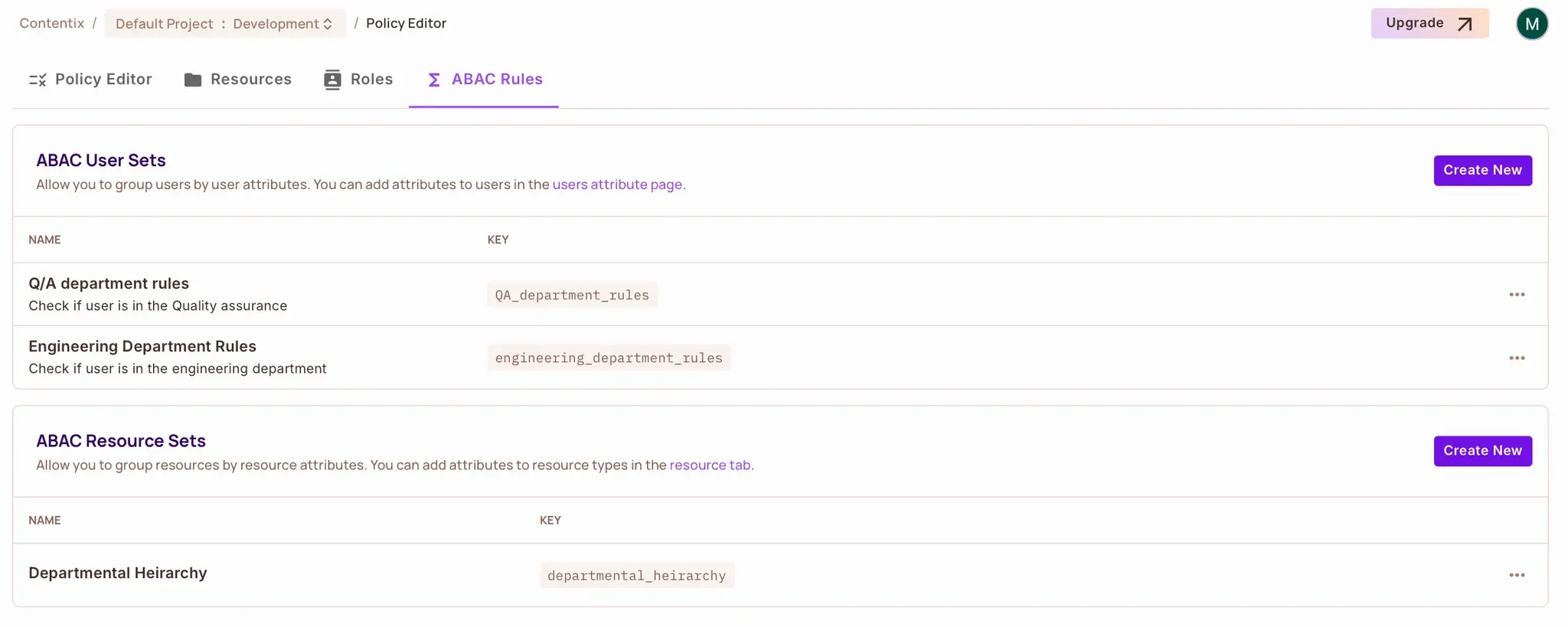
You should now see your ABAC user sets, resource sets, and rules inside the Policy Editor in the Permit UI.
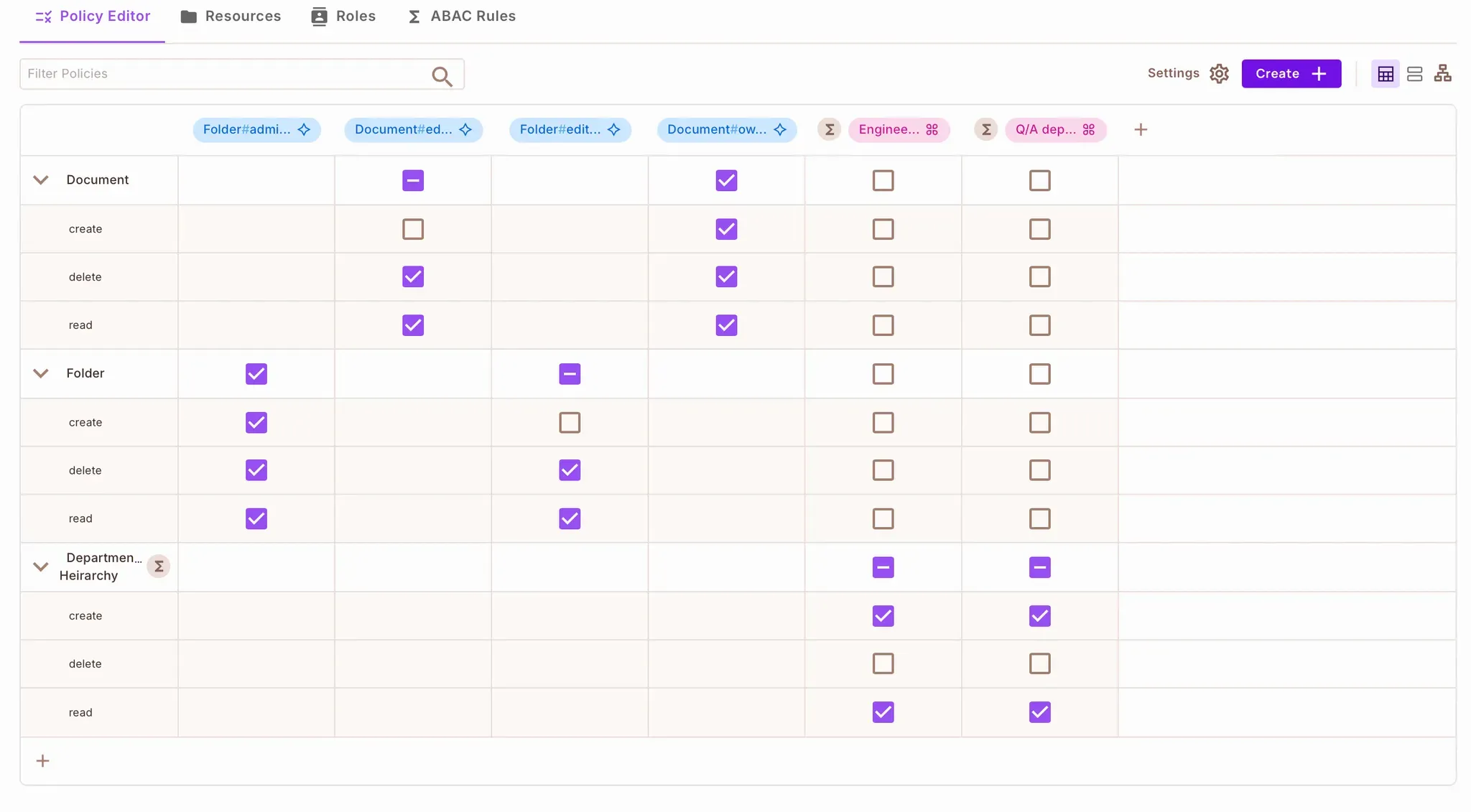
When you check the Policy → Policy Editor tab, you will notice the Q/A department and Engineering Department user sets are checked for create and read actions in the Departmental Hierarchy ABAC Resource set.
Enforcing ABAC in Your Serverless App
With your ABAC rules in place, you can now enforce them directly in your Lambda functions using the permit.check() method.
We’ll update the createDocument function to:
- Extract user identity and department info from the JWT
- Define the document’s attributes
- Check if the user has permission to create a document with those attributes
🛠 Updating createDocument
Open handlers/createdocument.js and locate the createDocument function. Update it like this:
const { v4: uuidv4 } = require("uuid");
const permit = require("../init_permit");

module.exports.createDocument = async (event) => {
  try {
    const userEmail = event.requestContext.authorizer.email;
    const department = event.requestContext.authorizer.department;
    const body = JSON.parse(event.body);
    const documentId = uuidv4();

    const resourceAttributes = {
      department: department,
    };

    // Check if user is allowed to create the document
    const isAllowed = await permit.check(userEmail, "create", {
      type: "Document",
      attributes: resourceAttributes,
    });

    if (!isAllowed) {
      return {
        statusCode: 403,
        body: JSON.stringify({ message: "Permission denied" }),
      };
    }

    // Proceed with creating the document in DynamoDB...
    const document = {
      id: documentId,
      title: body.title,
      content: body.content,
      department,
    };

    return {
      statusCode: 201,
      body: JSON.stringify(document),
    };
  } catch (error) {
    console.error("Error creating document:", error);
    return {
      statusCode: 500,
      body: JSON.stringify({ message: "Error creating document" }),
    };
  }
};
What’s Happening Here?
permit.check() evaluates whether the user is allowed to perform the "create" action on a Document resource with a given set of attributes.- The decision is made based on the ABAC rules you defined earlier (e.g., matching user and resource departments).
- If access is denied, the function returns a
403 Forbidden response immediately.
Setting Up the Local PDP (Optional but Recommended)
For fast, zero-latency policy checks, you can run the Permit PDP locally using Docker.
Create docker-compose.yml
At the root of your project, add this file:
version: '3'
services:
  pdp-service:
    image: permitio/pdp-v2:latest
    ports:
      - "7766:7000"
    environment:
      - PDP_API_KEY=permit_key_xxxxxxxxx
      - PDP_DEBUG=True
    stdin_open: true
    tty: true
Replace permit_key_xxxxxxxxx with your actual Permit API key.
Start the container:
docker compose up -d
Verify that it’s running by visiting:
<http://localhost:7766>
You should see:
{ "status": "ok" }
Expose the PDP to the Internet
Since your Lambda functions run in the cloud, they can’t access your local PDP directly. Use a tunneling service like: Ngrok or Localtunnel.
Once your PDP is publicly accessible, update your .env file:
PERMIT_PDP_URL=https://your-ngrok-url.ngrok-free.app
Re-deploy your Serverless app each time the URL changes:
serverless deploy
Setting Up ReBAC with Role Derivation
With ABAC in place, let’s move on to ReBAC — controlling access based on relationships between resources.
In our app, folders contain documents, and users may have roles on folders but not directly on documents. Using ReBAC, we can derive document permissions based on folder roles.
For example:
- A user who is an
admin on a folder should automatically become an owner of all documents inside that folder.
- A user who is an
editor on a folder should automatically be an editor of its documents.
We’ll implement this in two steps:
- Define a parent → child relationship between folders and documents
- Set up role derivations in the Permit policy schema
1. Define the Resource Relationship
Add this function to scripts/setup-permit-policies.js:
const createResourceRelations = async () => {
  console.log("Creating resource relationship: Document → Folder (parent)");

  try {
    await permit.api.resourceRelations.get("Document", "parent");
  } catch {
    await permit.api.resourceRelations.create("Document", {
      key: "parent",
      name: "Parent",
      subject_resource: "Folder",
    });
  }
};
This tells Permit that a Document can have a parent Folder. This link will later be used to derive roles between them.
2. Define Role Derivations
Now, derive roles across this relationship. Add the following:
const createRoleDerivations = async () => {
  console.log("Creating role derivations from Folder to Document");

  // Folder:admin → Document:owner
  await permit.api.resourceRoles.update("Document", "owner", {
    granted_to: {
      users_with_role: [
        {
          on_resource: "Folder",
          role: "admin",
          linked_by_relation: "parent",
        },
      ],
    },
  });

  // Folder:editor → Document:editor
  await permit.api.resourceRoles.update("Document", "editor", {
    granted_to: {
      users_with_role: [
        {
          on_resource: "Folder",
          role: "editor",
          linked_by_relation: "parent",
        },
      ],
    },
  });

  console.log("Role derivations created");
};
3. Update the Setup Script
Be sure to include these functions in your main setup flow:
async function setupPermitPolicies() {
  await createResources();
  await setupAbacPolicies();
  await createAbacPolicyRules();
  await createResourceRelations();
  await createRoleDerivations();
}
Run the script again:
node scripts/setup-permit-policies.js
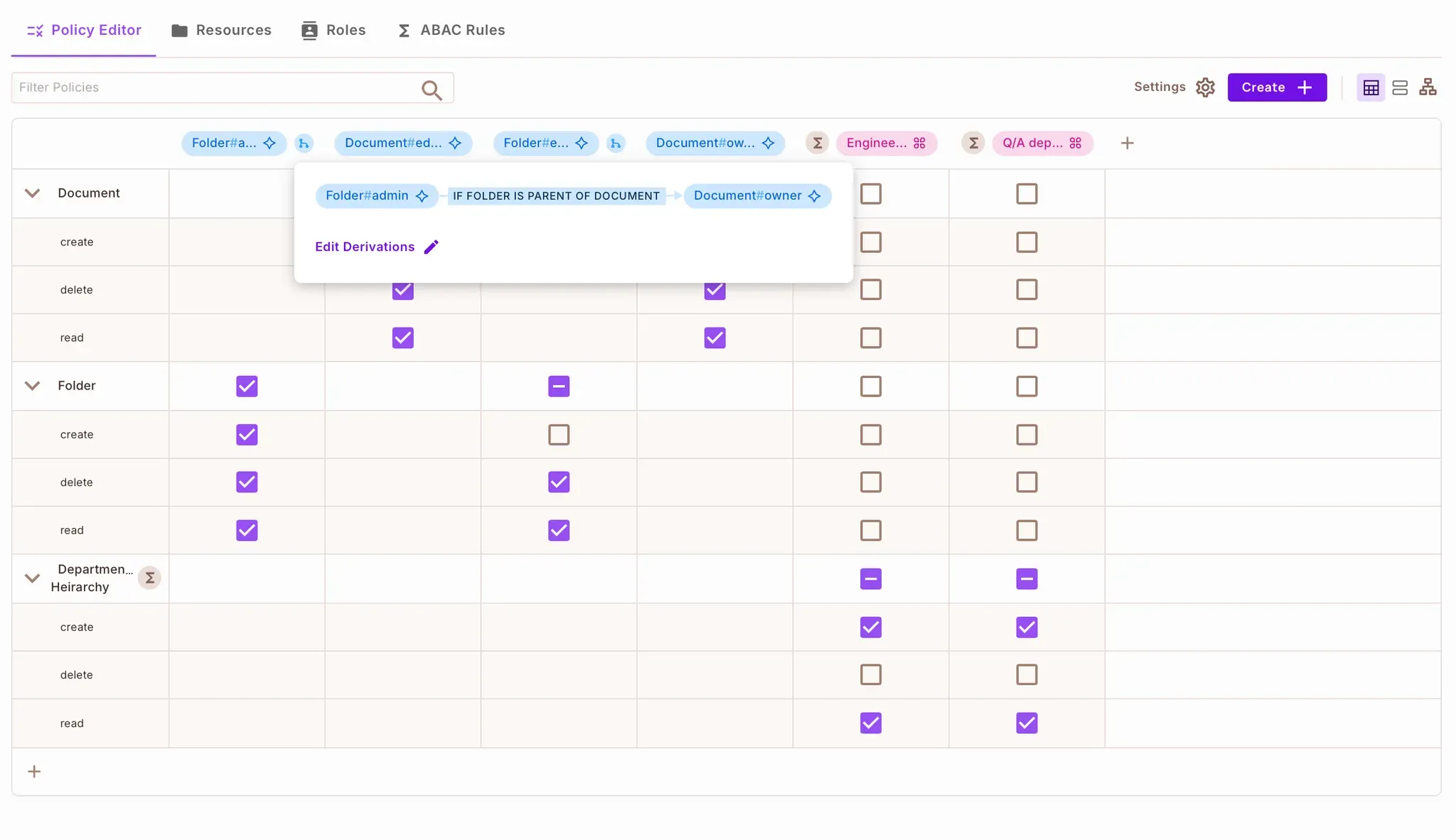
You can now see the role derivation configuration in the Permit.io → Policy Editor.
Creating Relationships Between Resources at Runtime
Once the ReBAC policy is set, you need to establish actual relationships between resource instances in your code. For example, when creating a new document, you should connect it to its parent folder.
Inside handlers/createdocument.js, locate where a document is created and add the following:
// After creating the document instance
if (folderId) {
  await permit.api.relationshipTuples.create({
    subject: `Folder:${folderId}`,
    relation: "parent",
    object: `Document:${documentId}`,
  });
}
This line creates a relationship tuple that ties the new document to the folder. From now on, any user with a role on that folder will automatically get derived access to the document (as defined in the policy).
Let’s wrap up the logic by showing how to enforce ReBAC permissions in your Lambda functions — specifically when a user tries to read a document.
Enforcing ReBAC in the Serverless App
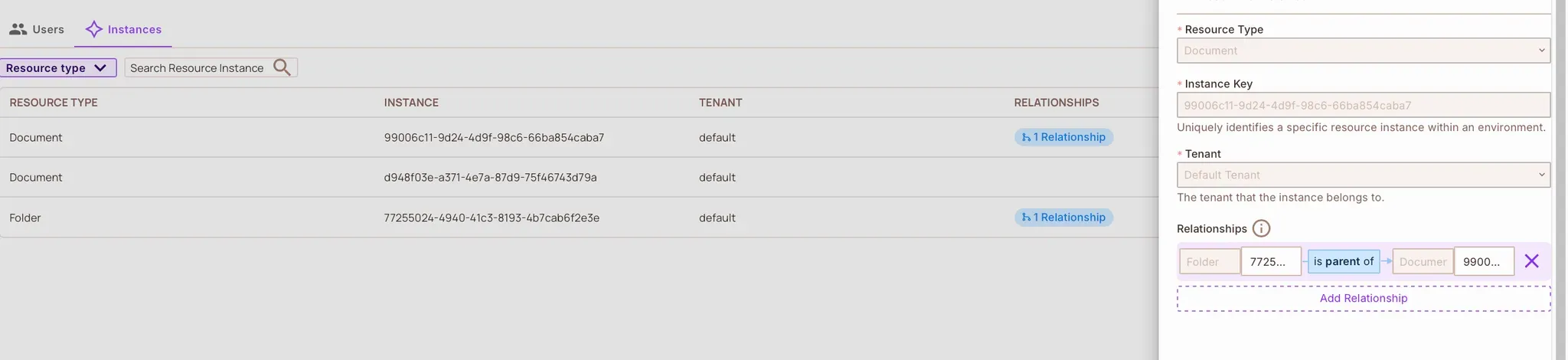
Once your ReBAC policy and role derivations are configured in Permit.io, the final step is to establish relationships between resource instances.
Folder ↔ Document Relationship
Your app stores folders and documents in DynamoDB using a PK-SK structure, with a FolderDocumentsTable and a DocumentIndex for quick lookups. When a new document is created inside a folder, you should:
- Store the document in DynamoDB
- Register the document as a Permit.io resource instance
- Link the document to its parent folder using a relationship tuple
Here’s how the logic looks inside handlers/createdocument.js:
const { v4: uuidv4 } = require("uuid");
const permit = require("../init_permit");

module.exports.createDocument = async (event) => {
  try {
    const userEmail = event.requestContext.authorizer.email;
    const department = event.requestContext.authorizer.department;
    const body = JSON.parse(event.body);

    const documentId = uuidv4();
    const folderId = body.folderId;

    const PK = folderId ? `FOLDER#${folderId}` : `DOCUMENT#${documentId}`;
    const SK = folderId ? `DOCUMENT#${documentId}` : "METADATA";

    const resourceAttributes = { department };

    // Create document instance in Permit
    const createdInstance = await permit.api.resourceInstances.create({
      key: documentId,
      tenant: "default",
      resource: "Document",
      attributes: resourceAttributes,
    });

    if (folderId) {
      await permit.api.relationshipTuples.create({
        subject: `Folder:${folderId}`,
        relation: "parent",
        object: `Document:${documentId}`,
      });
    }

    // Save document to DynamoDB (simplified)
    const document = {
      id: documentId,
      folderId,
      title: body.title,
      content: body.content,
      department,
    };

    return {
      statusCode: 201,
      body: JSON.stringify(document),
    };
  } catch (error) {
    console.error("Error creating document:", error);
    return {
      statusCode: 500,
      body: JSON.stringify({ message: "Error creating document" }),
    };
  }
};
Now, thanks to the parent relationship and role derivation, users with roles on a folder automatically inherit appropriate roles on its documents.
Enforcing Permissions When Reading Documents
Let’s enforce ReBAC when users try to read a document.
Middleware: checkDocumentpermission
Create a permission-checking middleware using permit.check():
const { getResourcePermissions } = require("../helper_functions/get_resource_permissions");

module.exports.checkDocumentpermission = (action) => {
  return (handler) => {
    return async (event, context, resource) => {
      const docKey = resource.SK?.startsWith("DOCUMENT#") ? resource.SK
                   : resource.PK?.startsWith("DOCUMENT#") ? resource.PK
                   : null;

      if (!docKey) {
        return {
          statusCode: 400,
          body: JSON.stringify({ message: "Invalid document structure" }),
        };
      }

      const [, id] = docKey.split("#");
      const resource_instance = `Document:${id}`;

      const permitted = await getResourcePermissions({
        user: event.requestContext.authorizer.email,
        resource_instance,
        permission: action,
      });

      if (!permitted) {
        return {
          statusCode: 403,
          body: JSON.stringify({ message: "Access denied" }),
        };
      }

      return handler(event, context, resource);
    };
  };
};
Handler: getDocument
Wrap your document retrieval logic with the middleware:
const { getdocument, checkDocumentpermission } = require("../auth/middleware");
const { PermissionType } = require("../helper_functions/get_resource_permissions");

const handler = async (event, context, document) => {
  return {
    statusCode: 200,
    body: JSON.stringify({ message: "Access Granted", document }),
  };
};

module.exports.getDocument = getdocument(
  checkDocumentpermission(PermissionType.READ)(handler)
);
The permit.check Call
Located inside get_resource_permissions.js:
const permit = require("../../init_permit");

async function getResourcePermissions({ user, resource_instance, permission }) {
  try {
    return await permit.check(user, permission, resource_instance);
  } catch (error) {
    console.error("Permit check failed:", error);
    return false;
  }
}
Testing the ABAC and ReBAC Policies
After deploying your serverless app:
serverless deploy
Register a User
Use curl or Postman to register and log in:
curl -X POST <your-url>.com/dev/auth/register \\
  -H "Content-Type: application/json" \\
  -d '{
    "email": "user@example.com",
    "password": "yourpassword",
    "department": "Engineering",
    "classification": "Admin"
  }'
curl -X POST <your-url>.com/dev/auth/login \\
  -H "Content-Type: application/json" \\
  -d '{ "email": "user@example.com", "password": "yourpassword" }'
JWTs are returned upon login and automatically attached to future requests by the frontend or API client.

What to Test
- ABAC: Try creating documents with users in different departments. Only users in the
Engineering or QA department (with Admin classification) should be able to create or read documents.
- ReBAC: Create a folder as a folder
admin, then create a document inside that folder. You should be able to read the document — even without a direct role on the document.
You’ll also see these users synced in Permit → Directory → Users.

Final Thoughts
In this guide, we explored how to implement fine-grained authorization in a real-world Node.js application using the Serverless Framework. We used both ABAC and ReBAC to handle dynamic, fine-grained access control.
Here’s what we accomplished:
- Deployed a Node.js application using the Serverless Framework and AWS Lambda
- Planned and implemented a full access control model using Permit.io
- Defined roles, attributes, and relationships for documents and folders
- Enforced permissions in Lambda handlers with
permit.check()
- Ran a local PDP for low-latency policy decisions
- Avoided duplicating authorization logic across endpoints
Where to Go Next?
Want to learn more about Authorization? Join our Slack community, where thousands of developers are building and implementing authorization.