
How to Implement Role-Based Access Control (RBAC) in Angular
Learn how to implement RBAC (role-based access control) authorization in an Angular application. The guide uses CASL with Angular to model and enforce permissions.

- Share:

Loading
2938 Members
 Join Permit's Slack
Securing large-scale Angular applications demands more than simple user authentication. As the application grows, the need for an efficient system to manage the increasing complexity of user permissions becomes apparent. With several different ways to model access control in web-based systems, this article will focus on implementing Role-based Access Control (RBAC) in Angular using Permit.io and CASL.
In the context of Angular applications, RBAC means controlling access to various parts of your application—from entire routes to specific UI elements—based on the user's assigned role. Implementing this kind of access control typically involves several key steps:
Throughout this article, we'll explore these concepts in depth, providing code examples and good practices for implementing RBAC in Angular. This guide should equip you with the knowledge to create a scalable authorization system in your Angular application.
This article will guide you through implementing RBAC in Angular with Permit.io - an authorization-as-a-service solution.
Permit.io is free to get started with and will provide us with an out-of-the-box API endpoint to perform authorization checks. While we'll be working with a relatively simple Todo application, the principles and practices we'll cover can be scaled to handle much more complex scenarios.
Before we dive into the implementation, let's set up our project with the necessary packages, initialize the Permit SDK, and set up a basic server implementation required by the permit-ui-sdk.
Important Note: Permit.io API secret tokens should not be exposed in the frontend application but solely placed in the server code. This is a common pattern called Backend For Frontend (BFF), where a thin layer of server-side application acts as a mediator between the frontend application and API services requiring API keys.
Remember that instructing the UI conditional rendering logic is not enough to secure the web application. The corresponding authorization checks are also necessary on all the backend operations even when not allowed in the frontend. This is because HTTP requests can be freely crafted by any HTTP client, bypassing our UI.
For the server-side (Backend for Frontend):
npm install permitio express cors dotenv
For the Angular application:
npm install permit-fe-sdk @casl/ability @casl/angular
In your server-side code (e.g., index.js or server.js), you'll need to initialize the Permit SDK and set up a basic Express server.
Here's a complete example:
require('dotenv').config();
const express = require("express");
const cors = require('cors');
const { Permit } = require("permitio");

const app = express();
app.use(express.json())
app.use(cors({ origin: '*'}));

const permit = new Permit({
    pdp: "<https://cloudpdp.api.permit.io>",
    token: process.env.PERMIT_API_KEY
});

app.post("/", async (req, res) => {
    const { resourcesAndActions } = req.body;
    const { user: userId } = req.query;

    if (!userId) {
        return res.status(400).json({ error: "No userId provided." });
    }

    const checkPermissions = async (checkParams) => {
        const { resource, action } = checkParams;
        return permit.check(userId, action, resource);
    };

    const permittedList = await Promise.all(
        resourcesAndActions.map(checkPermissions)
    );

    return res.status(200).json({ permittedList });
});

app.listen(4000, () => {
    console.log(`Example app listening at http://localhost:4000`);
});
Make sure to set up your environment variables (PERMIT_API_KEY) in a .env file or your deployment environment. The PERMIT_API_KEY is your API key for Permit.io, which you can find on the settings page after creating your Permit.io account.
This server setup does the following:
With these packages installed, the Permit SDK initialized, and the server set up, we're ready to continue with the next steps.
In the next step, let's set up our project in Permit.io:
Create a Permit.io account and set up a new project in the dashboard.
Configure the resources in Permit:
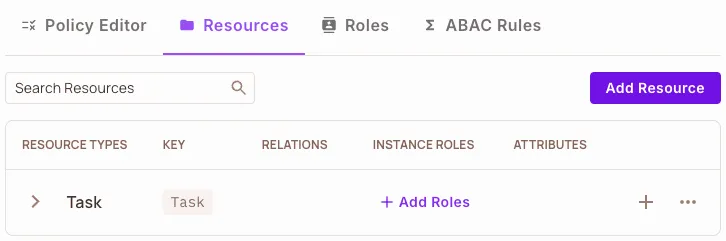
Configure the roles in Permit:
viewer, editor, moderator, and admin roles.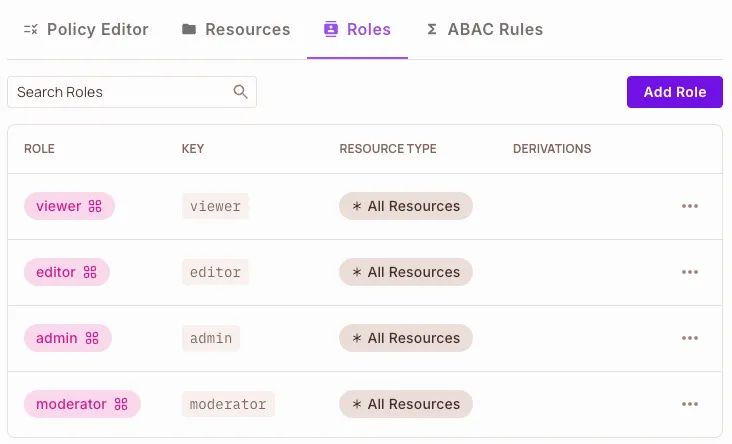
Set up resources and permissions in the Policy Editor:
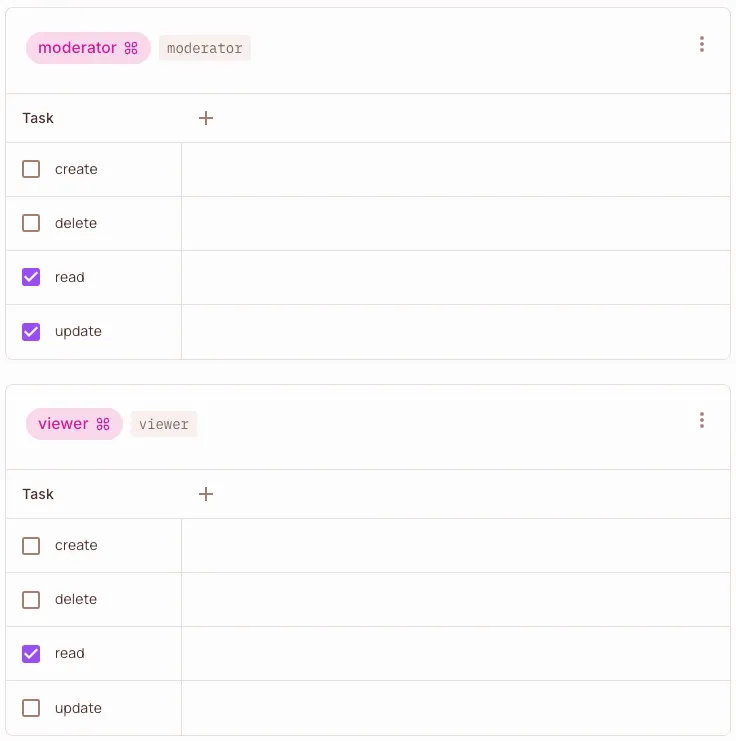
Task resource and different roles. Now we assign different permissions (create, read, update, delete) for the corresponding roles. Notice how the admin role has all permissions, while the editor role can't delete tasks. The rest of the roles (viewer and moderator) are configured accordingly, as the image below presents.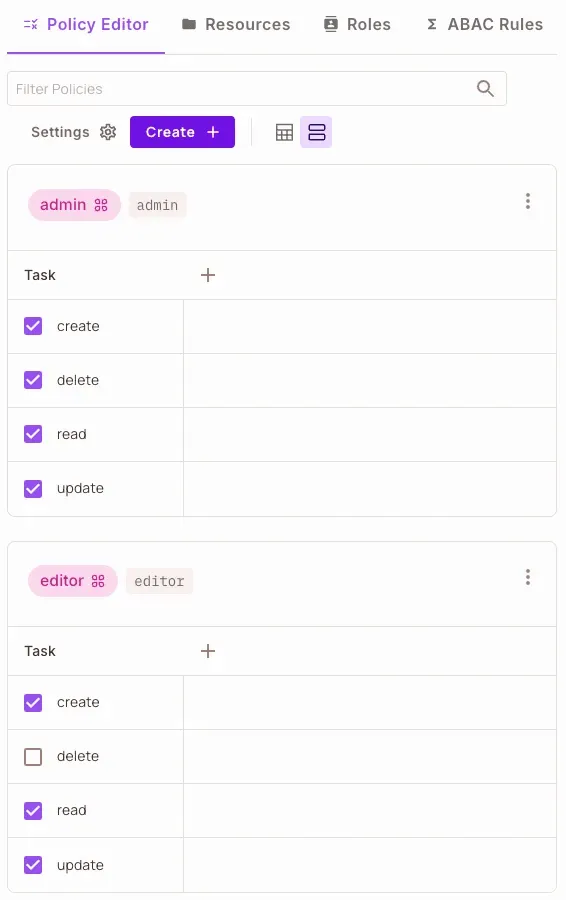
Navigate to the Users section in the Permit.io dashboard:
admin, moderator, editor, and viewer. These roles will correspond to the different permission levels in our Angular application.
With the policy rules, role assignments, and authorization endpoint configured, we can now implement conditional UI rendering, also known as feature toggling. This involves presenting different application features based on user roles.
For our implementation, we'll use CASL, a library that can help with client-side permission enforcement. It's important to note that while we're using client-side checks for UI rendering, backend authorization checks remain crucial for security.
While using Permit.io for centralized definition and management of permissions, CASL is employed for efficient enforcement of these permissions in our Angular application without frequent server requests. Let's now examine how to implement this approach.
After understanding CASL's role in our RBAC implementation, we need to configure it in our Angular application. This configuration can be done in the app.config.ts file. Here's how we set it up:
import { ApplicationConfig, provideZoneChangeDetection } from '@angular/core';
import { provideRouter } from '@angular/router';

import { routes } from './app.routes';
import { provideAnimationsAsync } from '@angular/platform-browser/animations/async';

import { Ability, PureAbility } from '@casl/ability';

export const appConfig: ApplicationConfig = {
  providers: [
    provideZoneChangeDetection({ eventCoalescing: true }),
    provideRouter(routes),
    provideAnimationsAsync(),
    { provide: Ability, useValue: new Ability() },
    { provide: PureAbility, useExisting: Ability }
  ]
};
Let's break down what this configuration does:
ApplicationConfig object that includes various providers.Ability class. This is where our application's permissions will be stored and checked.PureAbility and sets it to use the same instance as Ability. This is for compatibility with different CASL versions and usage patterns.This configuration ensures that CASL's Ability instance is available throughout our Angular application, allowing us to perform permission checks wherever needed.
By setting up CASL in this way, we're preparing our application to work seamlessly with the permission rules we'll fetch from Permit.io. This configuration is a crucial step in integrating CASL with our Angular application and forms the foundation for implementing RBAC using the rules we'll obtain from Permit.io.
The auth.service.ts file handles user authentication and permission loading:
import { Permit } from 'permit-fe-sdk';

export type UserRole = "admin" | "moderator" | "editor" | "viewer";

export const users: Record<UserRole, { email: string }> = {
  "admin": { email: "admin@angular-rbac.app" },
  "moderator": { email: "moderator@angular-rbac.app" },
  "editor": { email: "editor@angular-rbac.app" },
  "viewer": { email: "viewer@angular-rbac.app" },
};

export const loadUserAbilities = async (loggedInUser: string) => {
  const permit = Permit({
    loggedInUser: loggedInUser,
    backendUrl: "<http://localhost:4000/>",
  });

  permit.reset();

  await permit.loadLocalStateBulk([
    { action: "create", resource: "Task" },
    { action: "read", resource: "Task" },
    { action: "update", resource: "Task" },
    { action: "delete", resource: "Task" },
  ]);

  return permit.getCaslJson();
}
This service uses Permit's frontend SDK to load user permissions and convert them to CASL-compatible JSON.
In the app.component.ts, we can see how RBAC is applied in the component using CASL's Ability class. The Ability class is a core concept in CASL that represents the permissions a user has. It provides methods to check if a user can perform certain actions on specific resources. In our Angular application, we inject this Ability instance into our components to perform permission checks.
Here's how RBAC is implemented in the AppComponent:
export class AppComponent implements OnInit {
  newTaskName = '';
  tasks$: Observable<Task[]>;
  selectedUser: UserRole = "editor";
  loading = false;

  constructor(private taskService: TaskService, private abilityService: Ability) {
    this.tasks$ = this.taskService.getTasks();
  }

  ngOnInit(): void {
    this.loadAbilities();
  }

  userChanged() {
    this.loadAbilities();
  }

  async loadAbilities() {
    this.loading = true;
    const loggedInUser = users[this.selectedUser].email;

    try {
      const ability = await loadUserAbilities(loggedInUser);
      this.abilityService.update(ability);
      this.loading = false;
    } catch (error) {
      alert(error);
    }
  }

  addTask(): void {
    if (this.newTaskName.trim()) {
      this.taskService.addTask(this.newTaskName);
      this.newTaskName = '';
    }
  }

  toggleTask(id: number): void {
    this.taskService.toggleTask(id);
  }

  removeTask(id: number): void {
    this.taskService.removeTask(id);
  }
}
In this component, we inject the Ability service (aliased as abilityService) in the constructor. The loadAbilities method fetches the user's permissions from Permit.io and updates the Ability instance with these permissions using this.abilityService.update(ability). This update method is provided by CASL and allows us to change the permissions dynamically at runtime.
By updating the Ability instance whenever the user changes, we ensure that all permission checks throughout the application are always based on the current user's role and permissions. This approach allows for a flexible and dynamic RBAC system that can adapt to changing user roles or permissions without requiring a page reload.
The app.component.html file demonstrates how CASL is integrated into the template:
<table>
  <tr>
    <td>ROLE</td>
    <td>{{ selectedUser }}</td>
  </tr>
  <tr>
    <td>Create</td>
    <td>{{ 'create' | able: 'Task' }}</td>
  </tr>
  <tr>
    <td>Read</td>
    <td>{{ 'read' | able: 'Task' }}</td>
  </tr>
  <tr>
    <td>Update</td>
    <td>{{ 'update' | able: 'Task' }}</td>
  </tr>
  <tr>
    <td>Delete</td>
    <td>{{ 'delete' | able: 'Task' }}</td>
  </tr>
</table>

<div class="container">
  <mat-form-field>
    <mat-label>Select user</mat-label>
    <mat-select [(ngModel)]="selectedUser" (selectionChange)="userChanged()">
      <mat-option value="admin">Admin</mat-option>
      <mat-option value="moderator">Moderator</mat-option>
      <mat-option value="editor">Editor</mat-option>
      <mat-option value="viewer">Viewer</mat-option>
    </mat-select>
  </mat-form-field>

  <h1>Todo App</h1>

  <div *ngIf="loading">
    <mat-spinner></mat-spinner>
  </div>

  <div *ngIf="!loading && ('read' | able: 'Task')">
    <mat-form-field>
      <input matInput placeholder="New Task" [(ngModel)]="newTaskName">
    </mat-form-field>

    <button mat-raised-button color="primary" (click)="addTask()" *ngIf="'create' | able: 'Task'">Add Task</button>

    <mat-list class="task-list">
      <mat-list-item *ngFor="let task of tasks$ | async" class="task-item">
        <mat-checkbox [checked]="task.finished" (change)="toggleTask(task.id)" *ngIf="'update' | able: 'Task'">
          <span [class.finished]="task.finished">{{ task.name }}</span>
        </mat-checkbox>
        <button mat-icon-button color="warn" (click)="removeTask(task.id)" *ngIf="'delete' | able: 'Task'">
          <mat-icon>delete</mat-icon>
        </button>
      </mat-list-item>
    </mat-list>
  </div>
</div>
This template uses CASL's able pipe to conditionally render elements based on the user's permissions, which are managed by Permit.io.
Here's how our demo application looks with the RBAC implementation:
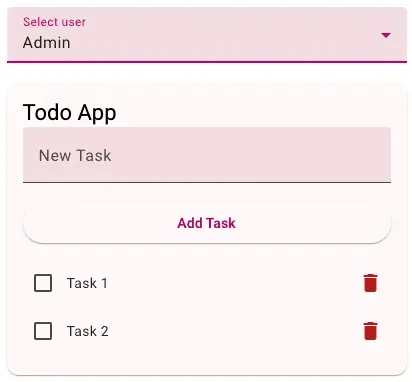
This image shows the Todo App interface when logged in as an Admin user. Notice how all actions (create, read, update, delete) are available to the admin role.
In a production environment, instead of user impersonation with a select input, we can utilize JSON Web Tokens (JWTs) received from an authentication provider. The key difference is how we obtain the username or user identifier:
Instead of:
const loggedInUser = users[this.selectedUser].email;
We would decode the JWT to get the username:
import jwt_decode from 'jwt-decode';

// Assume jwt is available in the component
const decodedToken: any = jwt_decode(jwt);
const username = decodedToken.username;

const ability = await loadUserAbilities(username);
this.abilityService.update(ability);
The rest of the RBAC implementation remains the same, with the username from the JWT being used to fetch the appropriate permissions from the authorization service.
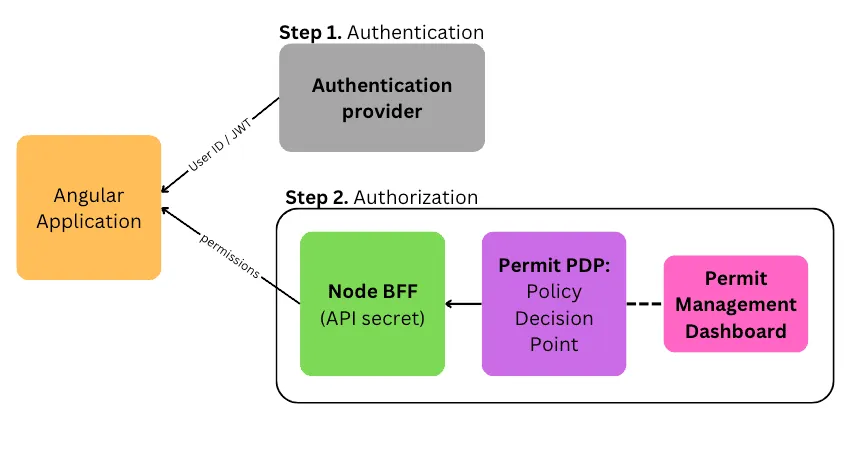
For simple applications with a limited number of roles and resources, implementing authorization internally might seem sufficient. However, as applications grow in complexity, managing authorization can become a significant challenge, often resulting in serious security vulnerabilities. Consider a system like Google Drive, where there are numerous roles (owner, editor, viewer, etc.), resources (files, folders, shared drives), and intricate relationships between them.
Here are some compelling reasons to consider using an external authorization service:
The way we designed the application using Permit's authorization endpoint allows us to achieve all these benefits upfront, enabling us to:
This approach not only simplifies our initial implementation but also provides a solid foundation for scaling our application's authorization needs as it grows.
It is worth mentioning that Permit.io is built on top of OPAL (Open Policy Administration Layer), an open-source project for real-time policy and data management. For those preferring a fully open-source solution, it's possible to use OPAL directly. This would involve setting up your own OPAL server, implementing a policy decision point (possibly using a tool like OPA - Open Policy Agent), and creating a custom API endpoint to perform authorization checks.
Implementing RBAC in Angular using Permit.io and CASL provides a powerful and flexible way to manage authorization in your applications.
By leveraging Permit's Cloud PDP and frontend SDK, you can externalize your authorization logic, making it easier to manage and scale your application's security.
The combination of Permit.io for backend authorization checks and CASL for frontend permission management allows for an efficient and maintainable RBAC system.
The use of CASL's able pipe in templates provides a declarative way to control UI elements based on user permissions, while Permit.io ensures that these permissions are consistently applied across both frontend and backend.
This approach provides a solid foundation for evolving your authorization strategy as your application grows and security requirements change.

Creator of Web Security Dev Academy. Seasoned software engineer with CS degree and +10 years of full-stack experience. Scuba diver and bike lover.