
How to Implement RBAC (Role-Based Access Control) in Astro Framework
Discover how to boost your Astro website security with Role-Based Access Control (RBAC), manage user access, and enhance your app's security in just a few steps

- Share:

Loading
2938 Members
 Join Permit's Slack
Astro is a modern, open-source web framework designed for building high-performance, content-driven websites. It allows the creation of fast and efficient websites like blogs, marketing pages, and e-commerce sites. As your web application grows, managing user access becomes an inseparable part of its functionality—you need to be able to decide who can do what in your web application once they log in.
A simple way to do that is to implement a Role-Based Access Control (RBAC) authorization layer into your Astro web application. This allows you to assign users roles, with each role having access to only specific segments and actions in the web app.
As Astro doesn’t provide us with built-in RBAC capabilities, we will implement them using Permit.io, - an authorization tool that allows you to easily configure permissions and roles for your Astro app through a simple, intuitive interface.
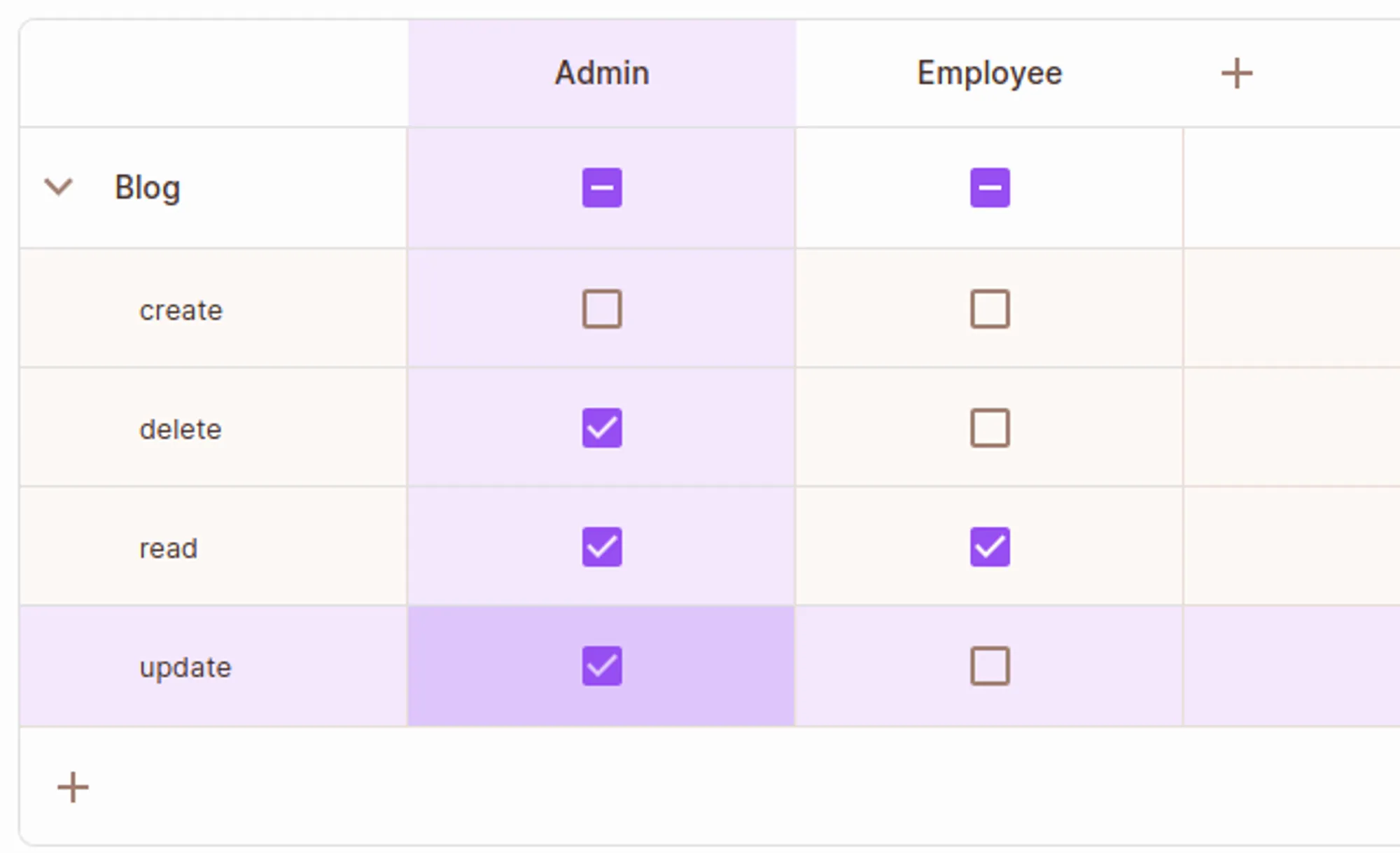
In this guide, we'll create a demo blog application with Server-Side Rendering (SSR) and Static Site Generation (SSG) capabilities, incorporating varying degrees of access control using RBAC. We’ll have an “Admin” role who can Read, Update and Delete blogs and an Employee role who can only read them.
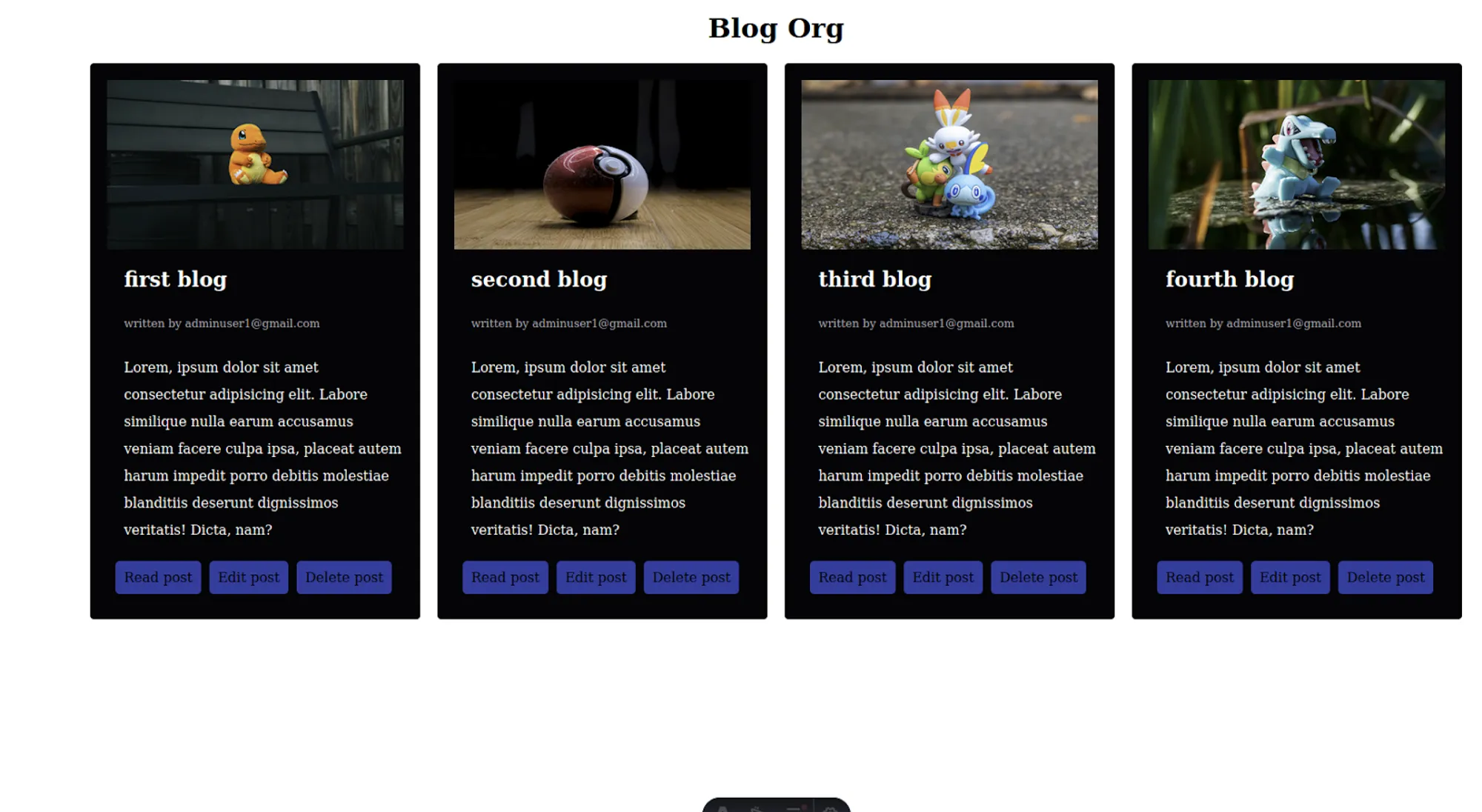
Note that this guide requires you to be at least somewhat familiar with Astro and JavaScript.
After a user logs in to our Astro app using our authentication solution of choice, meaning we have successfully confirmed their identity, we now need to make the decision of what they can do inside our app. Not every user should have access to any of the app's functions.
Creating and managing authorization logic from scratch can be time-consuming. Permit.io simplifies this process by providing an authorization layer with an intuitive interface, separating authorization policies from application code. This ensures consistent access controls, eases management and reduces the burden on your codebase.
Now that we understand the why let’s get to how to implement authorization into your Astro app:
To get started, let's create a new Astro project. To save you time, we’ve got a basic Astro starting app that you can use to follow along.
git clone git@github.com:permitio/Astro-Framework-RBAC-Example.git
This will create a new Astro project with the default settings.
cd Astro-Framework-RBAC-Example
npm install
.env file in the root directory to store the secret keys for our projects. It should look something like this:PERMIT_TOKEN="your permit token”
With that, we’ve set up our astro code.
Now that we’ve set up Astro let’s use Permit.io to create a basic RBAC policy for our project.
To get started, you'll first need to create an account. Sign up on Permit.io and create a new workspace for your team or organization. This will allow you to invite team members and take advantage of all the collaboration features Permit.io has to offer.
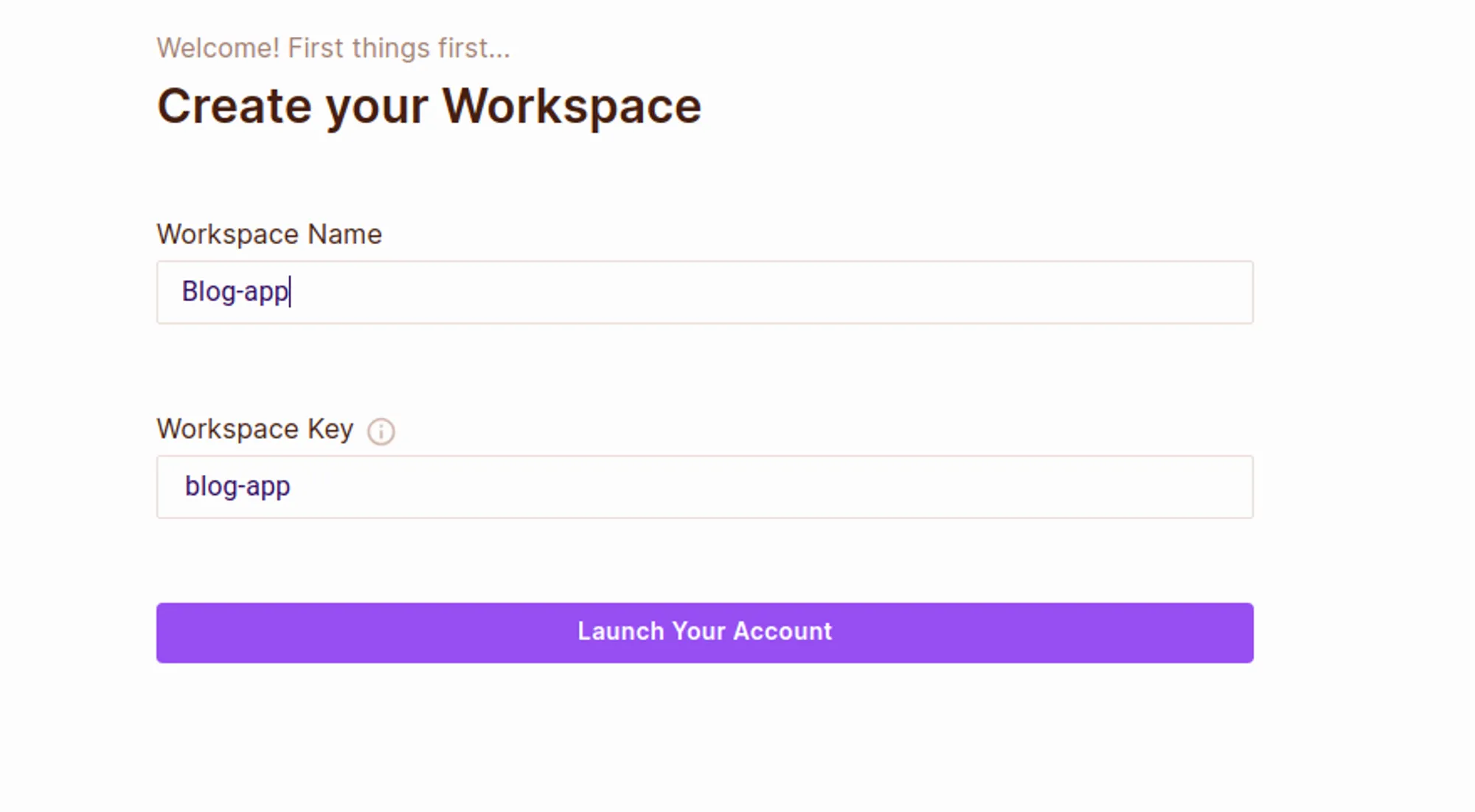
After logging in, we’ll create a new workspace for this project. For this tutorial, we are keeping the workspace name as blog-app:
To begin, we will create roles. Roles facilitate the grouping of permissions, which can then be assigned to users or other entities.
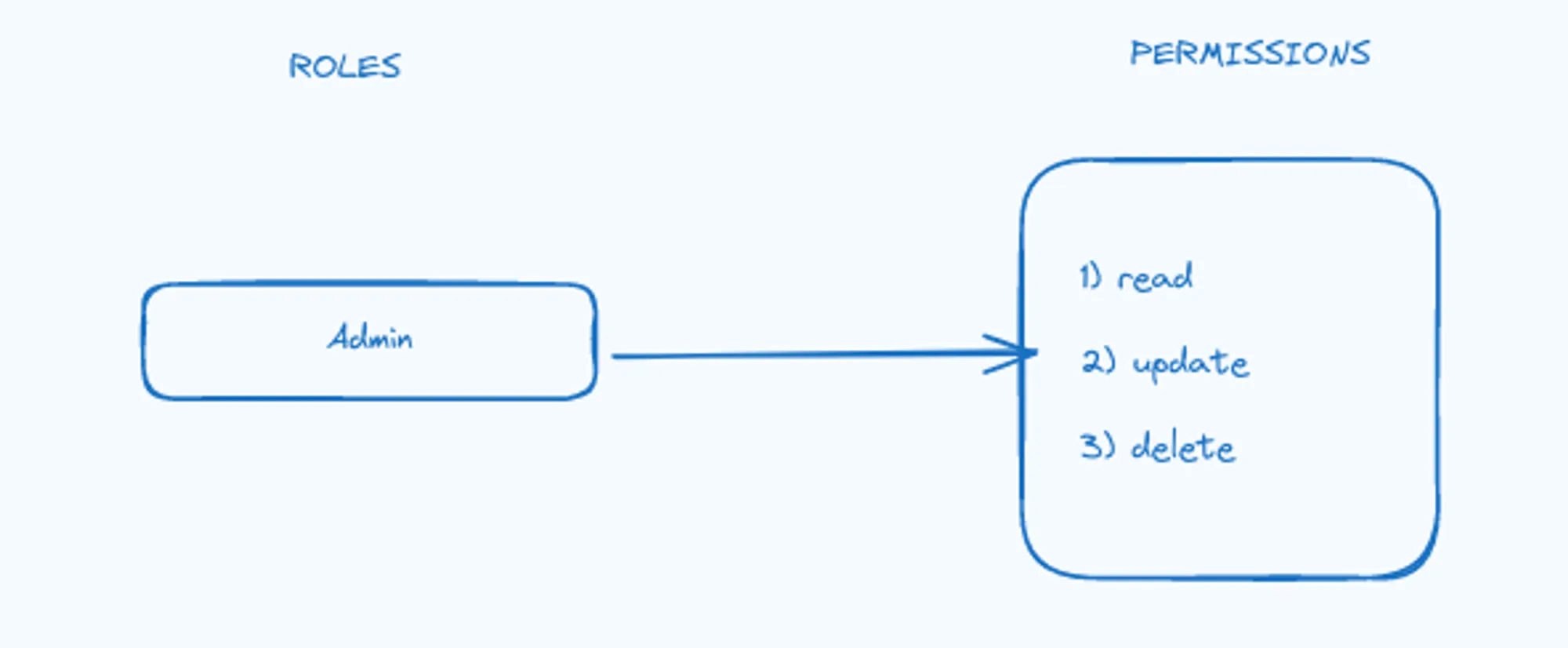
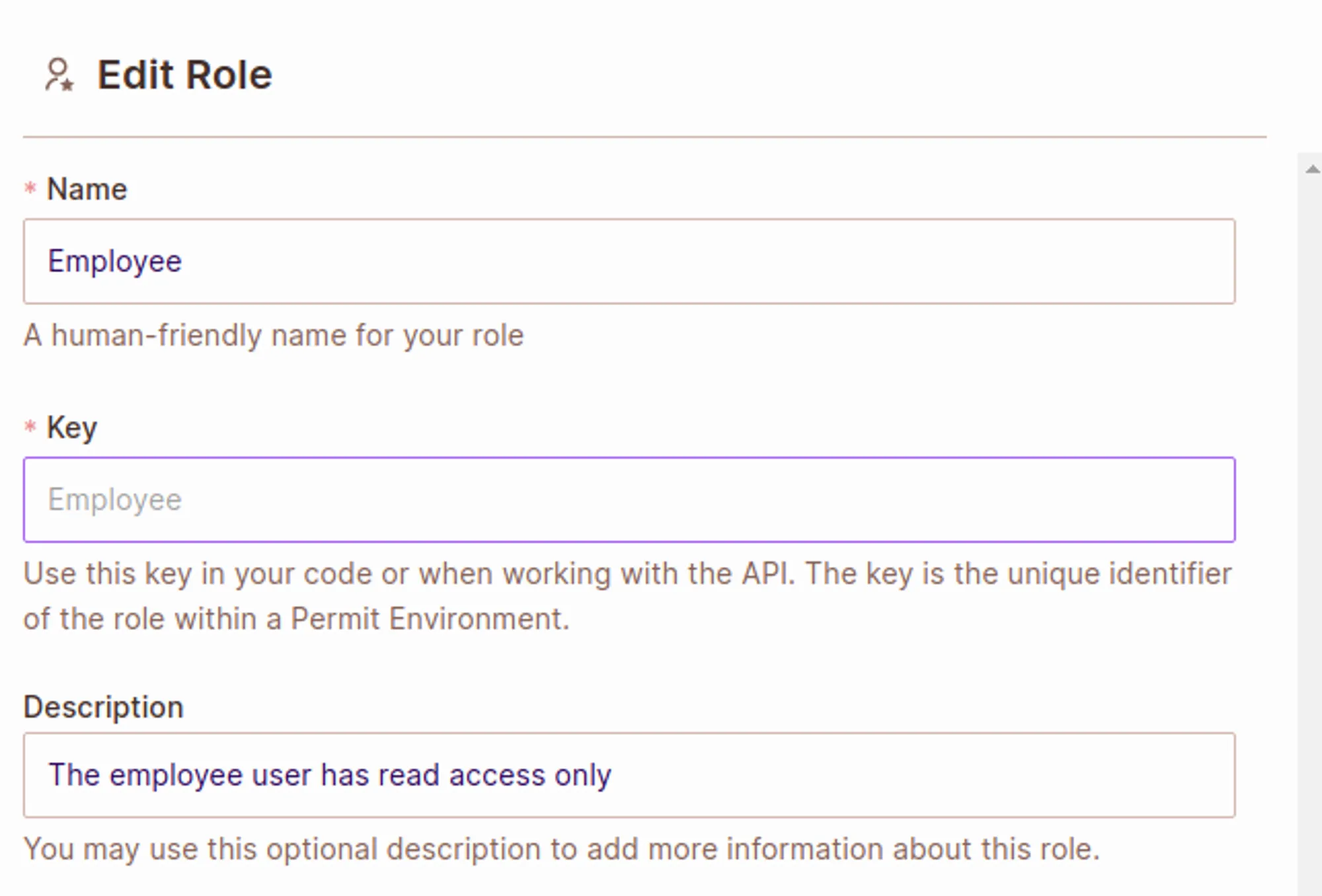
Next, let’s create an Admin role:

Similarly, let’s create the Employee role:
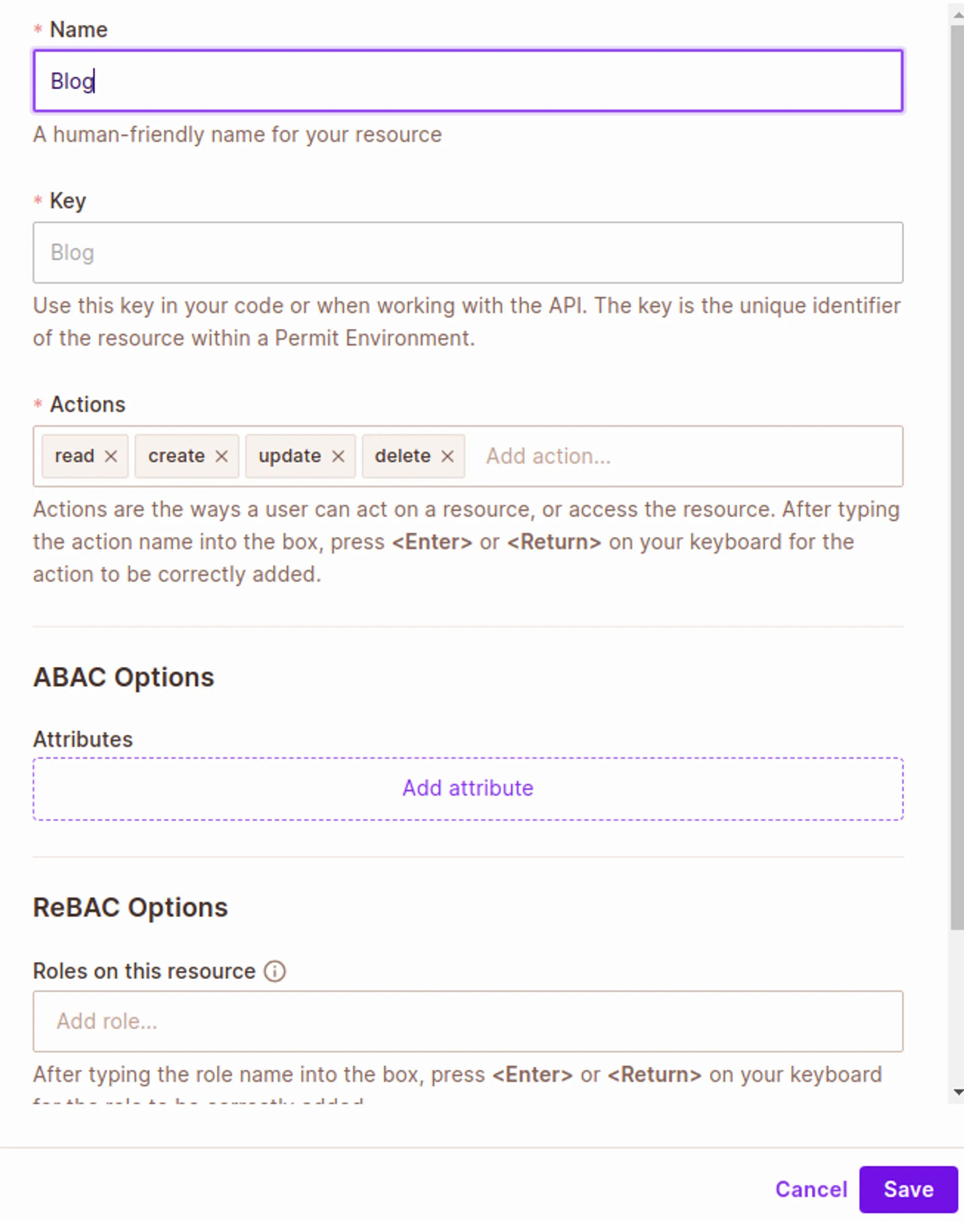
Now that our roles are created let’s create a resource. A resource is the thing our Roles will be able to perform actions on.
Next, let’s create our policy:
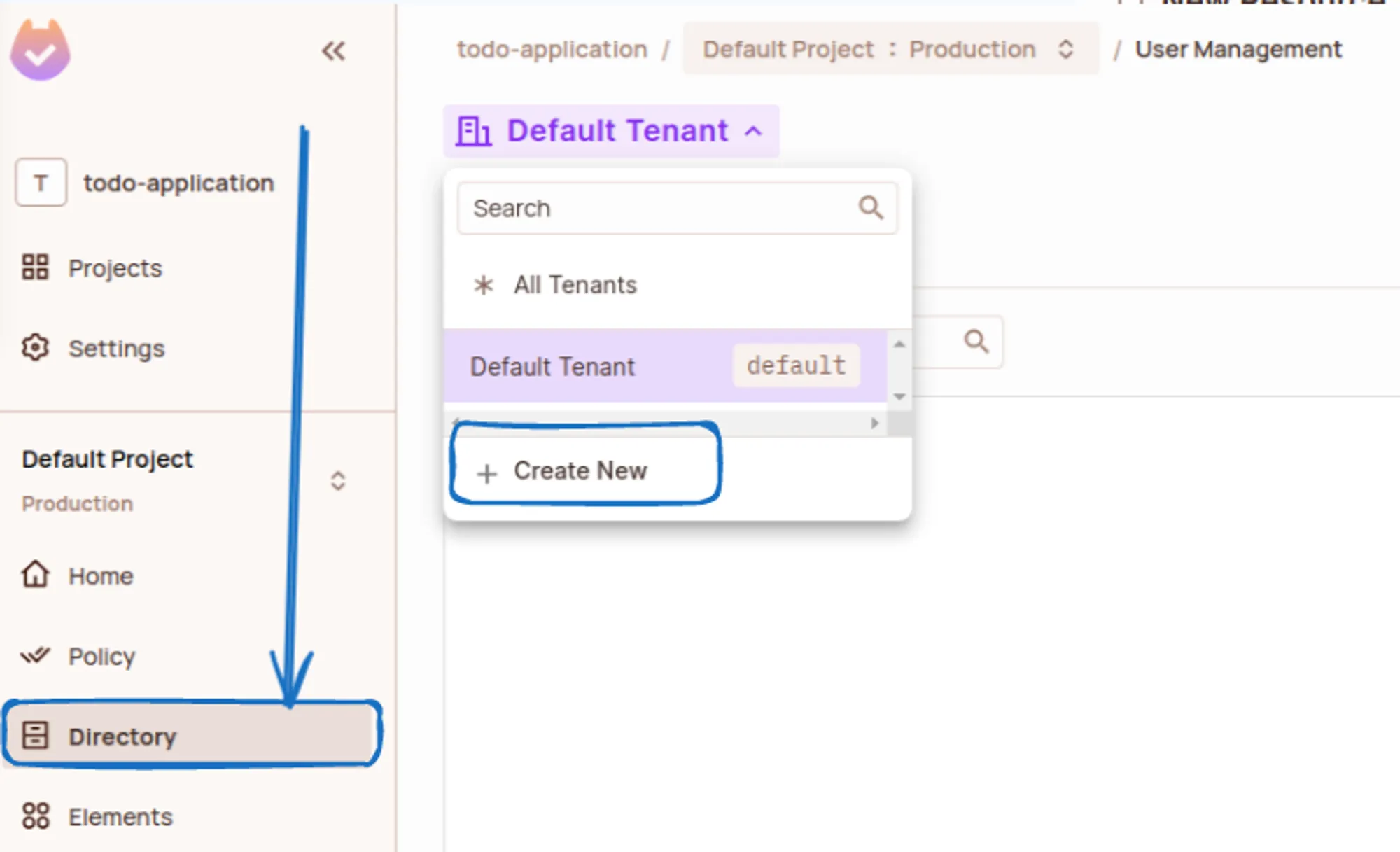
Finally, go to the Directory section and create a new tenant:
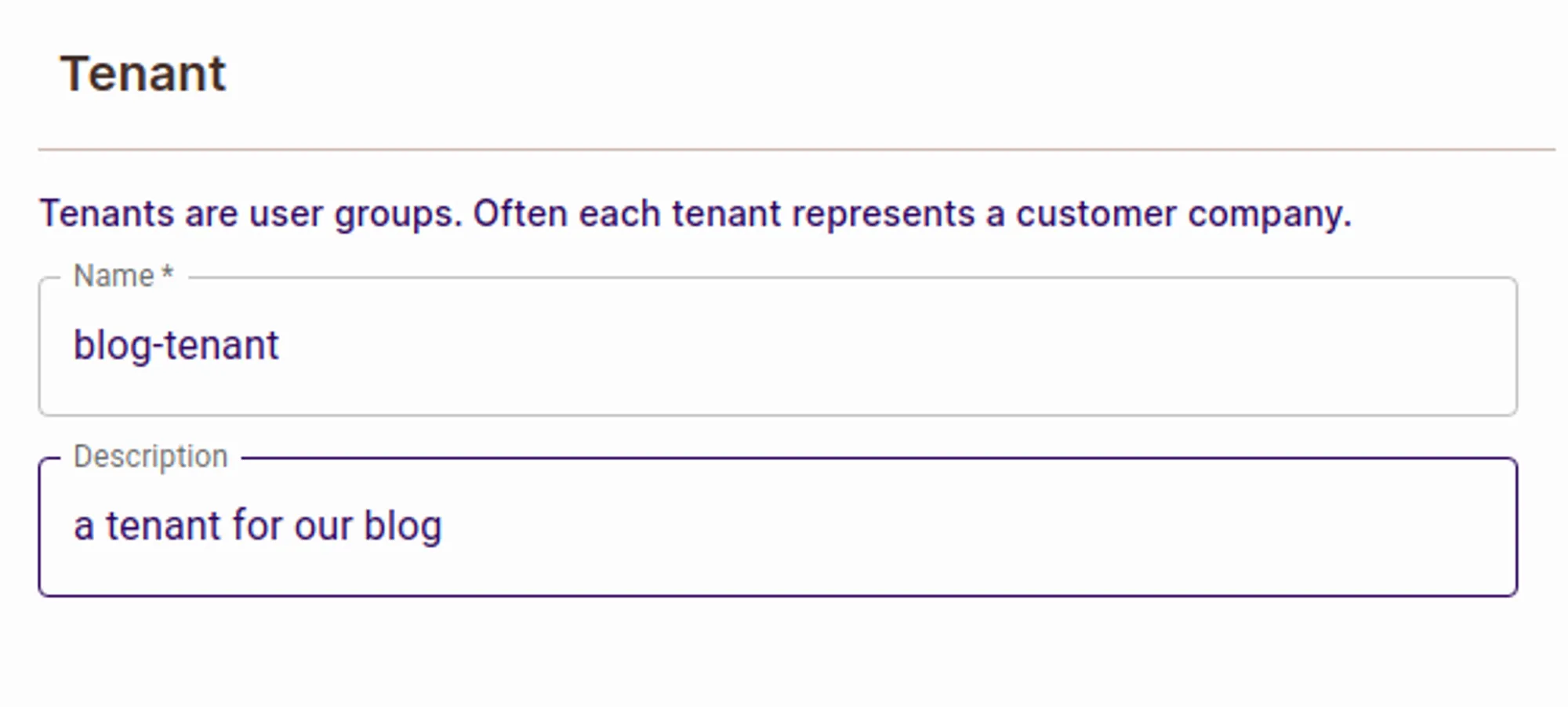
To create a new tenant, we need to fill in the name and description of the tenant as shown below :
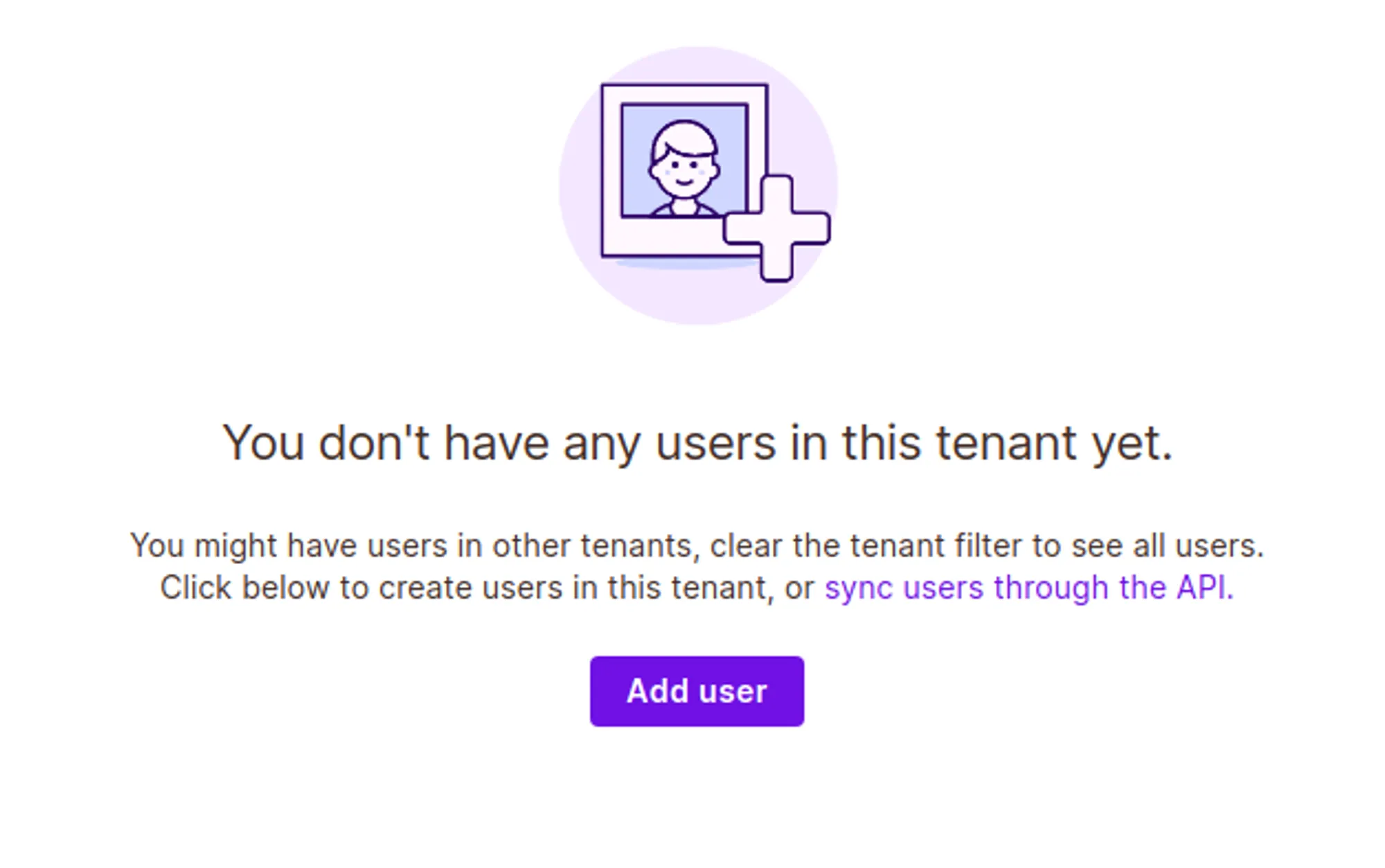
Now let’s create a user :
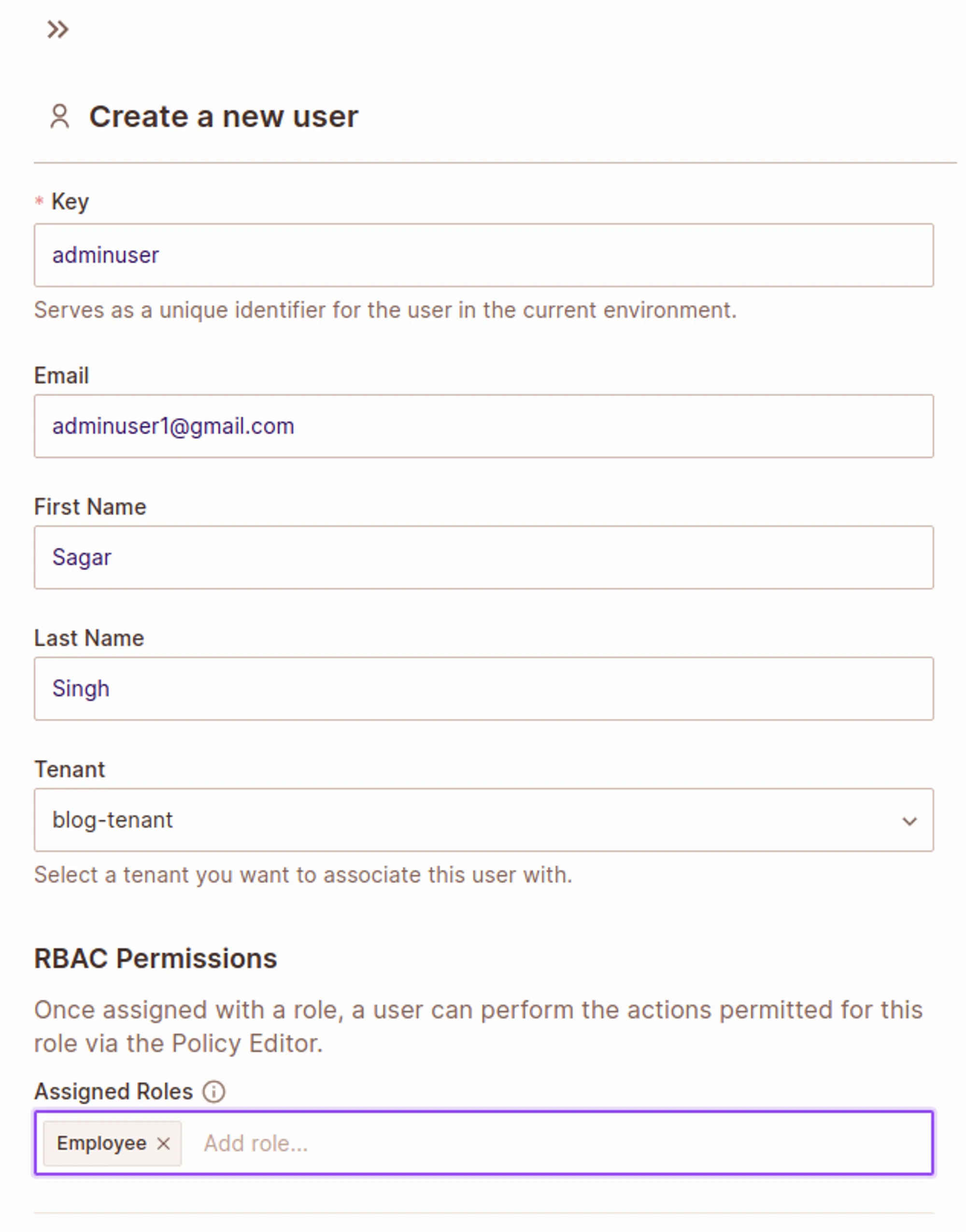
Click on Save
Look in the permit directory, you should be able to find your user there.

That's all it took for us to create a Role-Based Access Control (RBAC) model that we can use in our applications. Permit.io provides us with a clean and easy-to-use user interface, which enhances the overall Software Development Life Cycle by allowing us to integrate authorization into our code smoothly.
To demonstrate the role-based access control features, Let’s add user details to our application :
Note: We're using a dummy user for this example. In a real application, you'd implement authentication and sync users with Permit.io using the syncUser API.
Before we can see our app in action, we need to set up our environment variables.
For Permit.io configuration, ensure you are in the Default Project section and in the production environment.
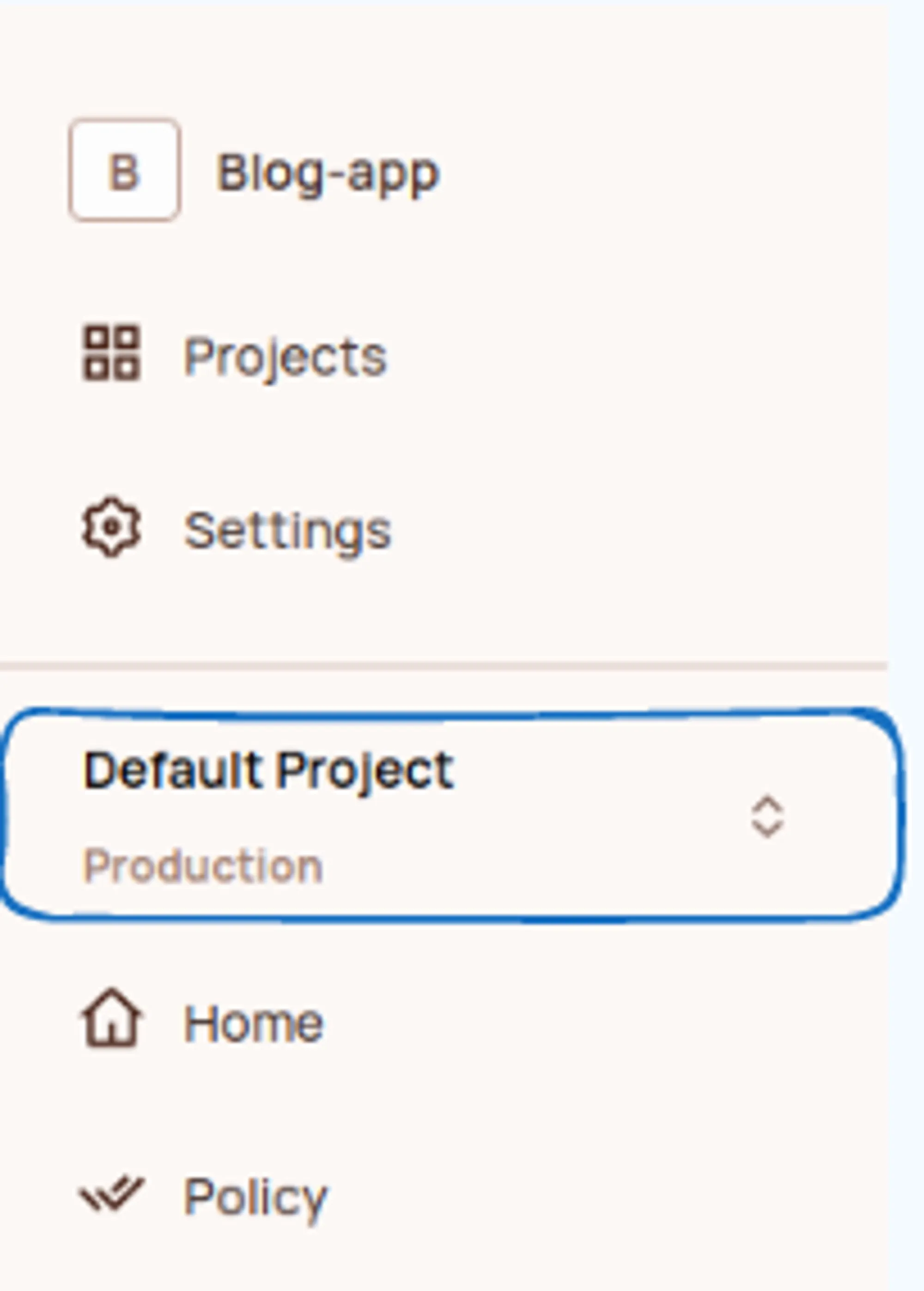
.env file:PERMIT_TOKEN=”your permit token”
With our environment variables configured, we can now see how our application looks. In the root directory, open your terminal and execute:
npm run dev
This will spin up our Astro website on http://localhost:4321
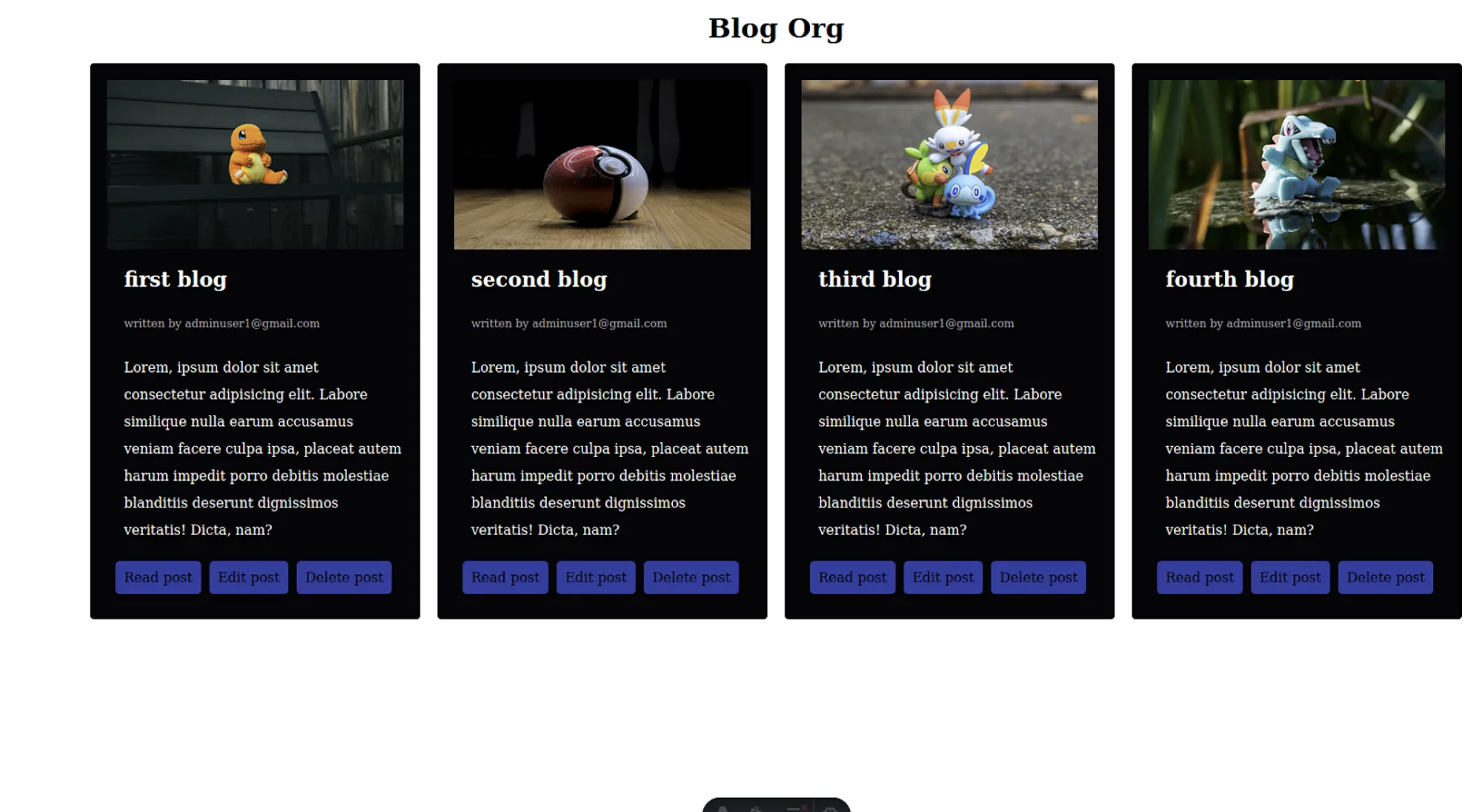
In this demonstration, we will be showing how our employees can only read blogs but cannot edit or delete them :
Sorry, your browser doesn't support embedded videos.
Next, we will demonstrate how to change the user's role from Employee to Admin using Permit.io. This process involves navigating to the Permit.io dashboard and updating the user's role assignment.
Watch the video below to see how the role change is performed:
Sorry, your browser doesn't support embedded videos.
After updating the role to Admin, the user now has full permissions within the application. As an Admin, the user can:
The following video demonstrates the enhanced capabilities of the Admin role:
Sorry, your browser doesn't support embedded videos.
As you already know by now authorization is preventing users from doing what they are not allowed to do, like deleting data or creating unwanted data in our application.
Let’s look at how we’ve implemented authorization in our Astro Blog application and go through the code :
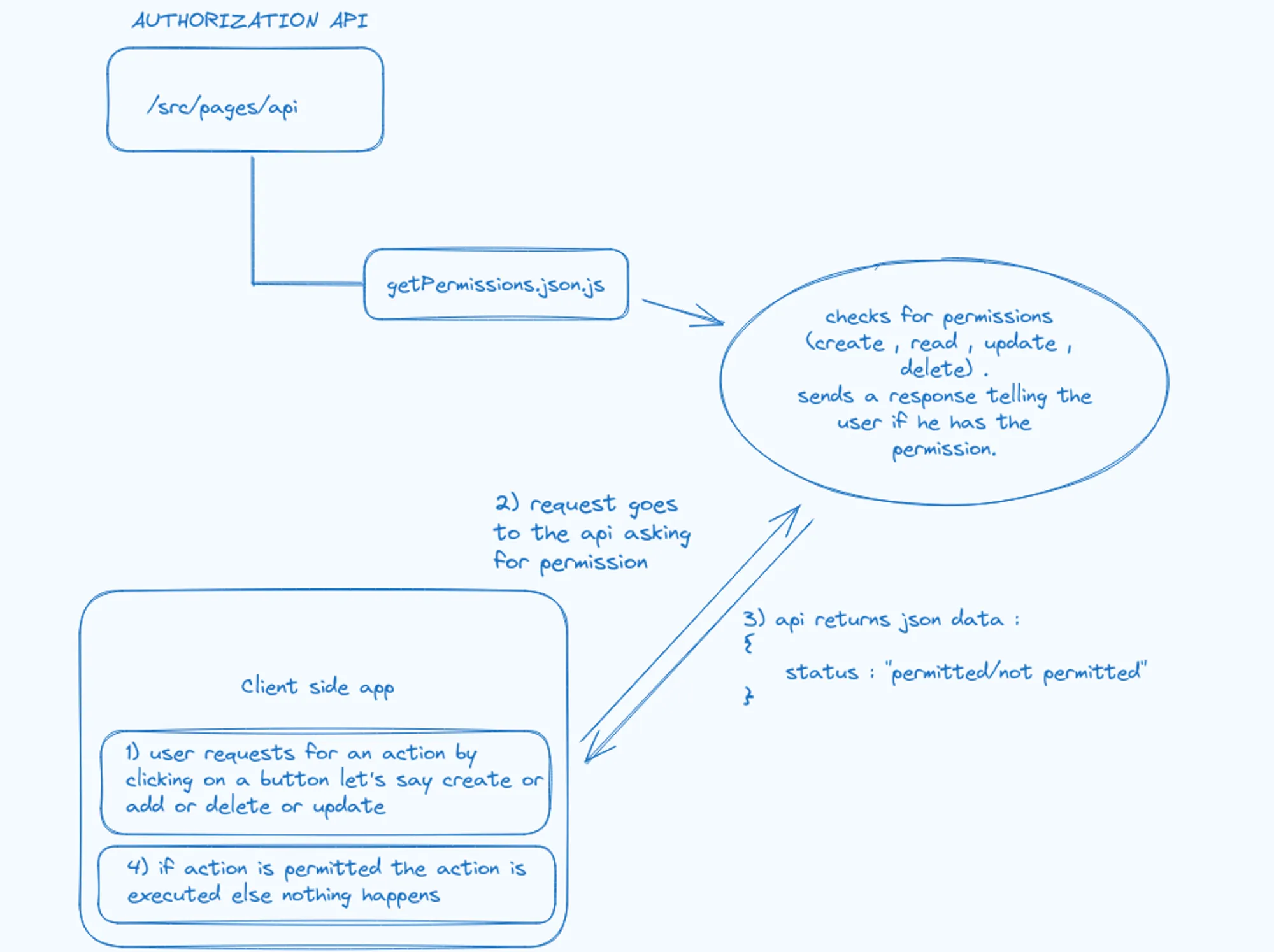
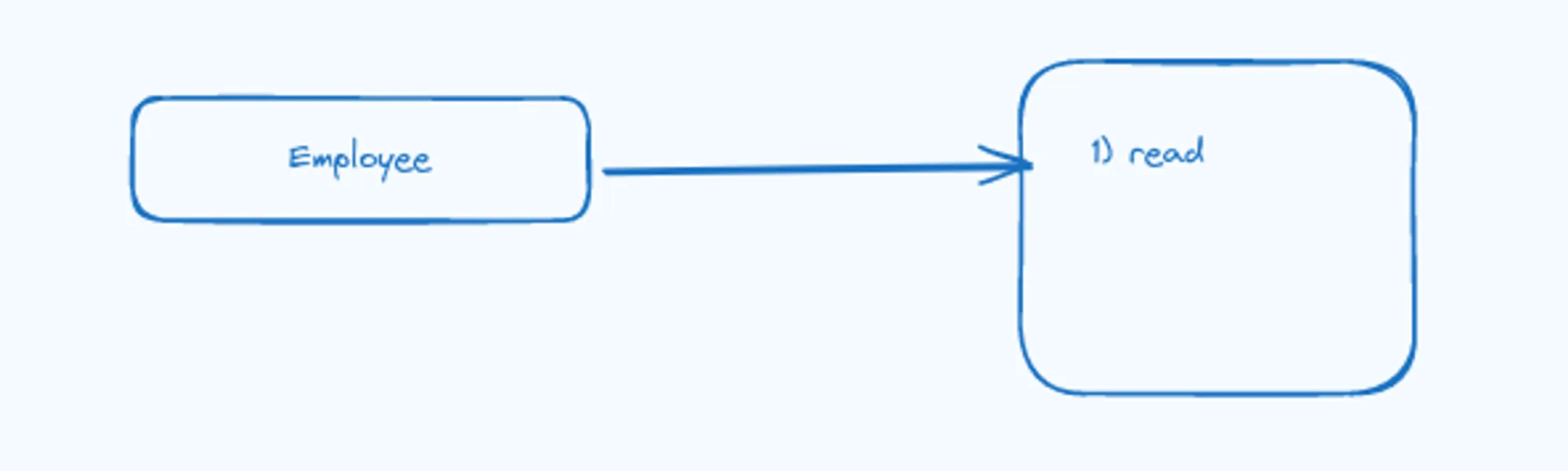
The diagram above shows the overall flow of authorization in our application, let’s take a closer look
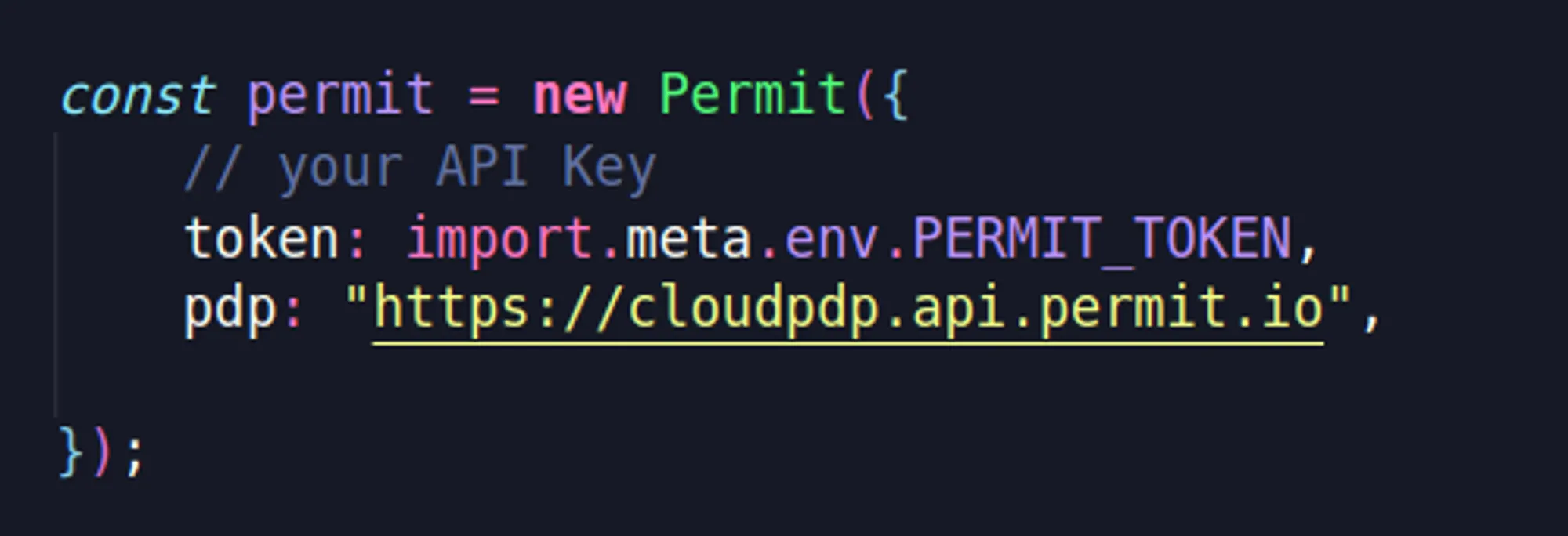
First, we’ll instantiate the class Permit as shown below :
Then we’ll receive id and operation parameters through query params which will help us get permissions data from permit.io:

After getting the data, we are going to use the permit.check() API to check for permissions. This takes the following parameters:
The permit.check() function returns a boolean value.
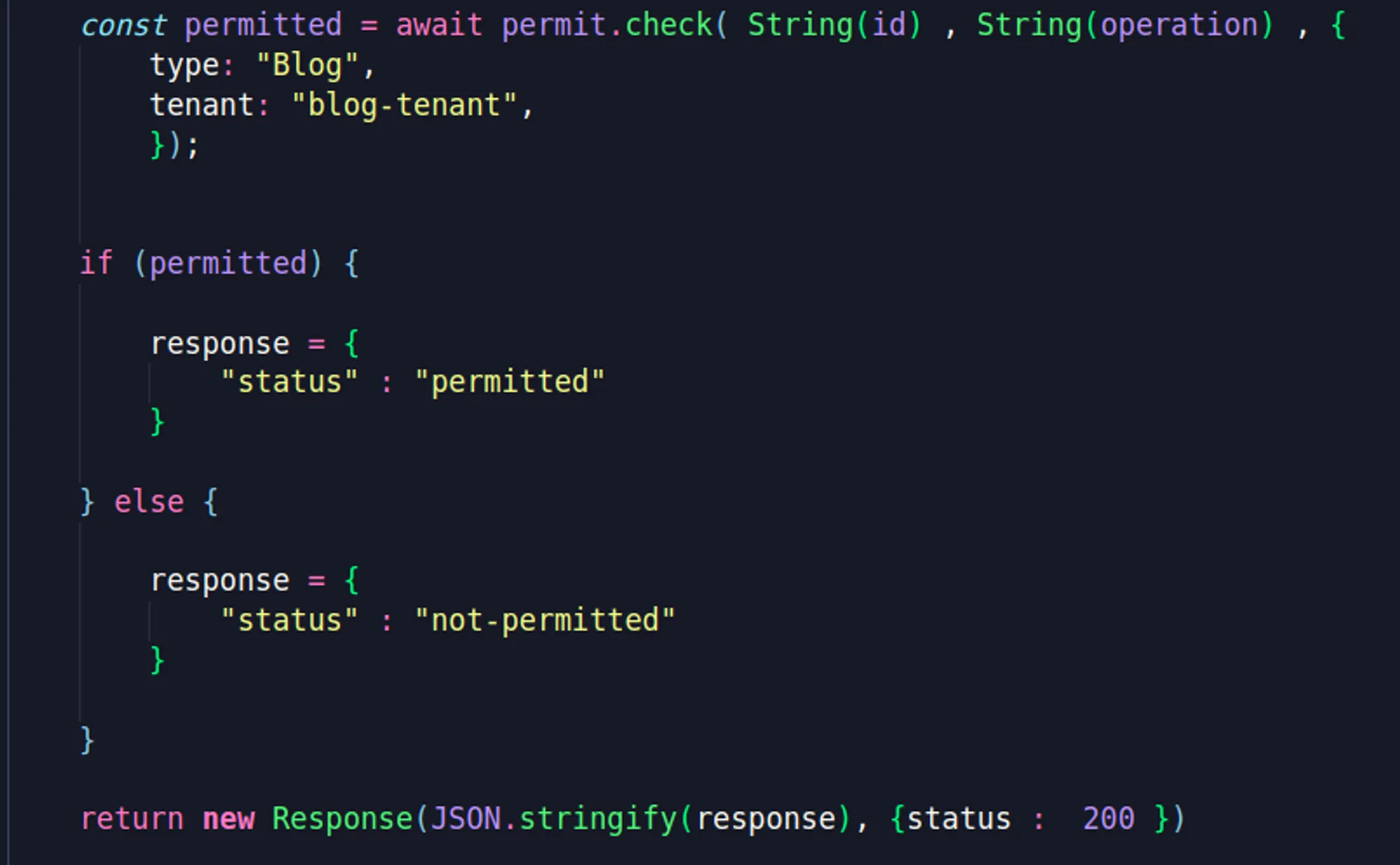
Congrats! By using Permit, we’ve just successfully implemented role-based access control (RBAC) in your Astro application
In this tutorial, we learned how to set up and configure Permit and integrate a basic RBAC policy using Permit’s intuitive and simple interface in our Astro applications.
Now that you’ve learned how to configure a basic policy in Permit, you can improve your applications' security by leveraging it to real use cases in your application.
It is always recommended to continue with ReBAC and ABAC which will provide a more fine-grained authorization to your applications. For that and more, we recommend you to continue reading our learning materials, such as the difference between RBAC and ABAC, and adding ABAC to your application with Permit.io.
Want to learn more about implementing authorization? Got questions? Reach out to us in our Slack community.

Full-Stack Software Technical Leader | Security, JavaScript, DevRel, OPA | Writer and Public Speaker