n8n is a workflow automation platform that allows you to connect APIs, databases, and services to automate operations. With hundreds of integrations and support for both visual workflows and custom code, organizations use n8n to build everything from simple data syncs to complex multi-step AI agents. You can run it on your own infrastructure or use n8n's cloud-hosted solution.
Why Runtime Authorization Matters
As you build more complex workflows and handle sensitive operations, authorization becomes important. Who can approve a high-value transaction? Which team members can access customer data? Can a contractor trigger a production deployment? These questions require runtime authorization checks during workflow execution, not just platform-level access control.
Without proper fine-grained authorization, you risk unauthorized access and inconsistent security across your workflow automation.
The Authorization Gap in n8n Workflows
n8n has built-in access control for managing workflows and credentials at the platform level. With built-in role-based access control, you can assign users as Project Admins, Editors, or Viewers. This determines who can create, edit, execute, or view workflows and credentials in your n8n instance.
But when you're building workflows that need runtime authorization, deciding which users can perform specific actions or access certain resources while the workflow executes, there's no built-in solution.
Developers either skip authorization entirely or build custom solutions from scratch. Some use community templates that combine database lookups with IF nodes, but these require connecting external databases like Airtable, writing custom permission logic in Function nodes, and manually configuring the same pattern for every workflow. Each implementation differs, making it impossible to maintain consistent policies across your automation.
Introducing the Permit.io Community Node
The Permit.io community node (@permitio/n8n-nodes-permitio) brings fine-grained authorization to n8n workflows. Instead of building custom permission logic, you define your policies once in Permit, then drop the Permit node into any n8n workflow to check permissions at runtime.
The node provides three operations:
- checking if a user can perform an action
- retrieving all permissions for a user and,
- finding which users are authorized for specific actions.
It supports RBAC, ABAC, and ReBAC policies with automatic attribute extraction from your workflow data.
Unlike custom solutions that require separate database lookups and Function nodes for each workflow, the Permit node handles authorization in a single step. All policies are centralized in the Permit.io system, when you update a user's role, change permission rules, or modify resource access, the changes apply instantly across every n8n workflow using the Permit node. No workflow modifications or redeployment is required.
What Will We Build?
We'll create an expense approval workflow that uses attribute-based access control (ABAC) to route expense requests to the right approvers. The system processes expense submissions and determines approval paths based on user attributes (department, job level, spending limits) and expense characteristics (amount, category, urgency).
Sorry, your browser doesn't support embedded videos.
Try the Permit.io Policy Editor
Authorization Policies:
The workflow enforces these access control rules:
- Regular employees can submit expenses within their personal spending limit
- Department managers can approve expenses from their department up to their approval limit
- Senior managers can approve high-value expenses ($5,000+) within their approval limit
- Finance team members can approve and view any expense regardless of amount
- Expense routing considers
category, urgency, and the submitter's department
n8n Workflow:
- An expense is submitted via webhook
- The workflow extracts user attributes (department, job_level, spending_limit) and expense details
- The Permit node evaluates ABAC policies using the extracted attributes
- Based on the policy decision, the workflow routes to the appropriate approval step or auto-approves
- Approved expenses trigger notifications to relevant stakeholders.
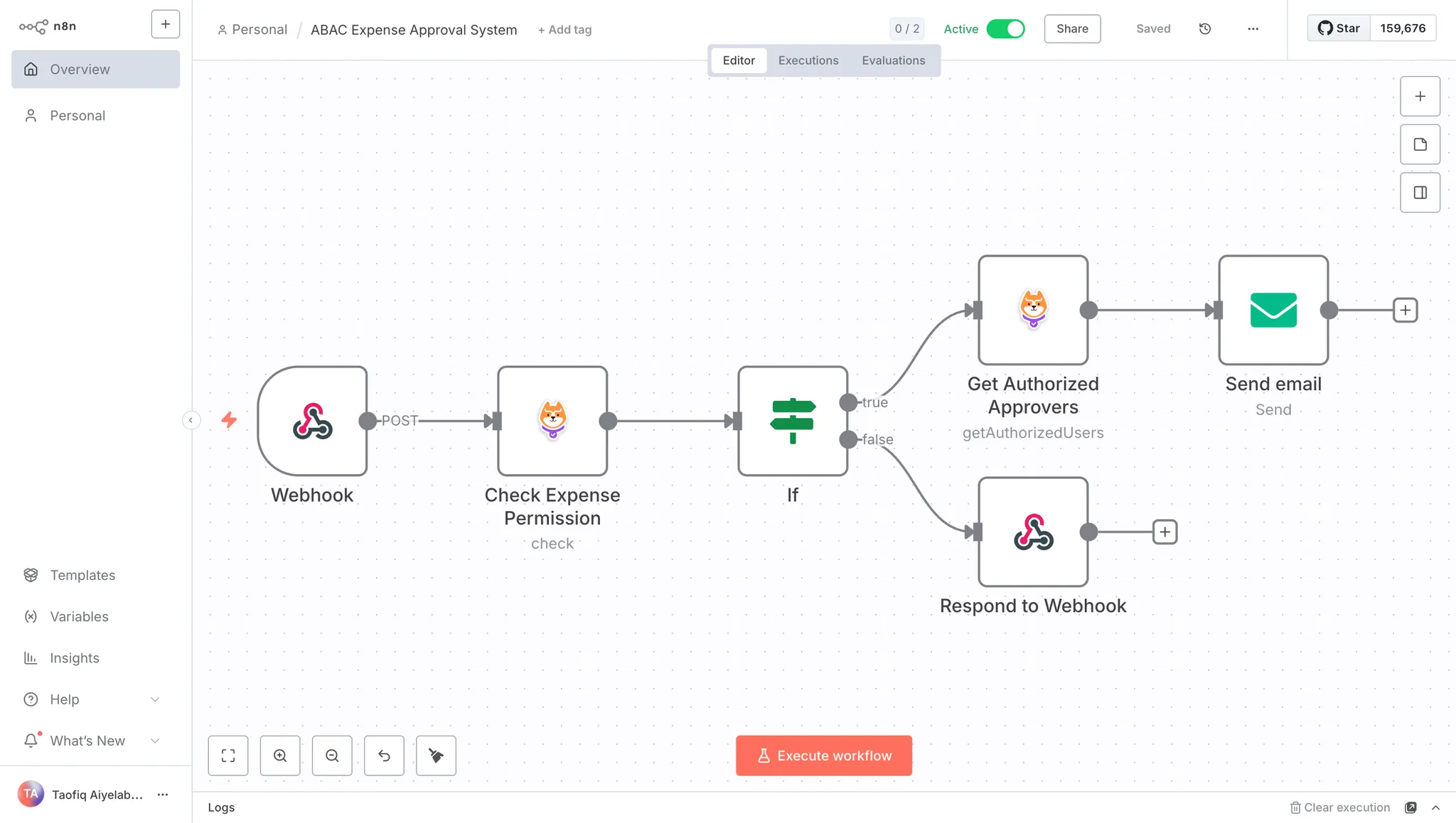
This approach keeps authorization logic centralized in Permit.io, making policies reusable across workflows while maintaining security and compliance.
Prerequisites
To follow along with this tutorial, you should have:
- An n8n instance (self-hosted or cloud)
- A Permit.io account
- Basic familiarity with n8n workflows
Getting Started
If you haven’t already, create a free Permit.io account at https://app.permit.io.
When you sign in for the first time, Permit will guide you through creating your workspace. A workspace is the home for all your authorization projects. Learn more here.
Once your workspace is created, go to the Projects page and create a new project. Name it something like “Expense Approval System”.
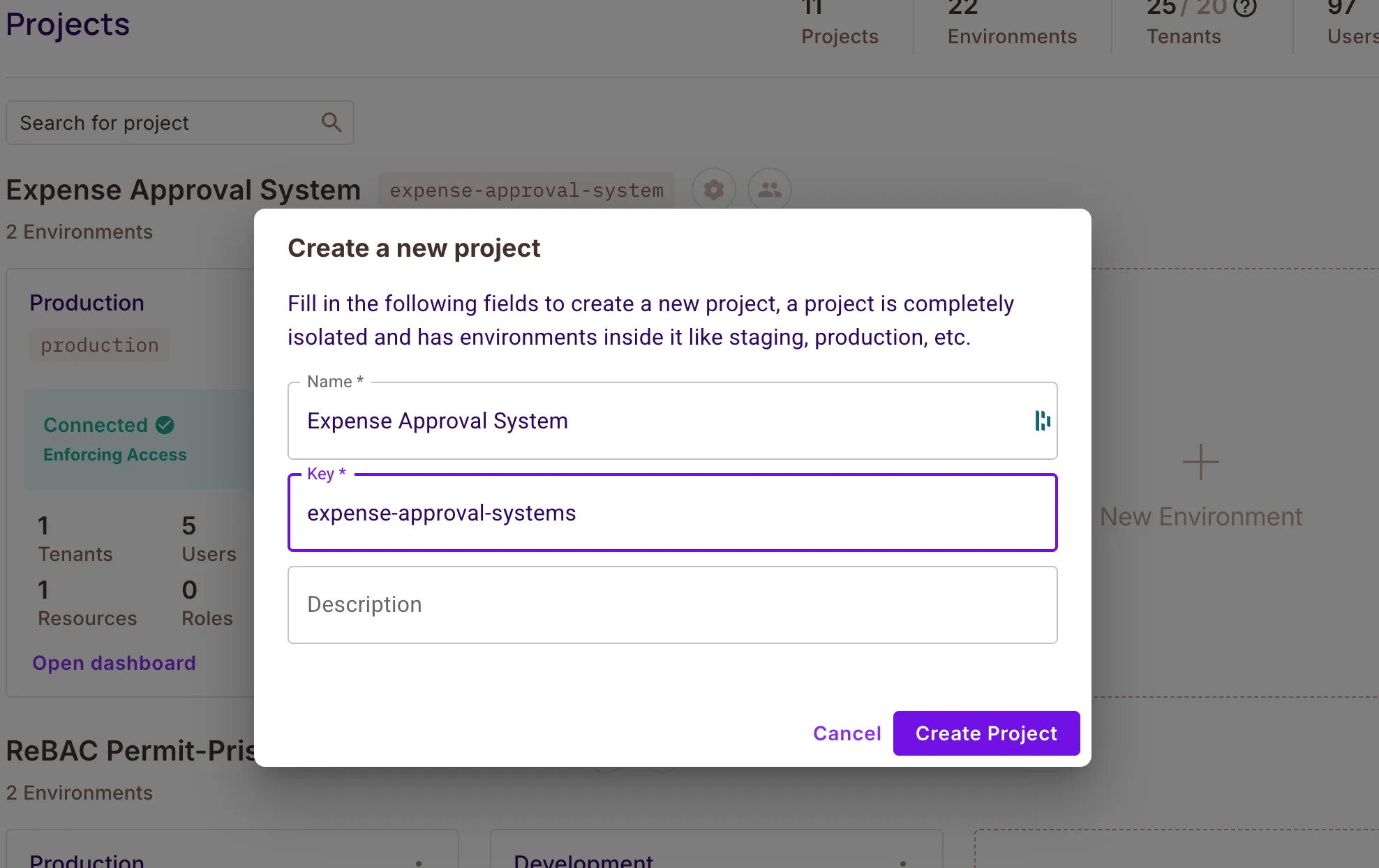
Every project starts with two environments by default:
- Development — where you’ll design and test your policy
- Production — for when you’re ready to deploy to live environment
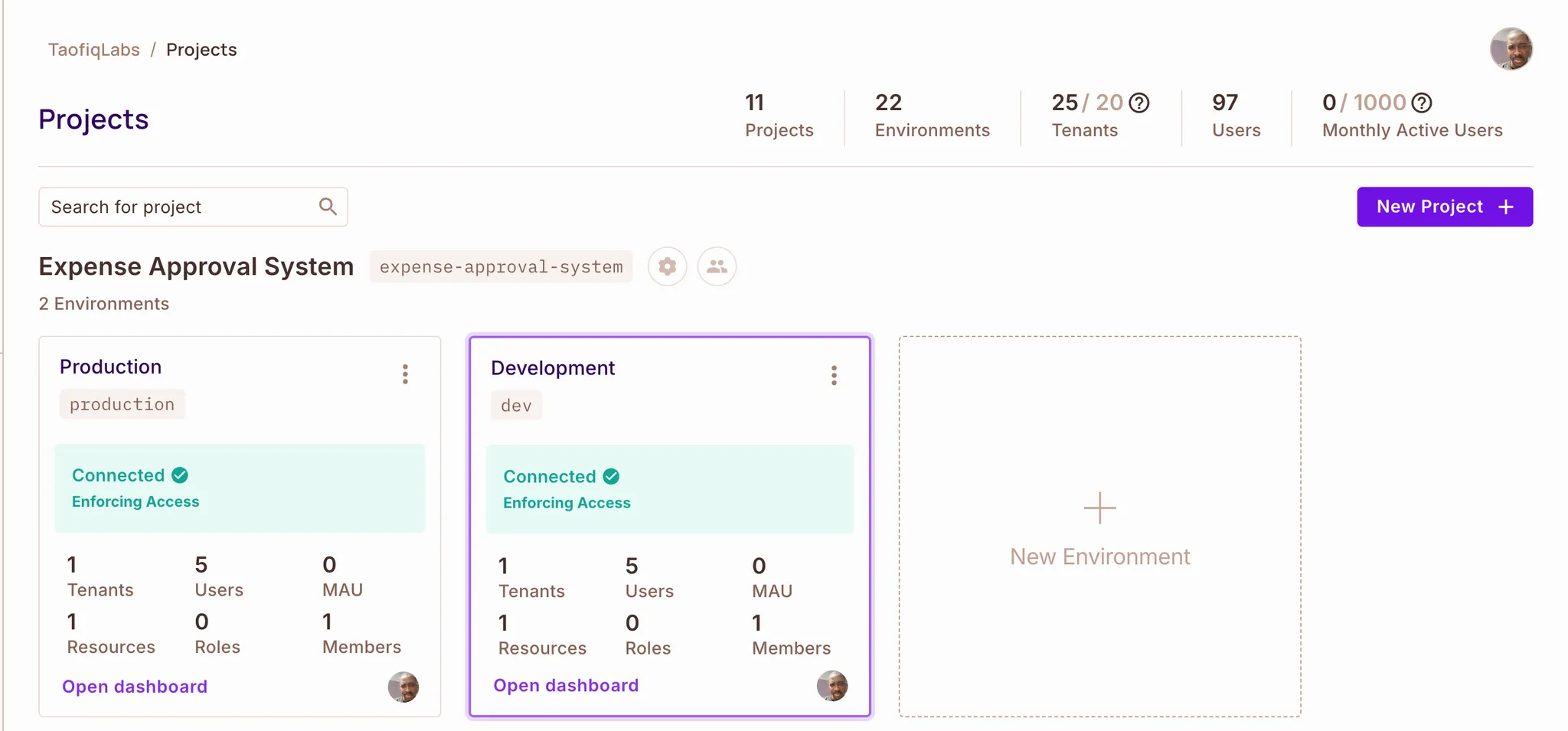
In this tutorial, we’ll use the Production environment to configure the policy, define attributes, and build the approval logic before connecting it to n8n.
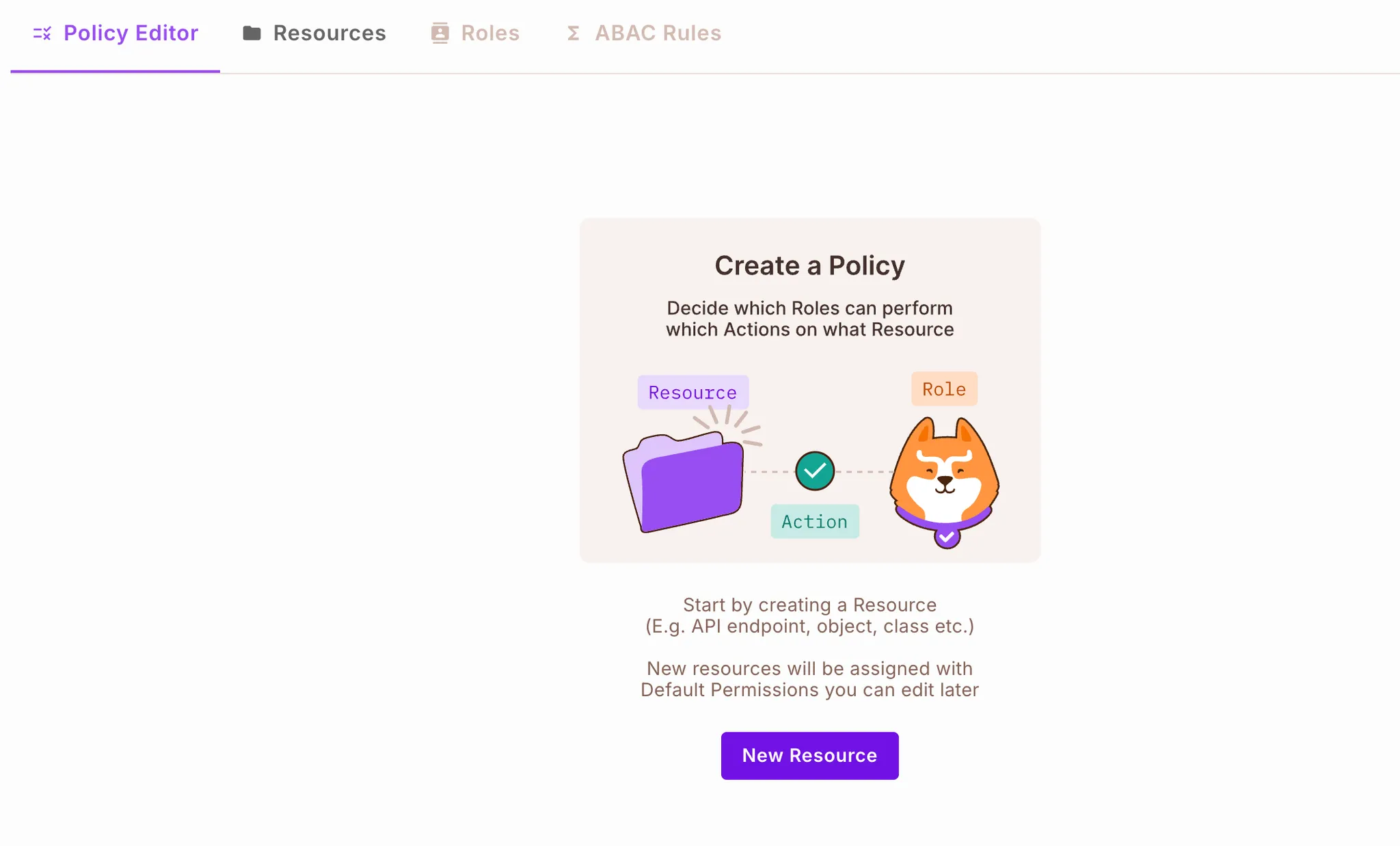
You can use any environment to follow along and setup your policy.
Implementation Guide - Expense Approval System
We'll build the expense approval system in four steps:
- Planning the ABAC policy structure
- Configuring the policy in the Permit.io Dashboard
- Adding user data in the Permit.io Directory
- Building the n8n workflow that enforces these policies
Step 1: Planning the ABAC Policy
The first step in any authorization implementation is planning. Before configuring policies in Permit.io, we need to define who can do what, and under which conditions.
What we're building:
Our expense system has four types of users and three permission levels. Here's how they map out:
User Types:
|
|
|
| User Type |
Job Level |
Can Do |
| Regular Employees |
Junior, Senior |
Submit expenses within their spending limit |
| Department Managers |
Manager |
Approve expenses from their department (up to their approval limit) |
| Senior Managers |
Senior Manager |
Approve high-value expenses ($5,000+) |
| Finance Team |
Any level in Finance dept |
Approve and view any expense |
User Attributes
Each user needs these attributes for the policy to work:
|
|
|
| Attribute |
Type |
Description |
spending_limit |
number |
Maximum amount the user can submit |
department |
string |
Which department they belong to |
job_level |
string |
Their position level (e.g. Junior, Senior, Manager, Senior Manager) |
approval_limit |
number |
Maximum amount the user can approve |
Expense Attributes
Every expense submission includes these details:
|
|
|
| Attribute |
Type |
Description |
expense_amount |
number |
Dollar amount of the expense |
category |
string |
Type of expense (travel, meals, supplies, etc.) |
submitter_department |
string |
Department of the person who submitted the expense |
urgency |
string |
Priority level: normal or urgent |
The Authorization Rules
Here's what each user type is allowed to do:
Regular Employees can submit expenses only if the expense amount is within their spending limit.
Department Managers can approve expenses only if:
- The expense comes from their own department, and
- The expense amount is within their approval limit, and
- The expense is under $5,000
Senior Managers can approve high-value expenses ($5,000+) only if the expense amount is within their approval limit.
Finance Team can approve and view any expense regardless of amount or department.
View Access: Users can view only the expenses they're allowed to interact with (submit or approve).
With the policy model defined, we can now move into the next step, where we’ll configure these attributes, resources, and rules directly in the Permit.io Dashboard.
Step 2: Configuring the Authorization Schema in the Permit.io Dashboard
In this step, we’ll configure the authorization schema directly in the Permit.io Dashboard.
This includes creating user attributes, defining the expense resource, setting up user sets and resource sets, and creating the rules that connect them.
We’ll start by creating the user attributes that our ABAC rules depend on.
Creating User Attributes
Our ABAC rules rely on user metadata such as spending_limit, department, and job_level. We’ll add these attributes in the Permit.io Dashboard.
- In your Production environment, go to Directory in the left sidebar.
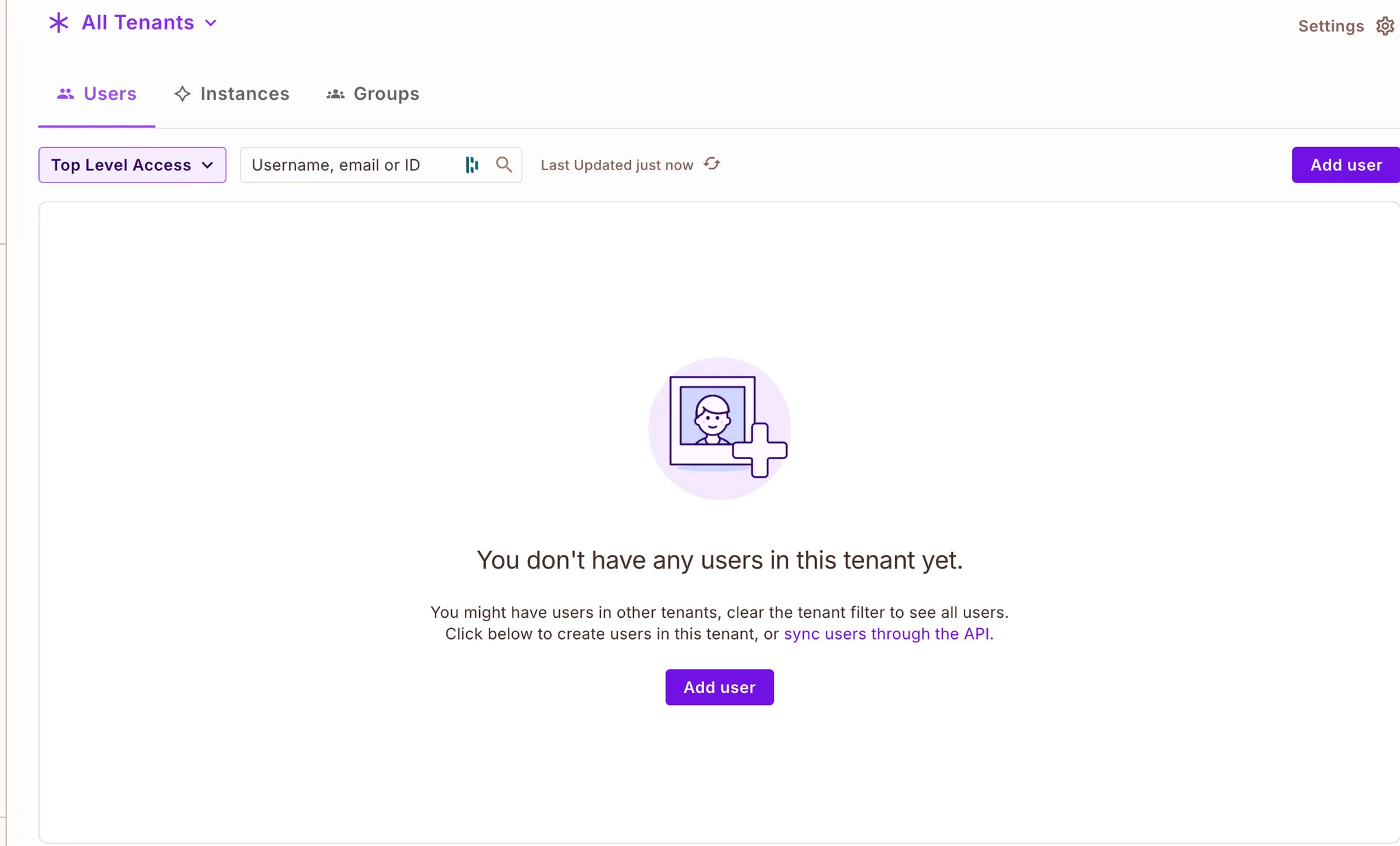
- Click Settings (top-right corner).
- Select User Attributes.
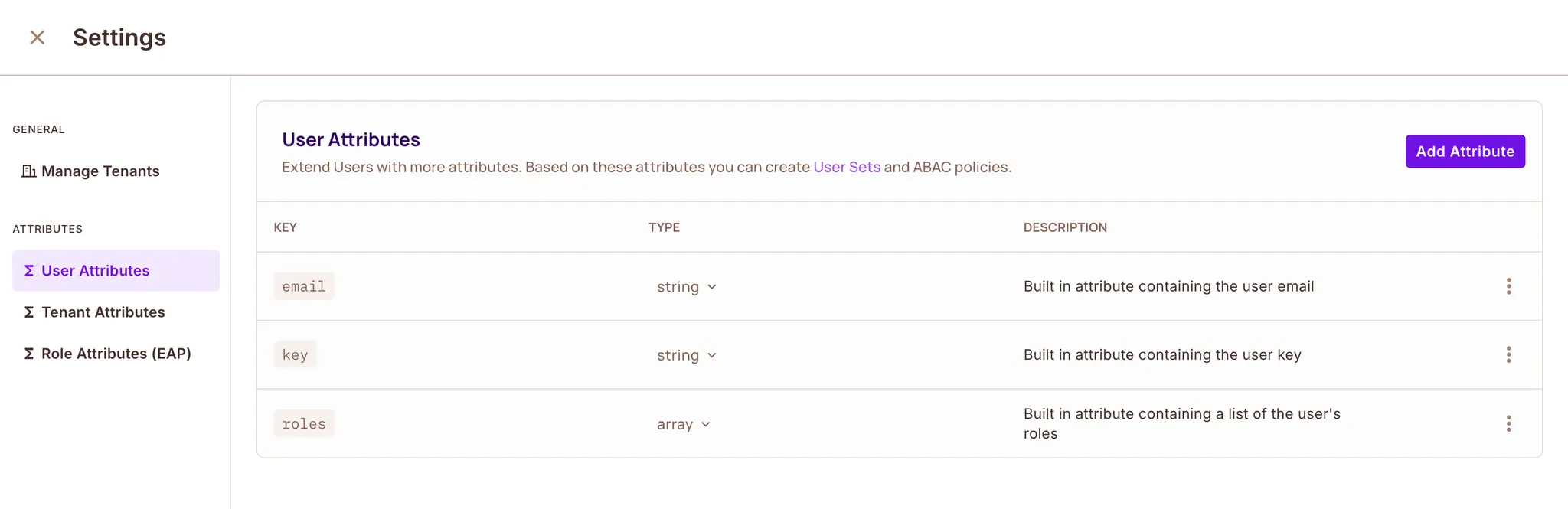
- Click Add Attribute.
You’ll see a form where you can define the attribute name, type, and description.
Create the first attribute:
- Attribute Name:
spending_limit
- Value Type:
number
- Description: Maximum amount the user is allowed to submit
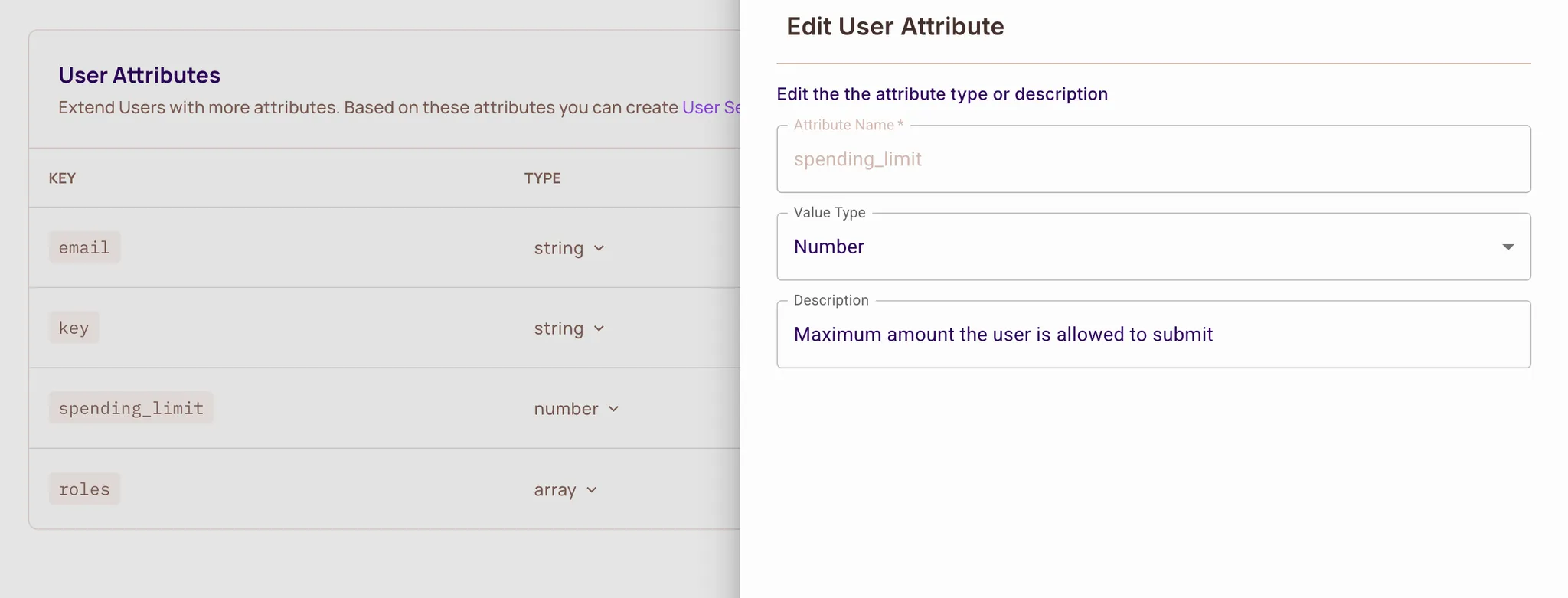
Click Create Attribute.
Repeat the same process for the remaining attributes:
- department — string — The user’s department
- job_level — string — The user’s position level (Junior, Senior, Manager, Senior Manager)
- approval_limit — number — Maximum amount the user can approve
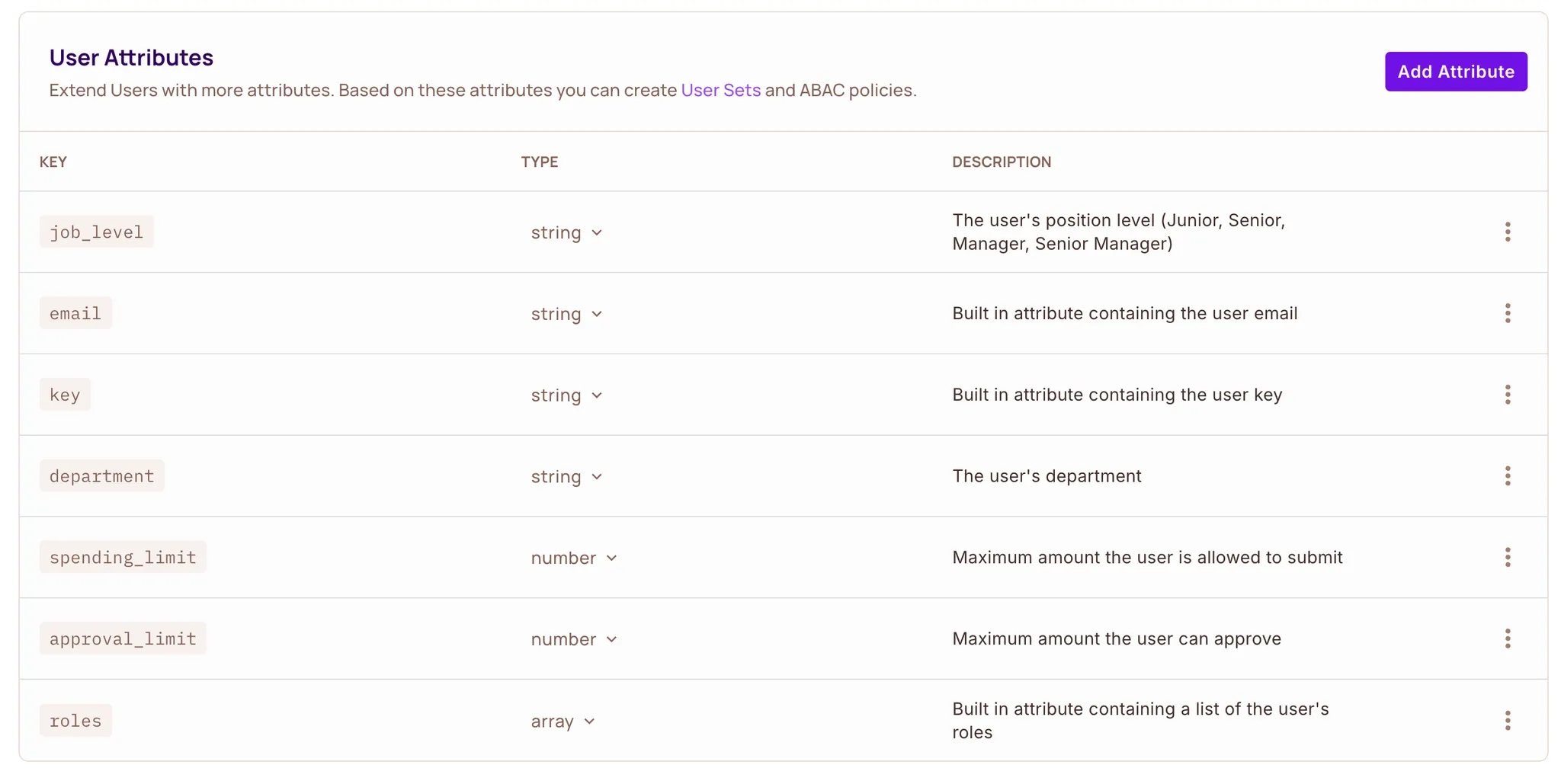
After creating these four attributes, your user attribute schema is ready for the ABAC rules we’ll build next.
There are 3 built-in attributes — email, key, and roles — which cannot be edited or deleted.
Define the expense Resource
Next, we’ll define the main object in our approval system, the expense resource.
The expense resource represents an expense request. Users will:
- submit it (employees submit their expenses)
- view it (finance or managers can look at it)
- approve it (managers or finance can approve it)
Create the Resource
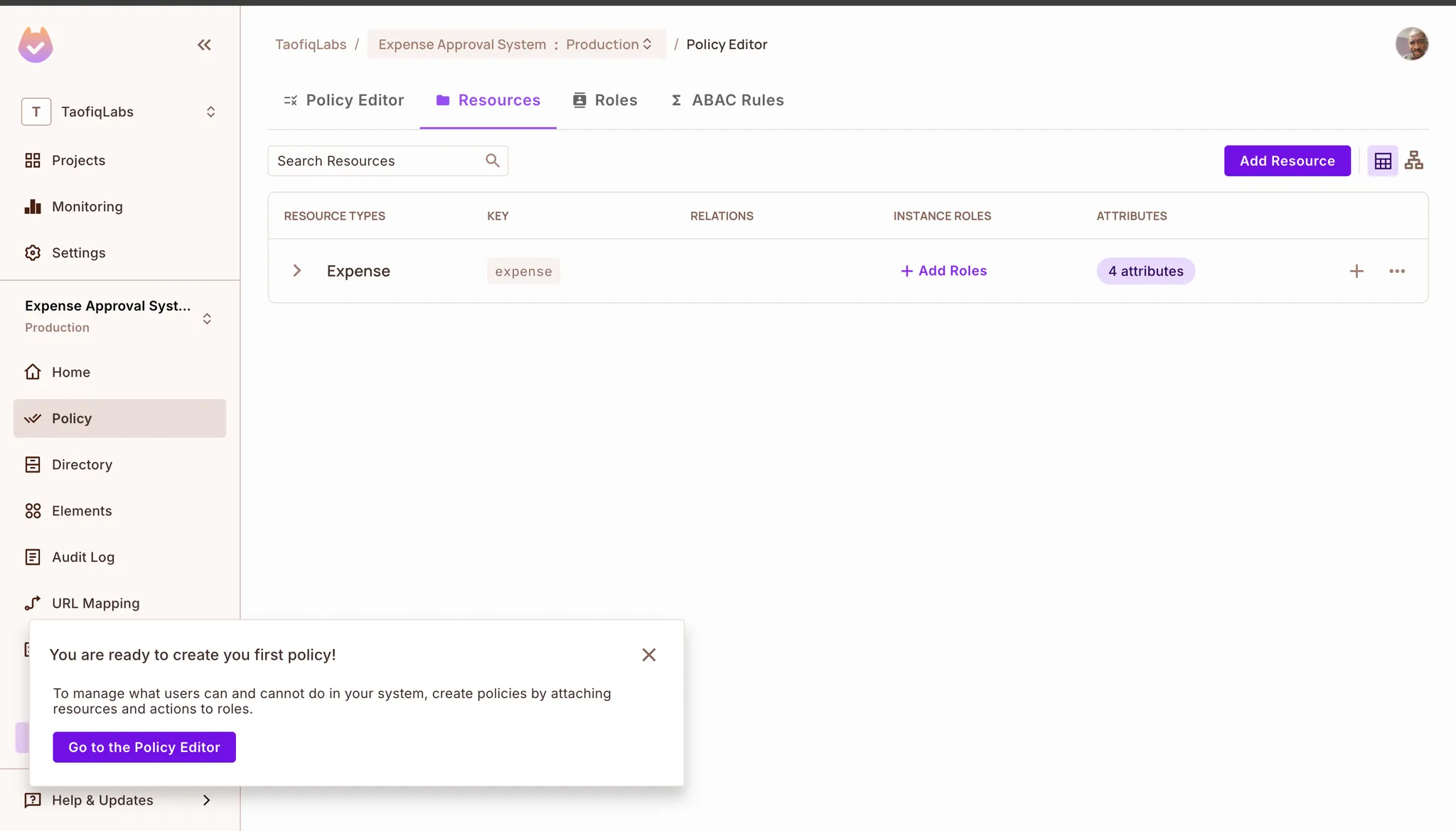
- In the Policy section of your environment, go to Resources.
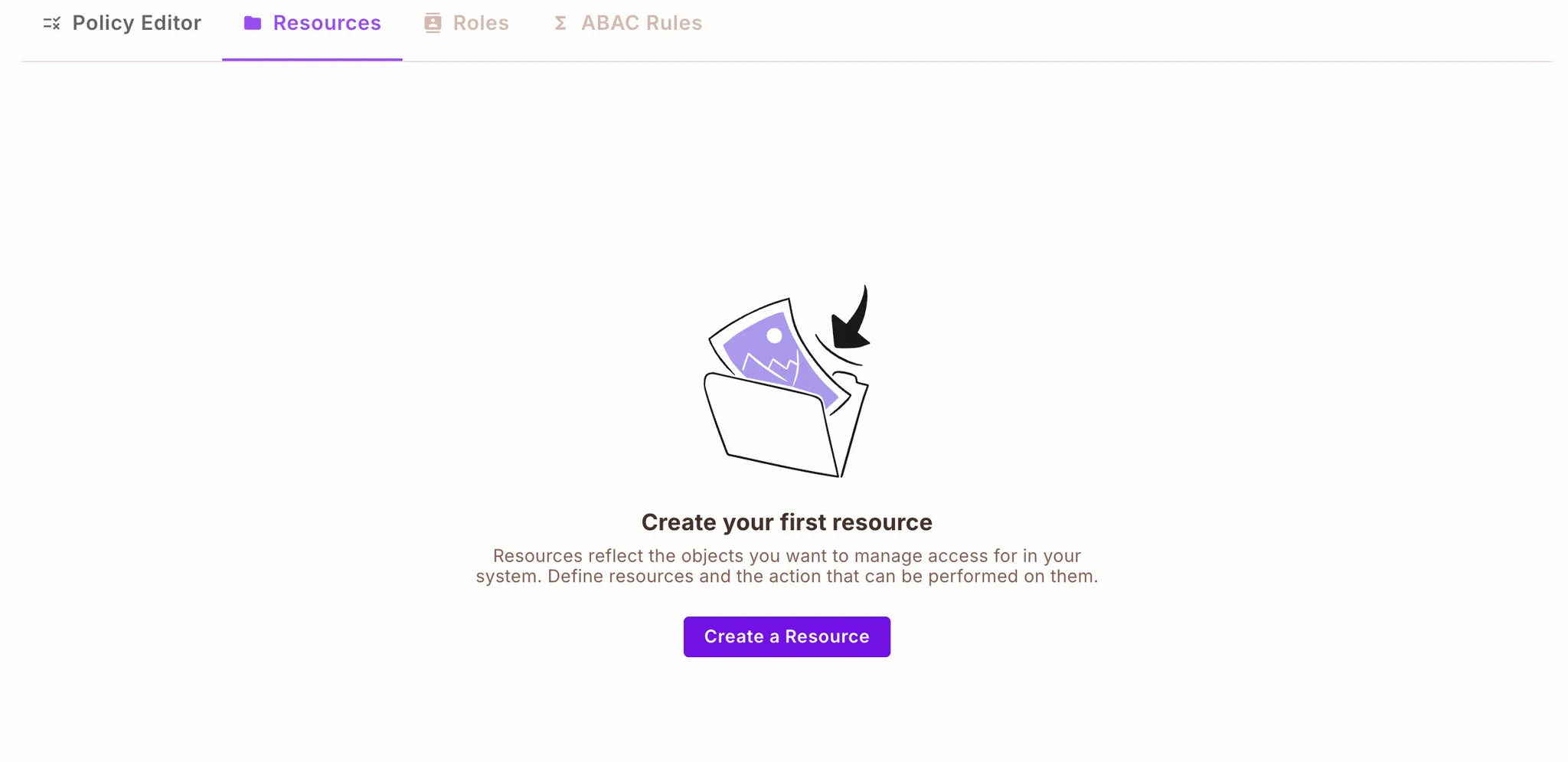
- Click Create a Resource.
- Fill out the form as shown on the UI
- Add Actions - Remove the default actions and replace them with:
submit, approve, view
- Add Resource Attributes
Under ABAC Options → Attributes, add the following attributes:
|
|
| Attribute |
Type |
category |
String |
expense_amount |
Number |
submitter_department |
String |
urgency |
String |
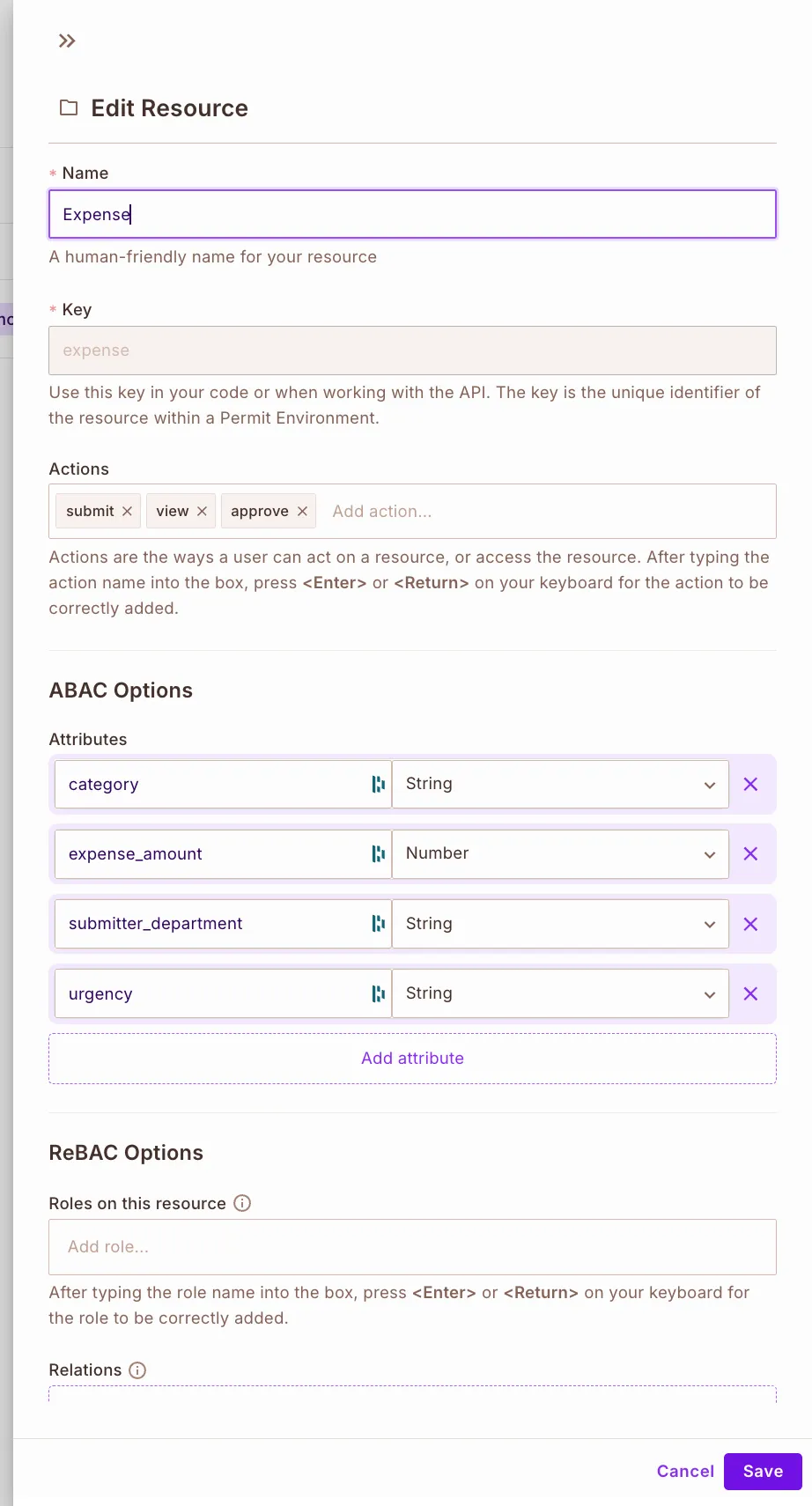
- Save the Resource - Click Save to finish creating the
expense resource.
Create User Sets (ABAC Dynamic Roles)
Next, we’ll define User Sets, which group users dynamically based on their attributes.
These groups allow Permit.io to evaluate who is allowed to perform actions like submit, approve, or view an expense.
- Go to Policy → ABAC Rules.
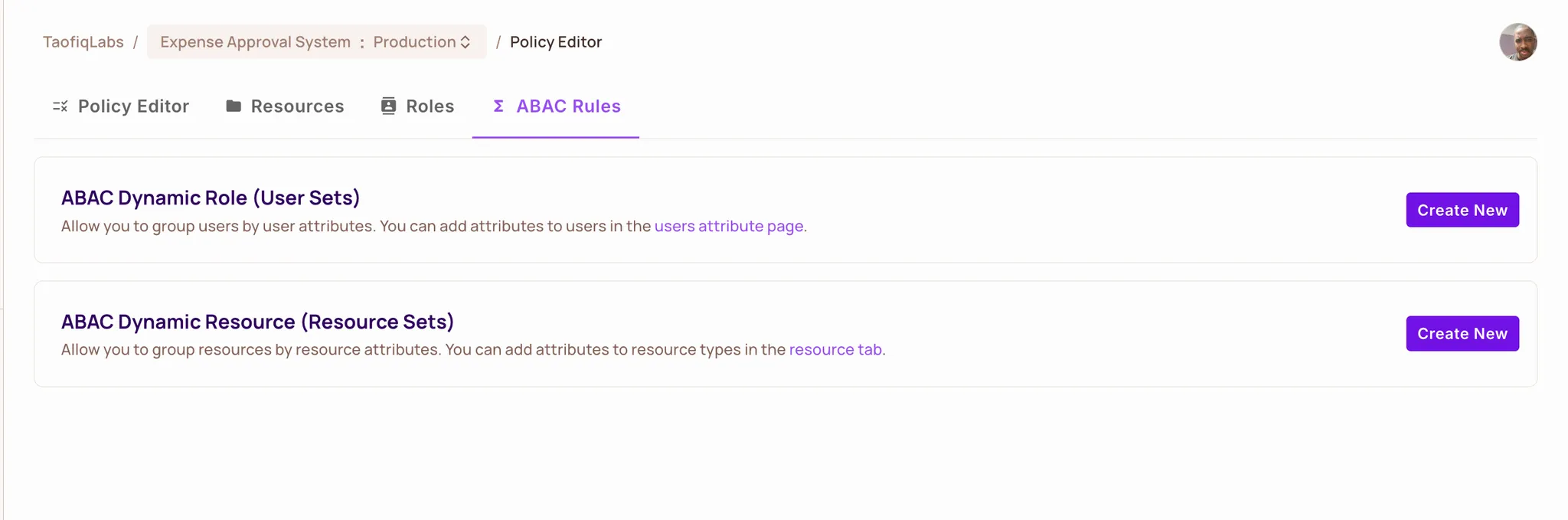
- Click Create New under ABAC Dynamic Role (User Sets).
- Fill out the form as follows:
**Name**
Finance Team

**Key**
finance_team

**Condition**
user.department equals Finance
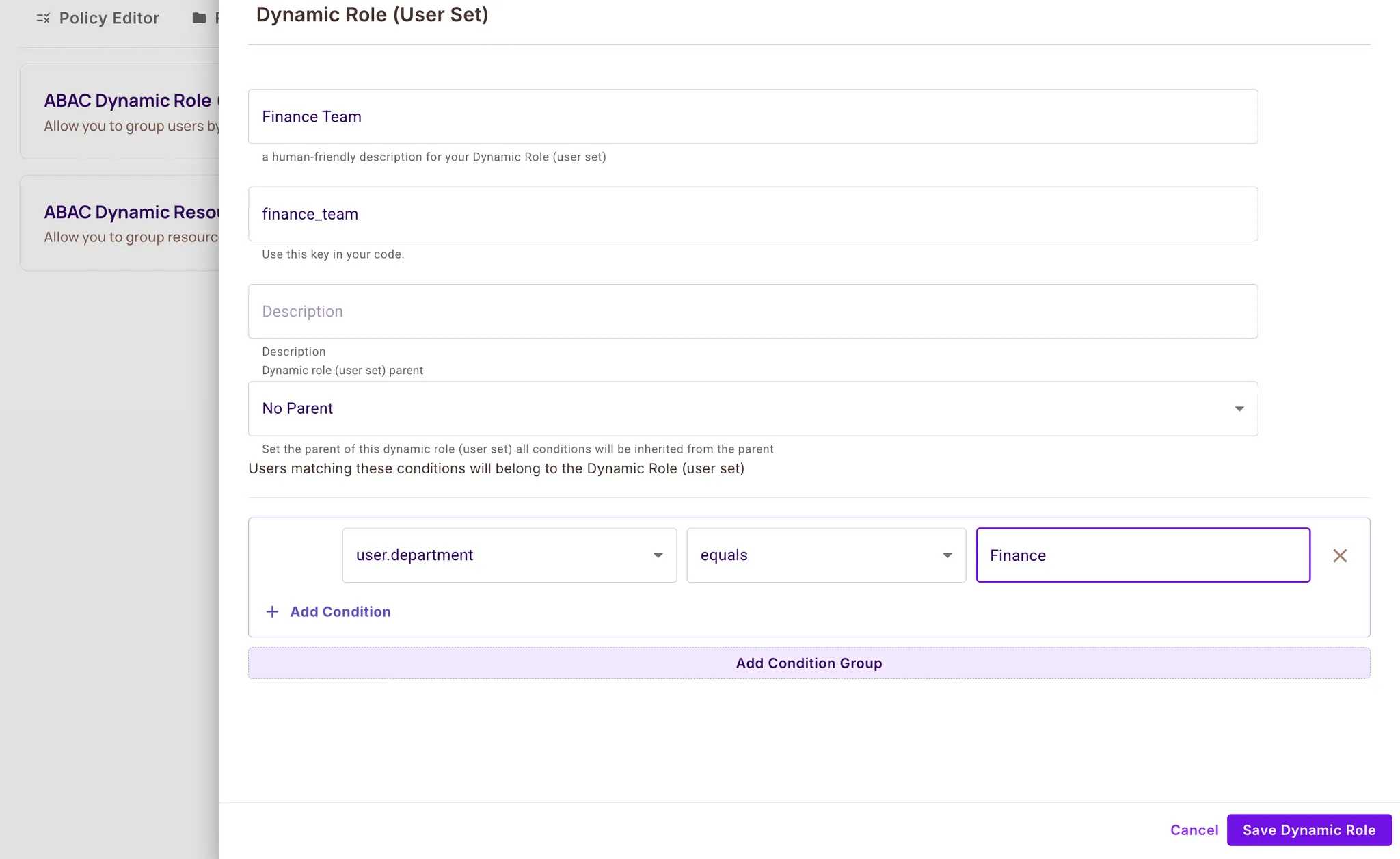
Click Save Dynamic Role.
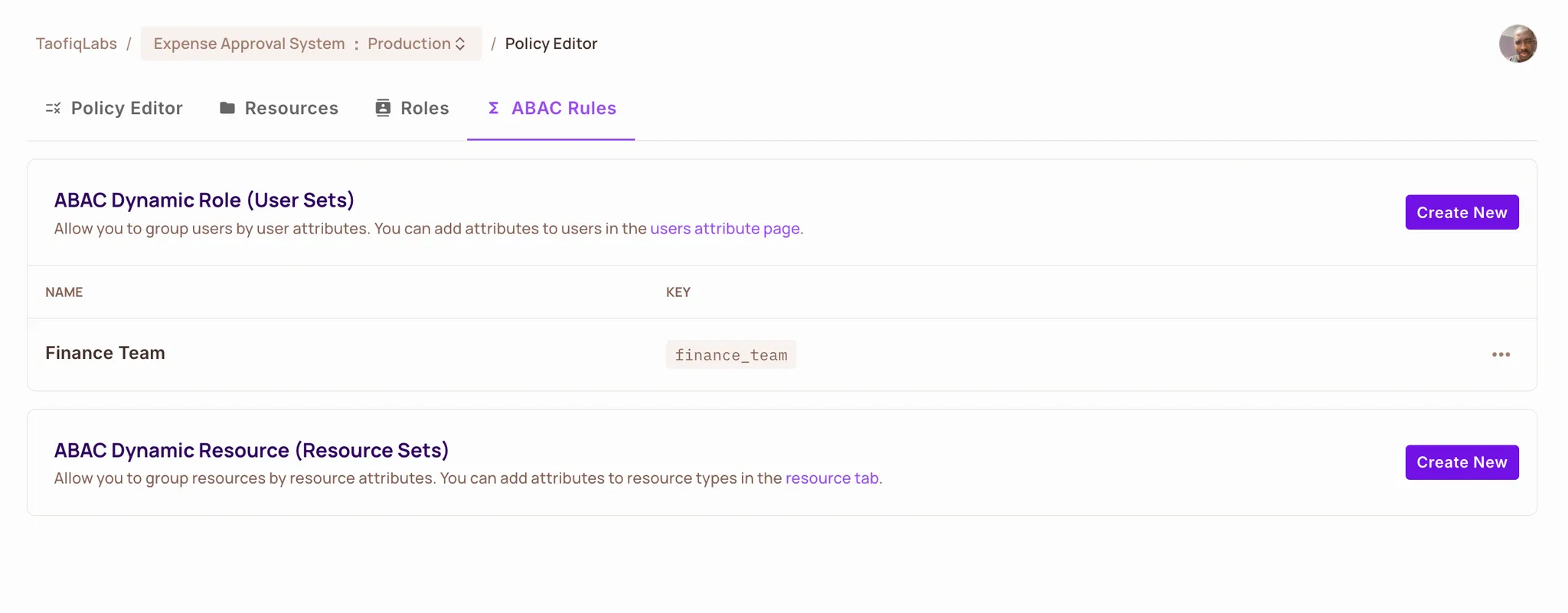
Repeat for the Remaining User Sets. Create the following additional user sets using the same steps:
|
|
|
| User Set |
Key |
Conditions |
| Regular Employees |
regular_employees |
user.job_level equals Junior OR user.job_level equals Senior |
| Department Managers |
department_managers |
user.job_level equals Manager AND user.approval_limit greater-than-equals resource.expense_amount AND user.department equals resource.submitter_department |
| Senior Managers |
senior_managers |
user.job_level equals Senior Manager AND user.approval_limit greater-than-equals resource.expense_amount |
Tip:
Use Add Condition or Add Condition Group when combining multiple conditions.
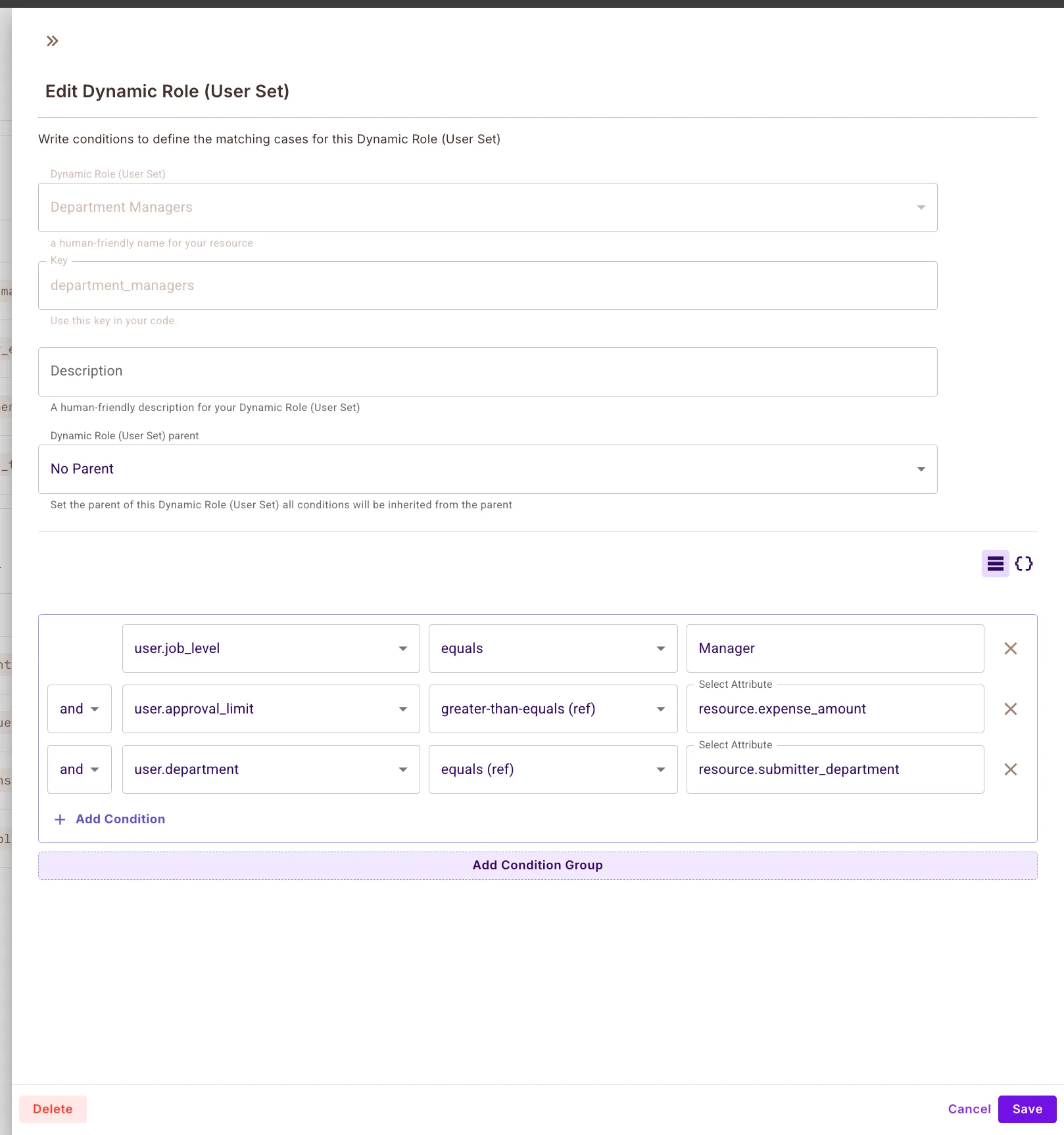
Once all four user sets are created, Permit.io can now dynamically group users according to their attributes, making it possible to apply ABAC rules in the next step.
Create Resource Sets (ABAC Dynamic Resource)
Resource Sets allow you to group expenses based on their attributes. These groups are what your ABAC rules will evaluate when deciding who can act on which expense.
We’ll create the first one together — Department Expenses, and then you’ll repeat the same process for the remaining three resource sets.
- Go to Policy → ABAC Rules.
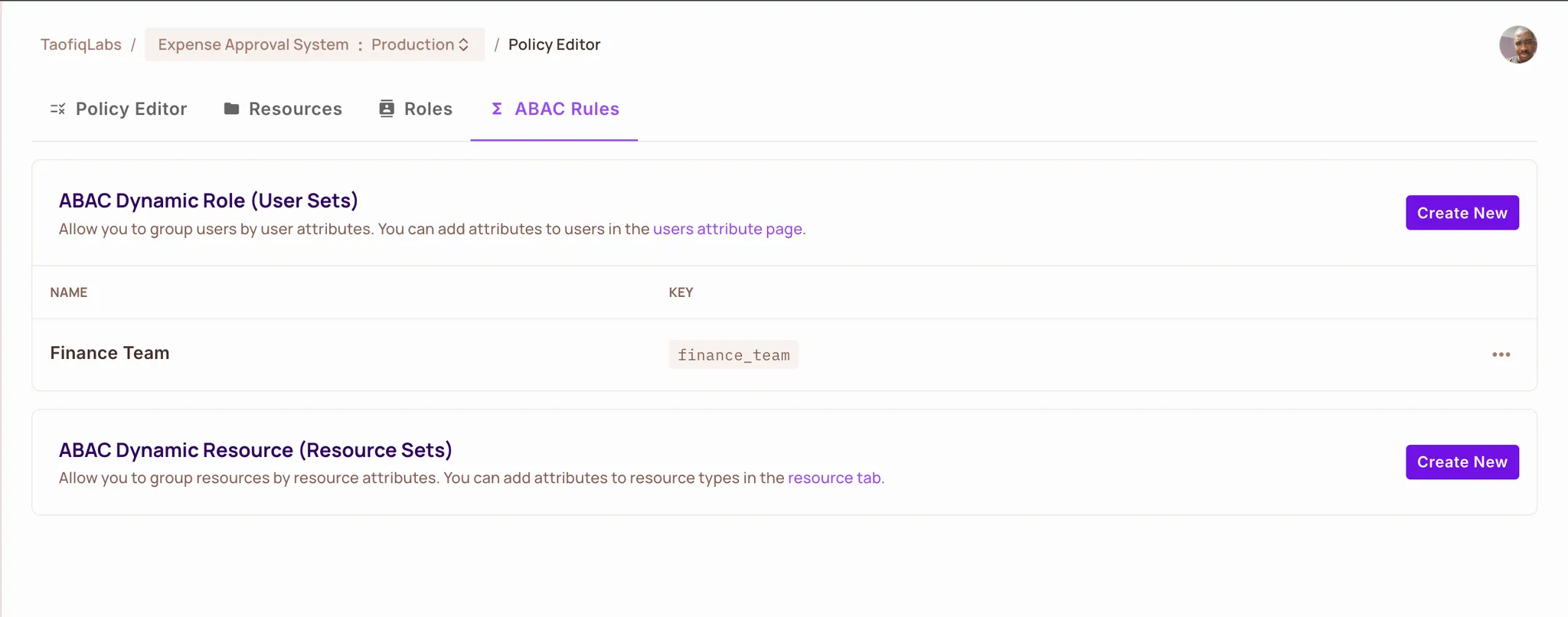
- Under ABAC Dynamic Resource (Resource Sets), click Create New.
- Fill out the form as follows:
**Name**
Department Expenses

**Key**
department_expenses

**Resource Type**
Expense

**Conditions**
- `resource.expense_amount` **equals** `5000`
- `resource.urgency` **equals** `normal`
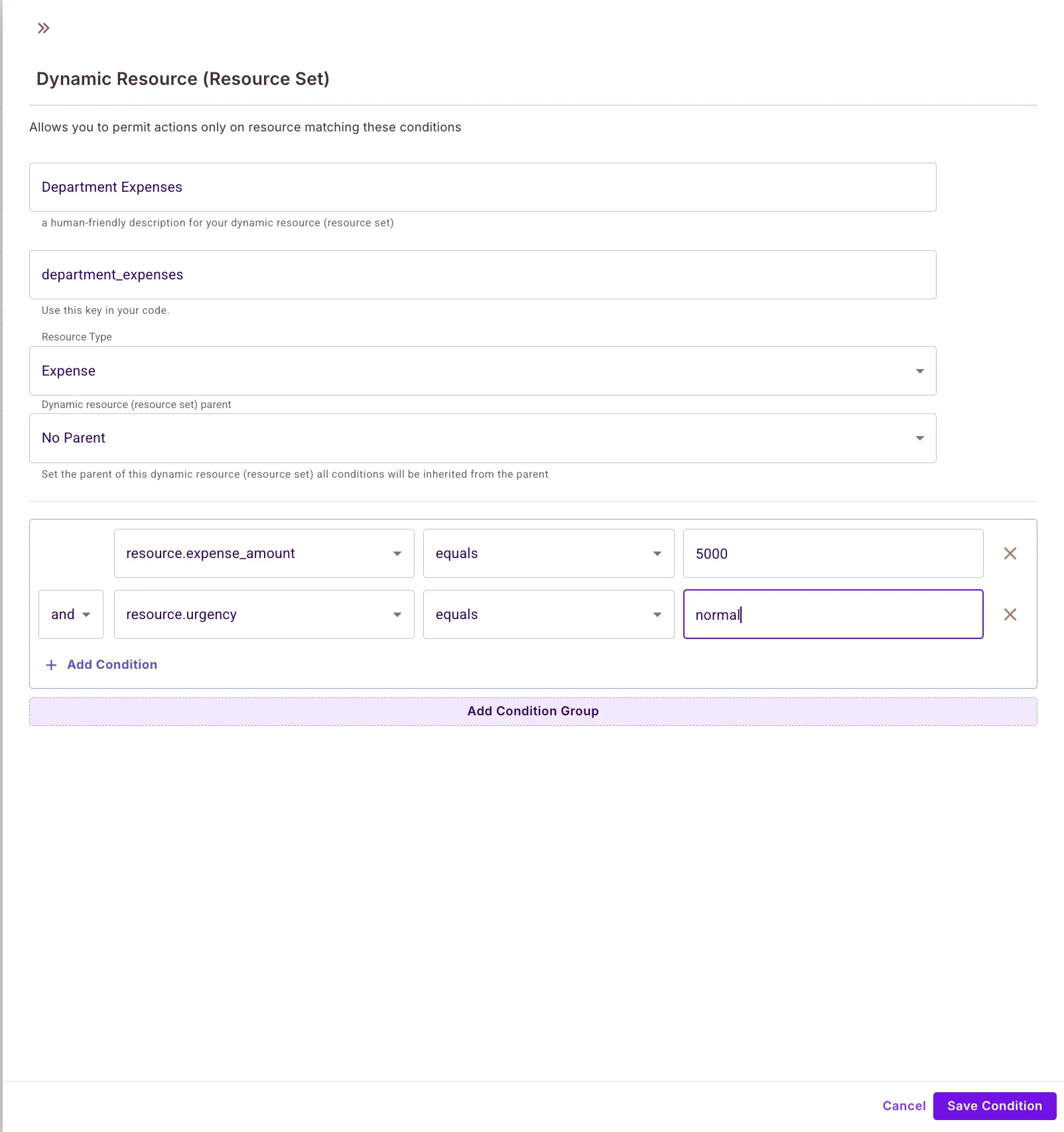
Click Save Condition.
Repeat for the Remaining Resource Sets
Use the table below to create the remaining three sets:
|
|
|
| Name |
Key |
Conditions |
| Submittable Expenses |
submittable_expenses |
resource.expense_amount less-than-equals user.spending_limit |
| High Value Expenses |
high_value_expenses |
resource.expense_amount greater-than-equals 5000 |
| All Expenses |
all_expenses |
resource.expense_amount greater-than 0 |
Create each one by clicking Create New again and filling in the corresponding values.
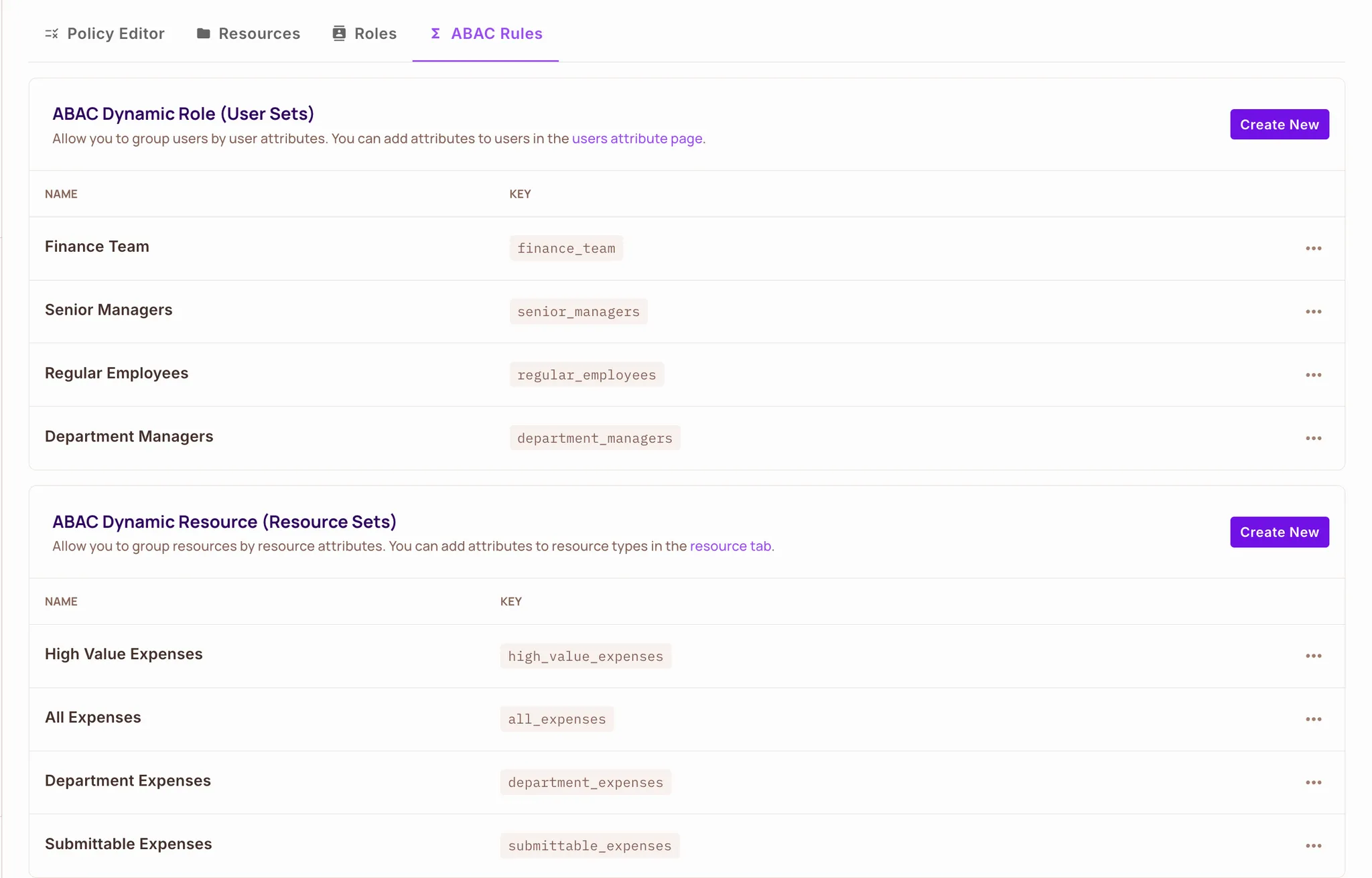
2.5 Create the Condition Rules (Mapping User Sets to Resource Sets)
With all user sets and resource sets created, the final step is to connect them by defining who can perform which actions on each resource group.
This is done in the Policy Editor.
Map the Permissions
- Go to Policy → Policy Editor.
- For each User Set, tick the permissions according to the table below.
Regular Employees
Allow employees to submit and view only expenses within their spending limit.
|
|
|
|
| Resource Set |
submit |
approve |
view |
| Submittable Expenses |
✅ |
— |
✅ |
---
Department Managers
Allow managers to approve and view expenses from their department under $5,000.
|
|
|
|
| Resource Set |
submit |
approve |
view |
| Department Expenses |
— |
✅ |
✅ |
---
Senior Managers
Allow senior managers to handle high–value expenses.
|
|
|
|
| Resource Set |
submit |
approve |
view |
| High Value Expenses |
— |
✅ |
✅ |
---
Finance Team
Finance can see and approve everything.
|
|
|
|
| Resource Set |
submit |
approve |
view |
| All Expenses |
— |
✅ |
✅ |
Sorry, your browser doesn't support embedded videos.
Once all checkboxes follow the mapping above, your ABAC policy is fully configured in the Dashboard.
Step 3 - Adding User Data in Permit.io Directory
After defining the schema in Permit.io, you'll the add actual users with their attribute values in the Permit.io Directory.
Creating the First User
Navigate to the Directory section in your Permit.io dashboard and click "Add user" in the top right corner.
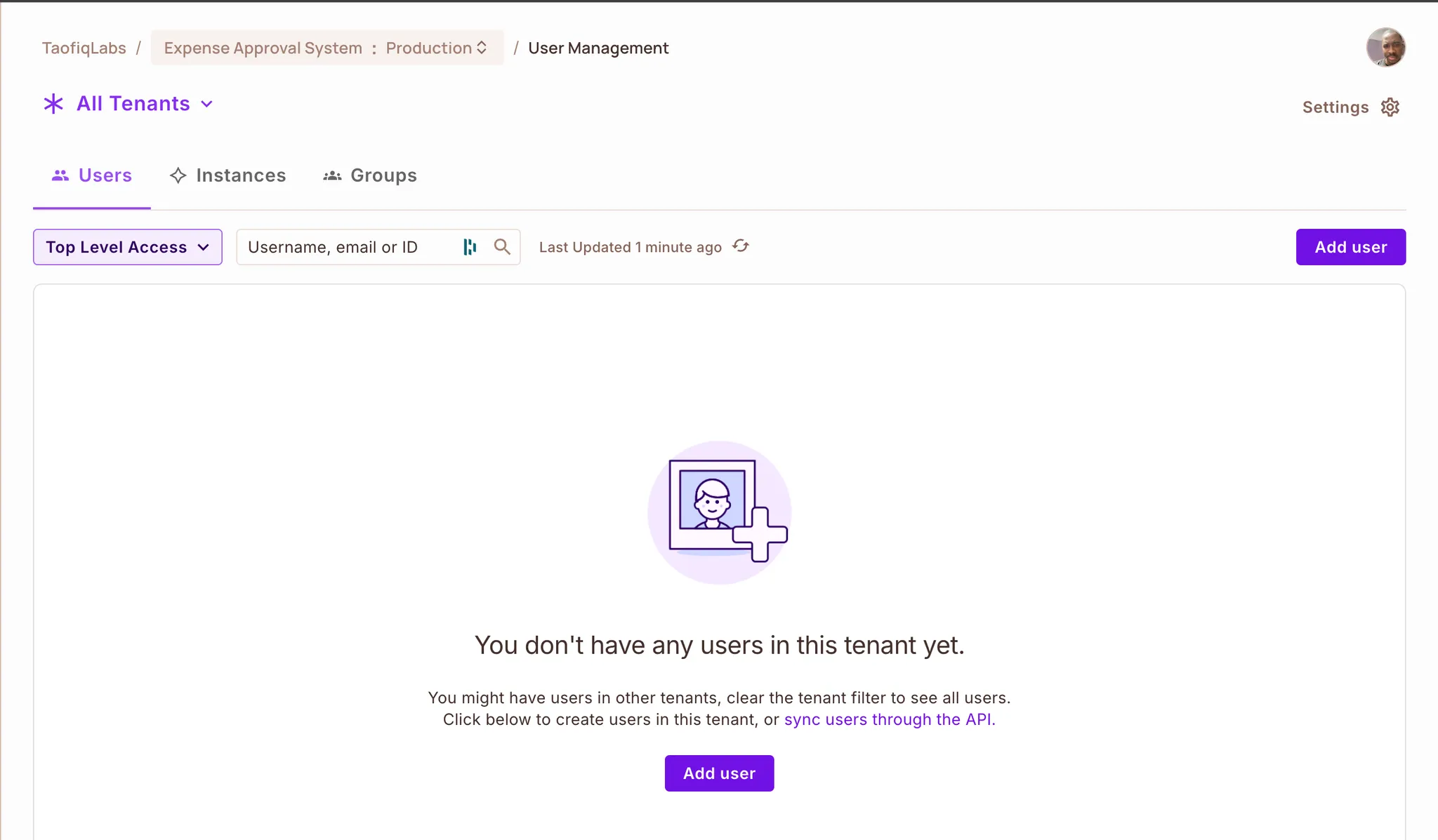
Fill out the user creation form with these details:
Key: taofeek2sure@gmail.com
Email: taofeek2sure@gmail.com
First Name: Taofiq
Last Name: Taofiq
Tenant: Select "Default Tenant" from the dropdown
Roles: Leave empty (we're using ABAC with attributes, not role assignments)
You can fill the user form with your own details.
Click Continue without a role when the warning appears, this is expected because we’re using attribute-based policies instead of role assignments.
Click Save to create the user.
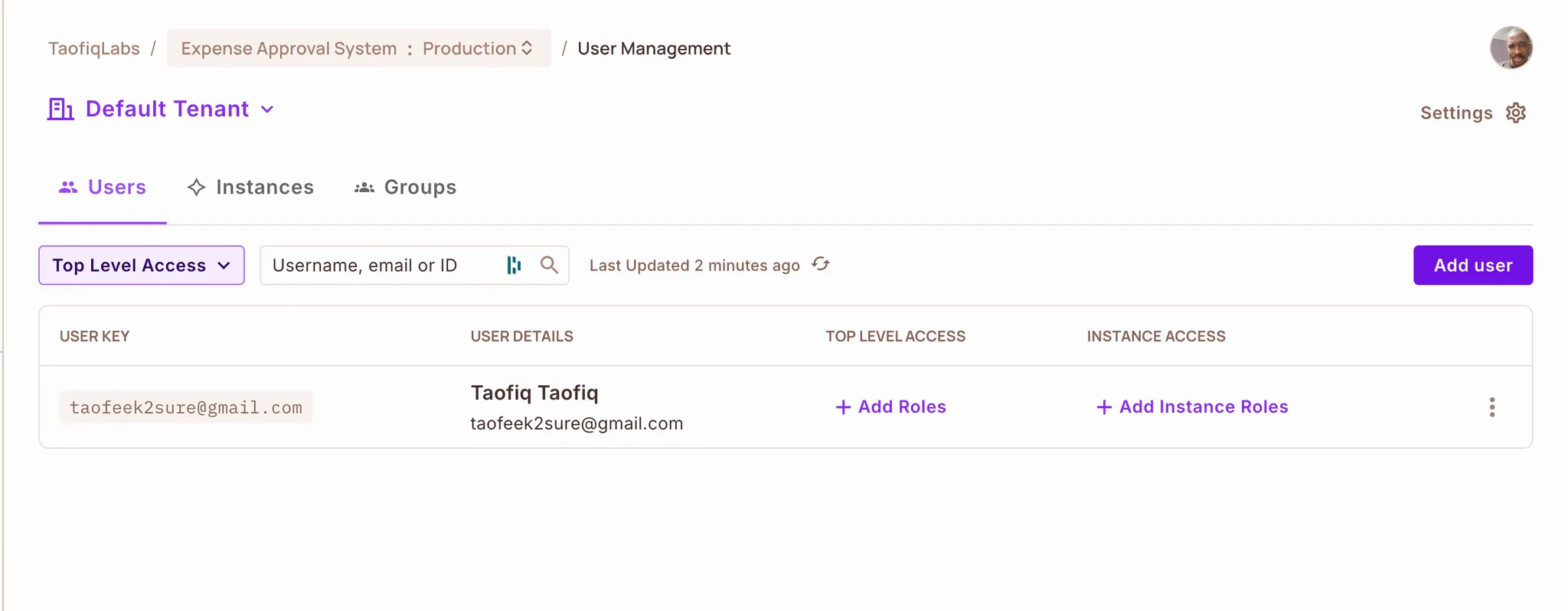
Adding User Attributes
After creating the user, click the three-dot menu next to their name and select "Edit Attributes".
In the JSON editor, add these attributes:
{
  "spending_limit": 2000,
  "department": "Engineering",
  "job_level": "Senior",
  "approval_limit": 0
}
Click Save to store the attributes.
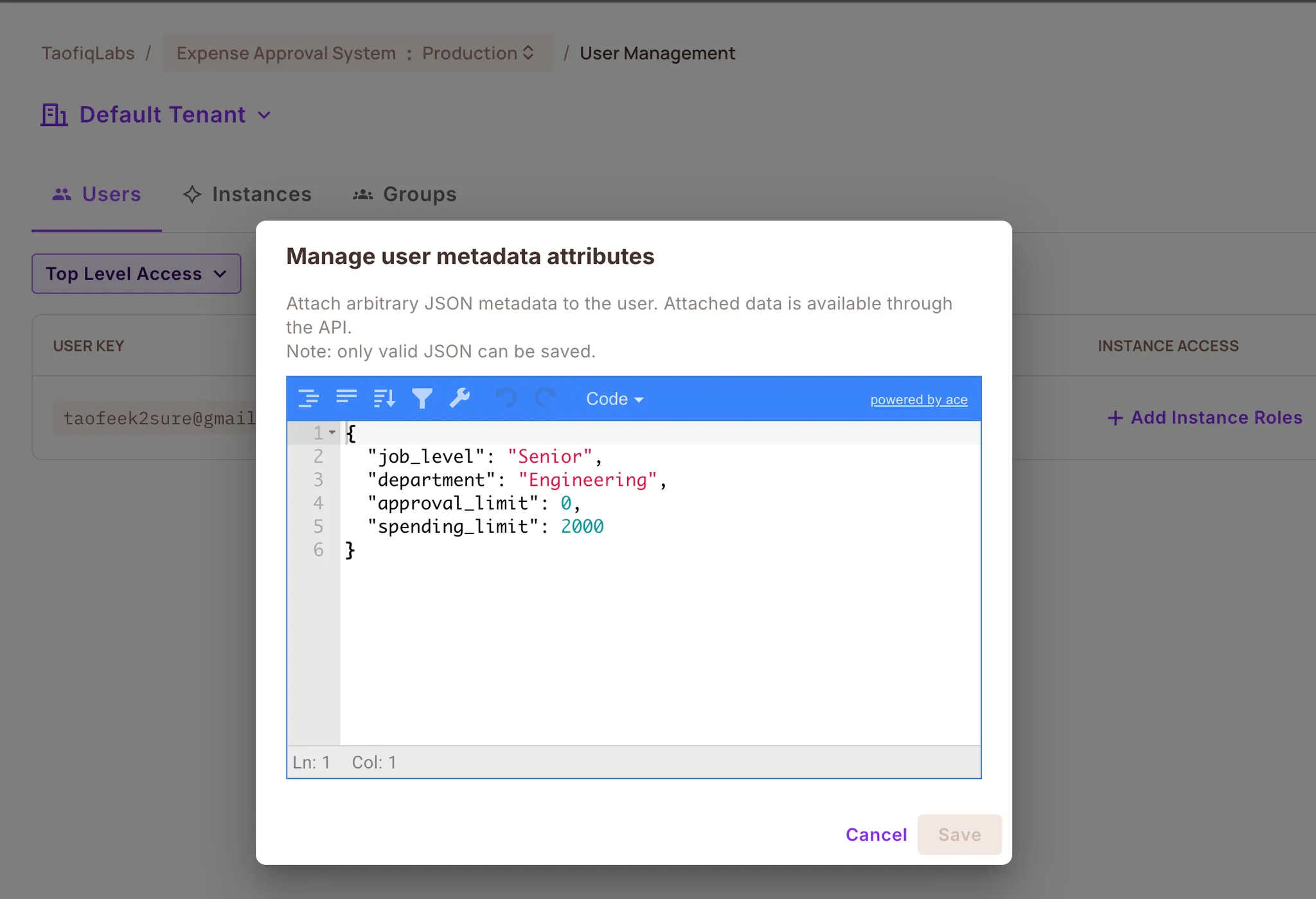
Creating the Remaining Users
Repeat the same process for the other four users. You can find their complete details (email, name, and attributes) in this github gist.
Once all five users are created with their attributes, your user list should look like this:
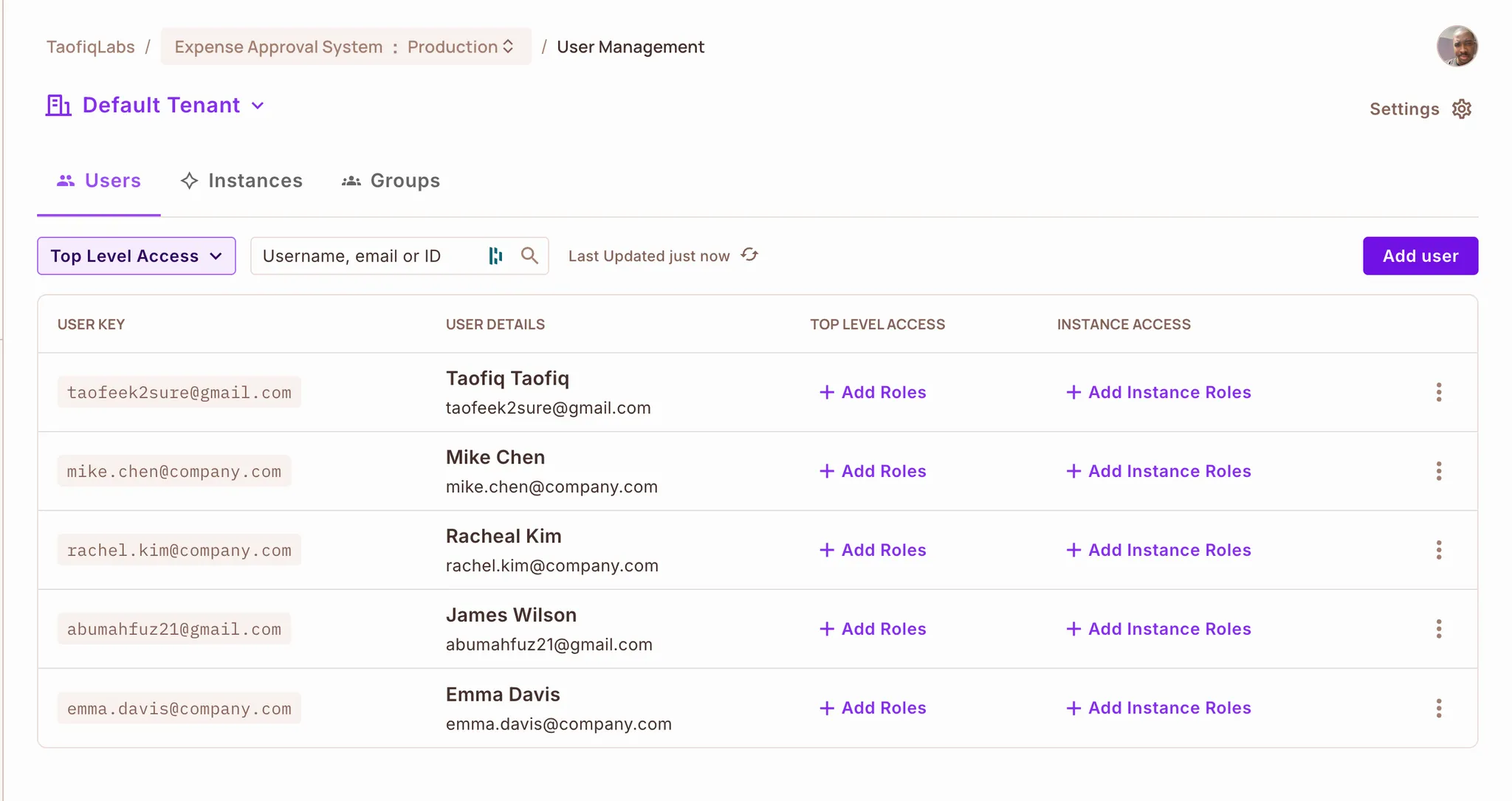
Your Directory is now ready. The ABAC policies you configured in the Permit.io Dashboard will automatically use these user attributes during your n8n authorization checks.
When creating users, make sure to use an email address you can access as the Key.
The n8n workflow uses this email to send and receive messages during expense submission.
Optional: Apply the Schema Using the Permit CLI
If you prefer to create the entire authorization schema in one step, you can use the Permit CLI.
If you don’t have it installed yet, install it with:
npm install -g @permitio/cli
This method applies the Expense Approval System template automatically, including user attributes, resource attributes, actions, and ABAC rules.
Step 1 — Log in
Authenticate and select your project + environment:
permit login
Step 2 — View available templates
This shows all environment templates bundled with the CLI:
permit env template list
Step 3 — Apply the Expense Approval template
Run the following command to create the full schema:
permit env template apply expense-approval-system-policy.tf
Once applied, your environment will contain the same configuration described in the Dashboard walkthrough.
Step 4: Building the n8n Workflow
With the authorization schema configured in Permit.io and users added to the Directory, you can now build the n8n expense approval workflow that enforces these policies at runtime.
The workflow consists of six nodes:
- Webhook to receive expense submissions
- Permit node to check if the user can submit the expense
- IF node to route based on the permission check
- Permit node to find authorized approvers (if permission is granted)
- Email node to notify approvers
- Webhook response node to handle rejected submissions
Creating a New Workflow
Log into your n8n instance and create a new workflow.
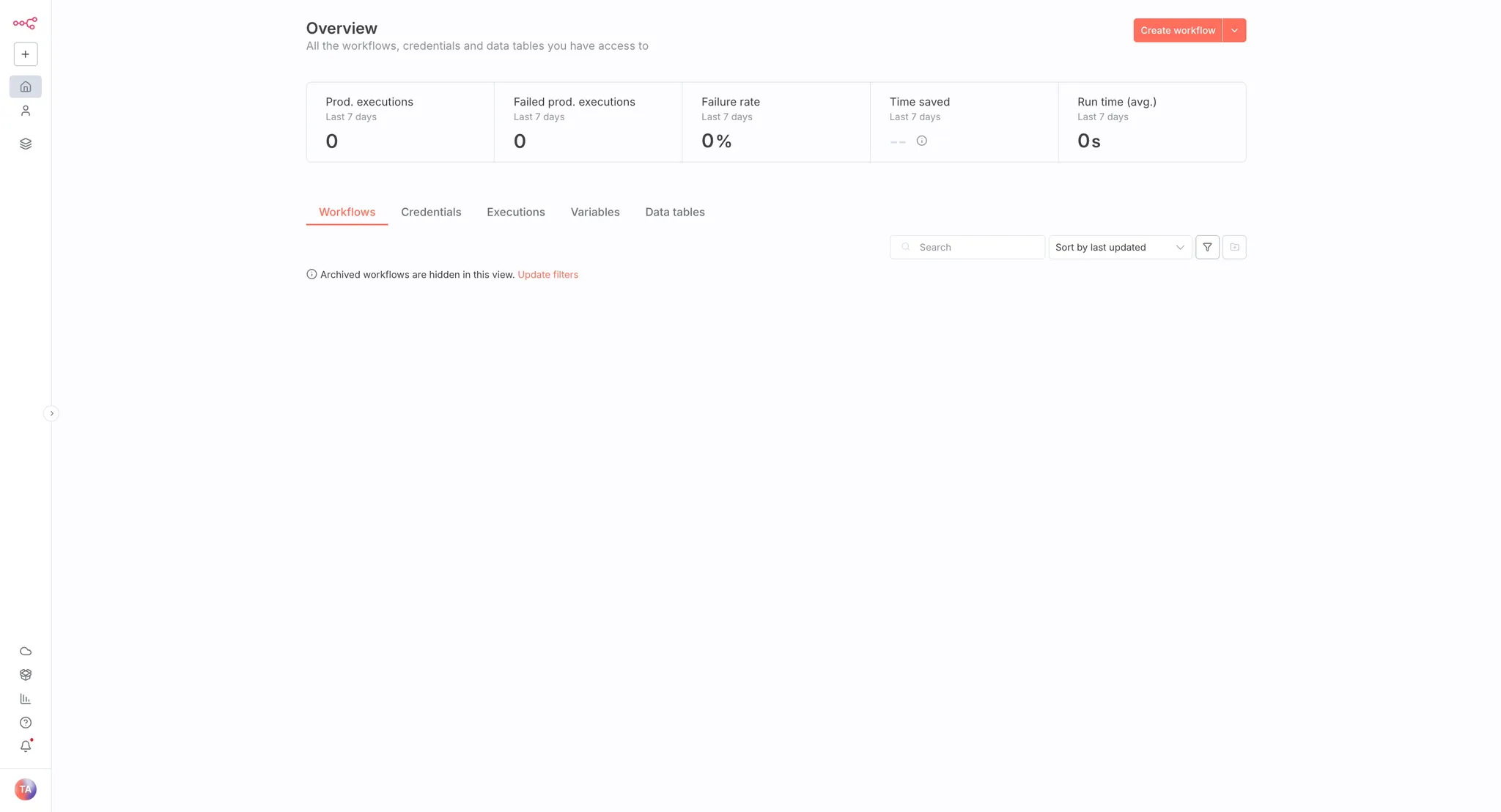
Once you create a new workflow, you'll see the workflow canvas with options to add your first node.
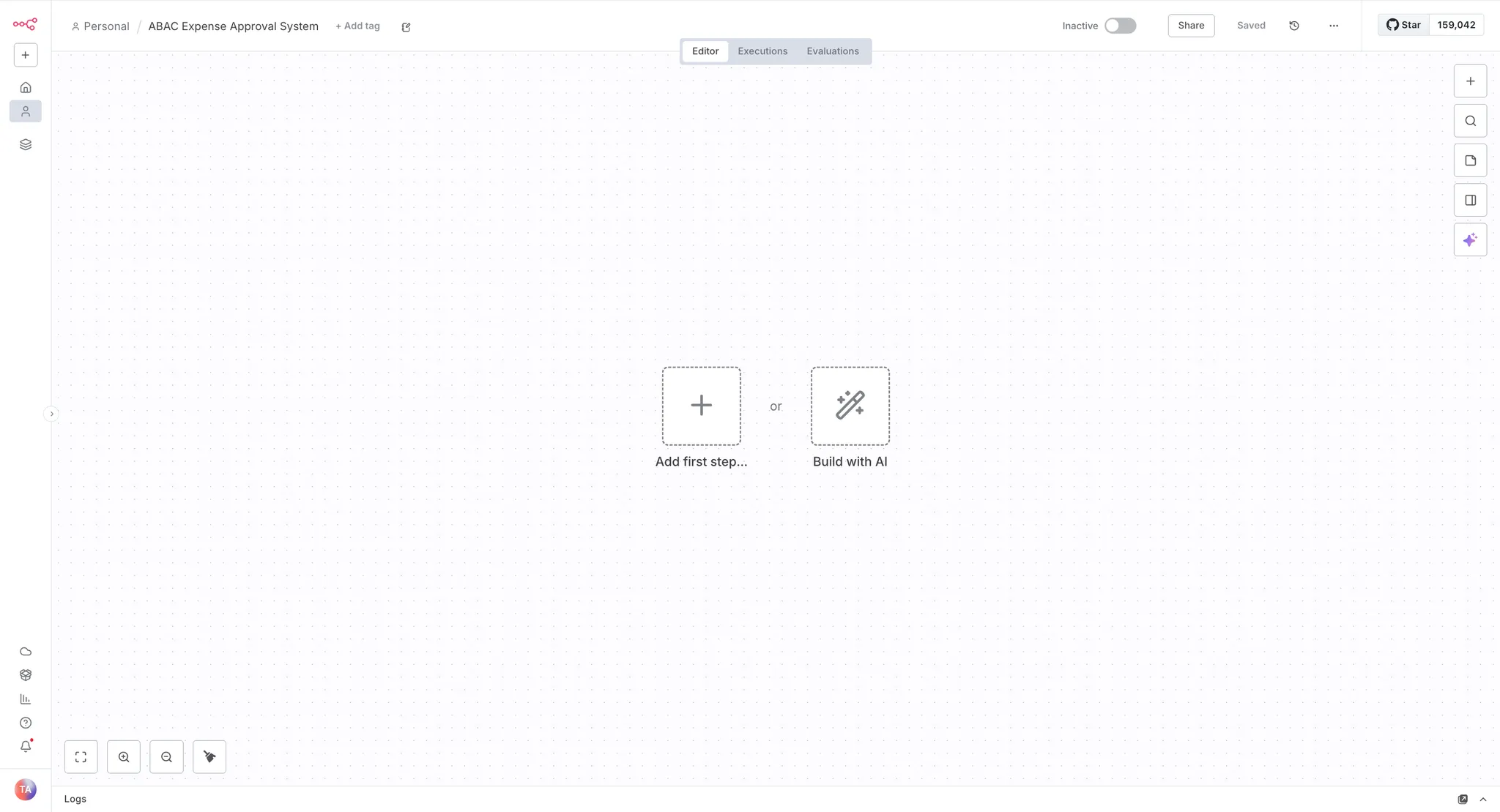
Configuring Permit.io Credentials
Before adding the Permit nodes to your workflow, set up the Permit.io credentials in n8n.
Navigate to Credentials:
- Click on the Overview tab in the left sidebar
- Select the Credentials tab
- Click "Add first credential" (or "Create credential" if you already have existing credentials)
Select Permit API:
- Search for "Permit" in the credential search box
- Select "Permit API" from the results
Configure the credential fields:
- API Key: Enter your Permit.io API key (find it in your Permit.io dashboard under Settings → API Keys)
- PDP URL: Enter
https://cloudpdp.api.permit.io for Permit.io's cloud PDP
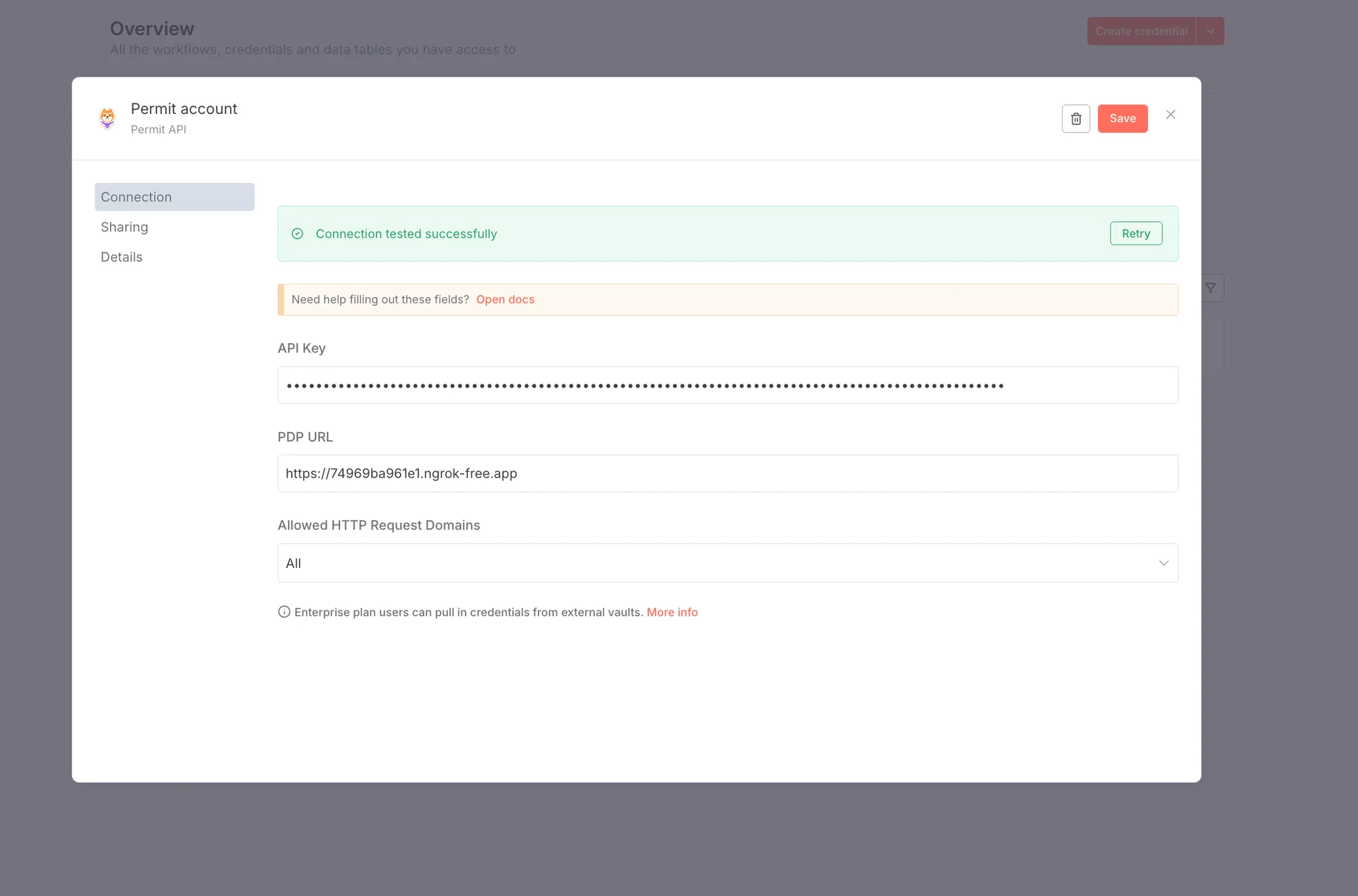
If you're using a local self-hosted PDP container, expose it publicly using a tool like ngrok and use that URL instead (e.g., https://abc123.ngrok.io). Self-hosted PDPs provide better performance and full support for ABAC and ReBAC policies.
Save the credentials:
- Click "Save" to store the credentials
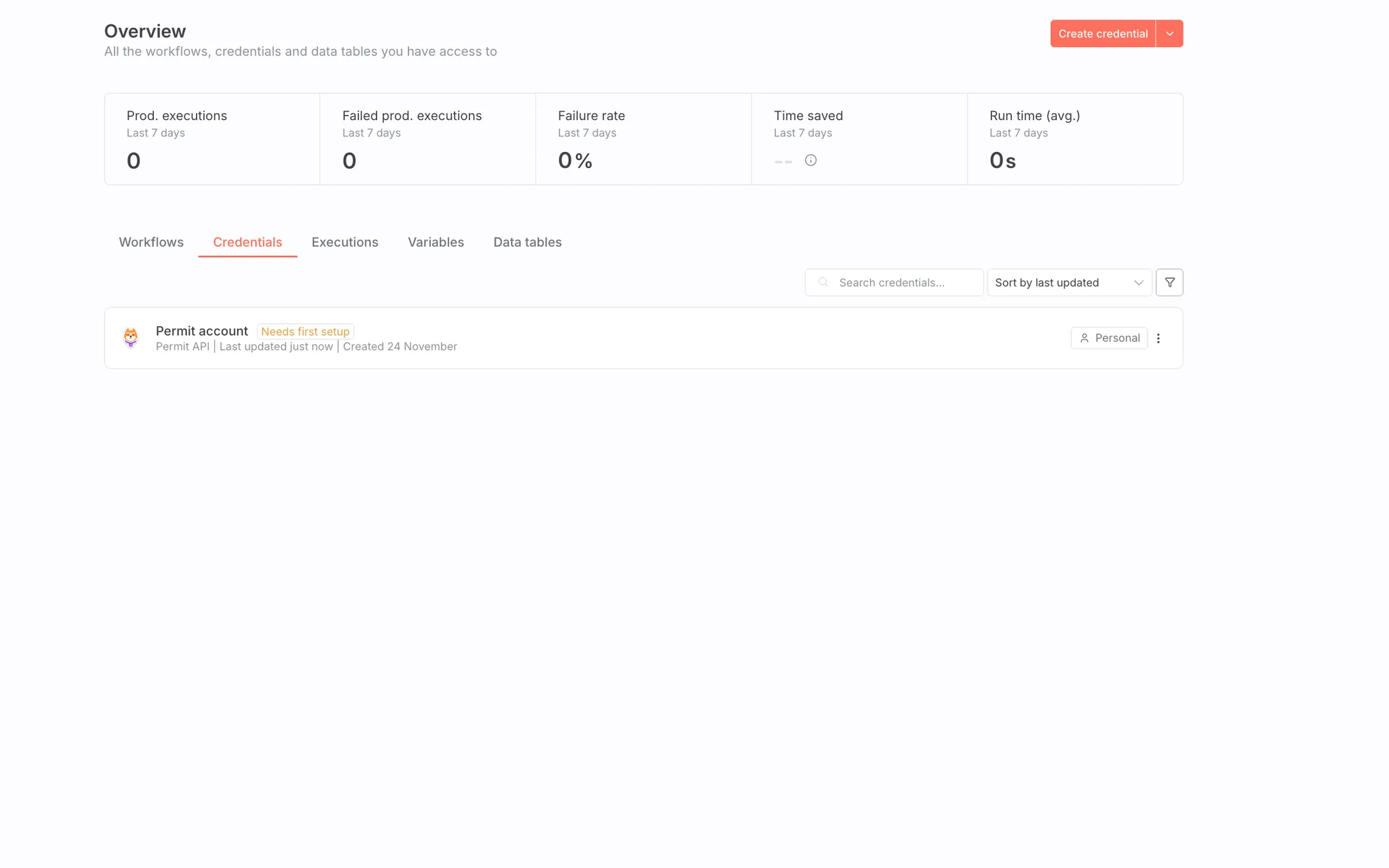 You'll select these credentials when configuring each Permit node in your workflow.
Setting Up the Webhook
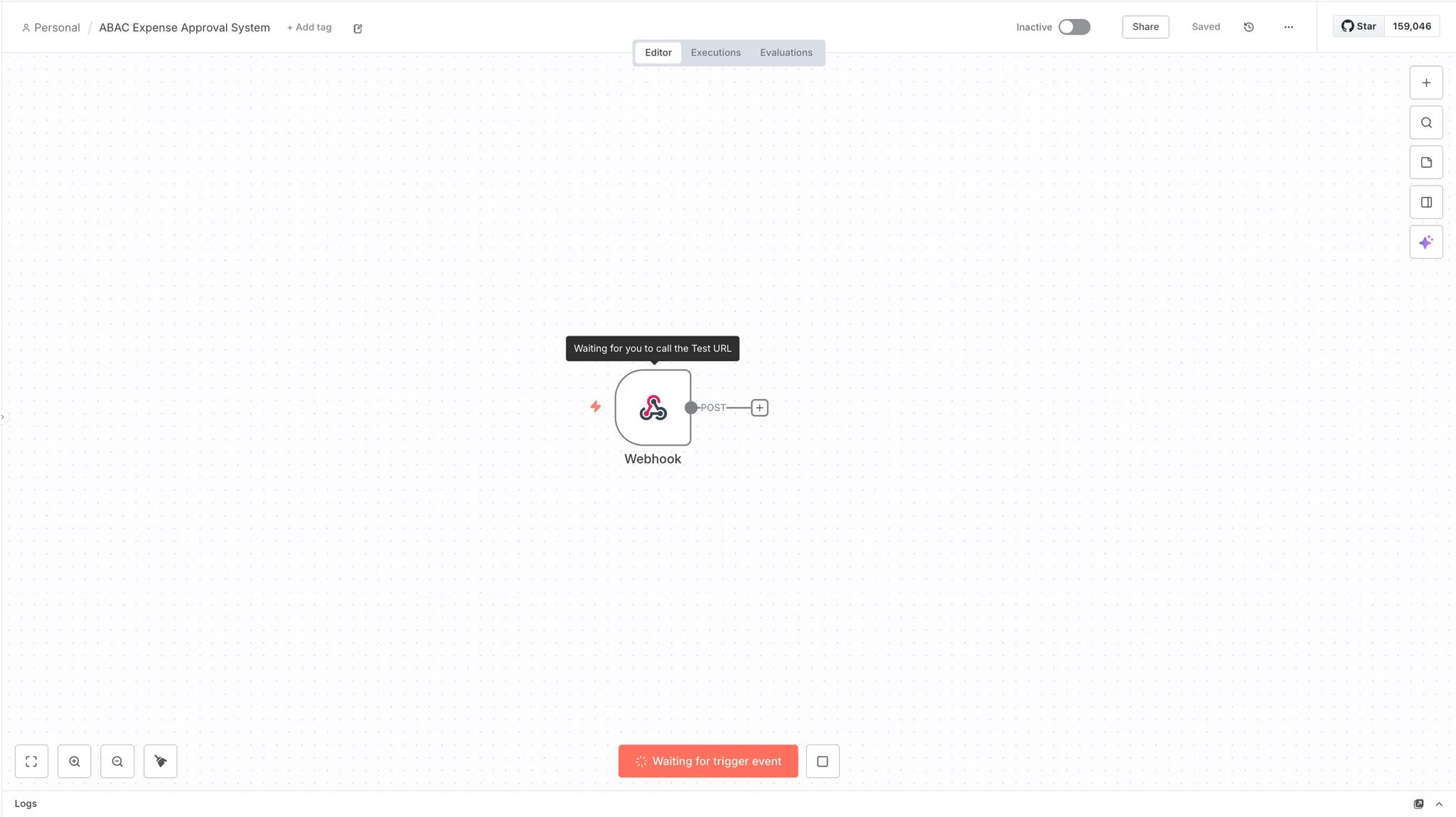
Add a Webhook node to start your workflow.
Add the Webhook node:
- In the node search panel on the right, search for "Webhook"
- Click on it to add it to the canvas
Configure the Webhook node:
- HTTP Method: Select POST
- Path: Leave as the auto-generated path (or customize if needed)
- Authentication: None
- Respond: Using 'Respond to Webhook' Node (we'll handle the response later in the workflow)
The webhook generates a Test URL for development. Copy this URL, you'll use it to send expense submission requests.
Expected payload structure:
The webhook expects a JSON payload with the following structure:
{
  "employee_email": "taofeek2sure@gmail.com",
  "expense_amount": 1500,
  "category": "travel",
  "submitter_department": "Engineering",
  "urgency": "normal"
}
This payload contains:
- employee_email: Email of the person submitting the expense (matches the user key in Permit.io Directory)
- expense_amount: Dollar amount of the expense
- category: Type of expense (travel, meals, supplies)
- submitter_department: Department of the submitter
- urgency: Priority level (normal or urgent)
Click "Listen for test event" to activate the webhook.
Testing the Webhook
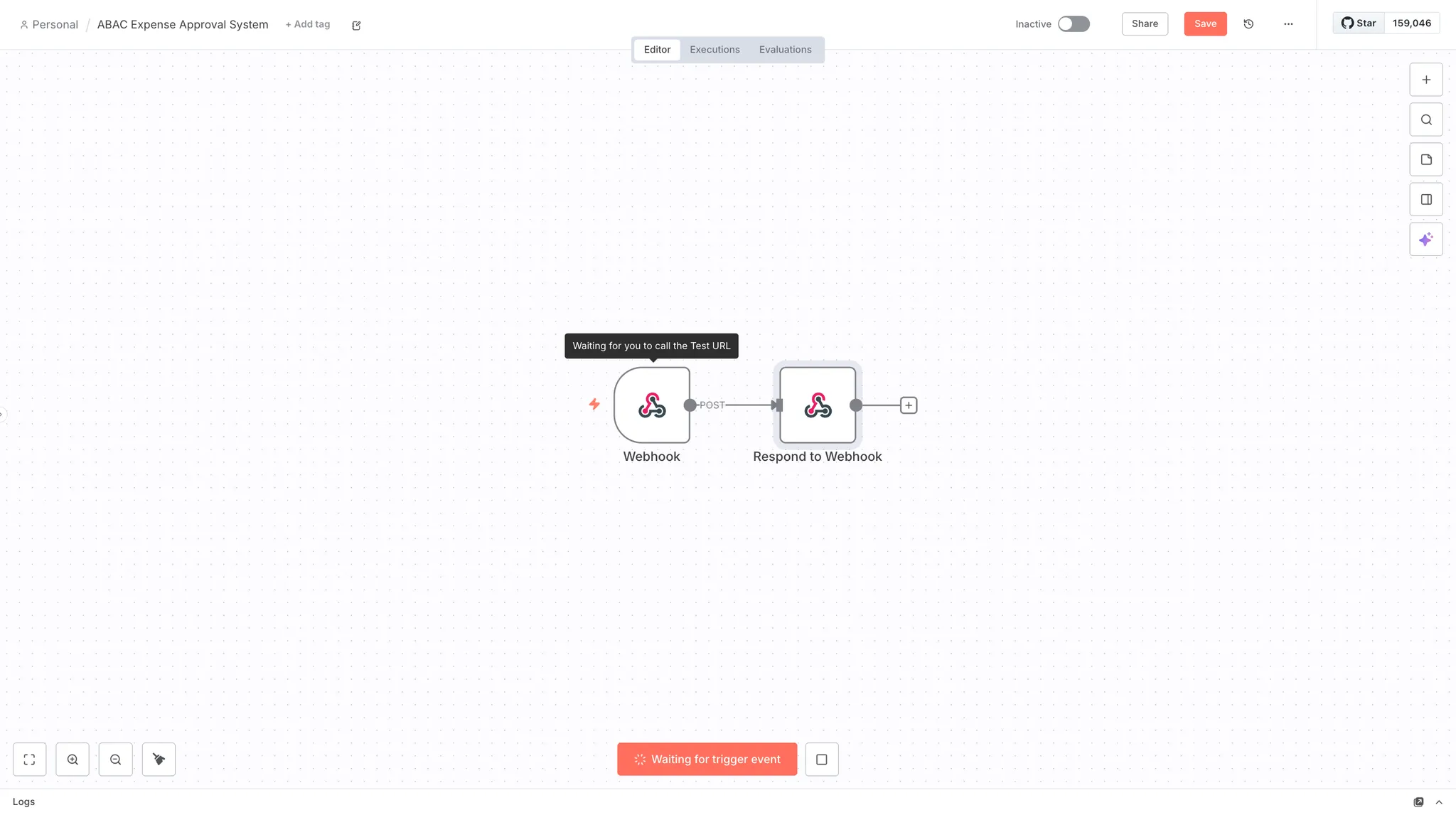
Before moving forward, verify the webhook is receiving data correctly. Temporarily add a "Respond to Webhook" node to complete the workflow and enable testing.
Add Respond to Webhook node:
- Search for "Respond to Webhook" in the node panel
- Add it to the canvas
Configure Respond to Webhook:
- Respond With: First Incoming Item (default setting)
Send a test request:
Click "Listen for test event" on the Webhook node, then send a test request using cURL:
curl -X POST https://taofiqworkflows.app.n8n.cloud/webhook-test/f9a8c245-5efb-41ad \
  -H "Content-Type: application/json" \
  -d '{
    "employee_email": "taofeek2sure@gmail.com",
    "expense_amount": 1500,
    "category": "travel",
    "submitter_department": "Engineering",
    "urgency": "normal"
  }'
Replace https://taofiqworkflows.app.n8n.cloud/webhook-test/f9a8c245-5efb-41ad with your own webhook Test URL from the Webhook node configuration.
Verify the result:
If successful, you'll see "Node executed successfully" at the bottom right of n8n. Click on the Webhook node's OUTPUT tab or the Respond to Webhook node's INPUT tab to view the received data. You should see your expense payload with all fields under body.
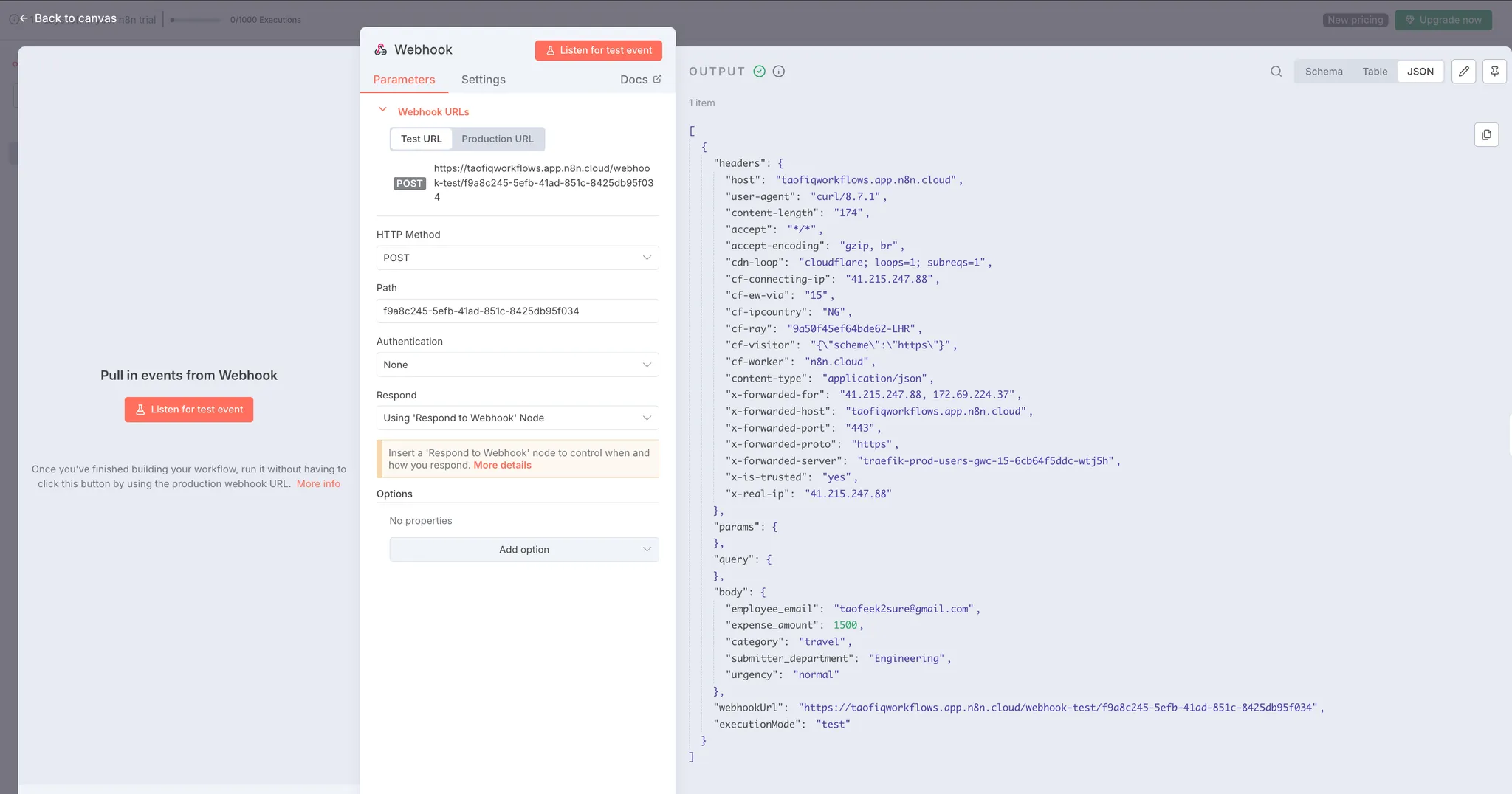
Once verified, you can delete the Respond to Webhook node, we'll add the proper response handling later in the workflow.
Adding the Check Permission Node
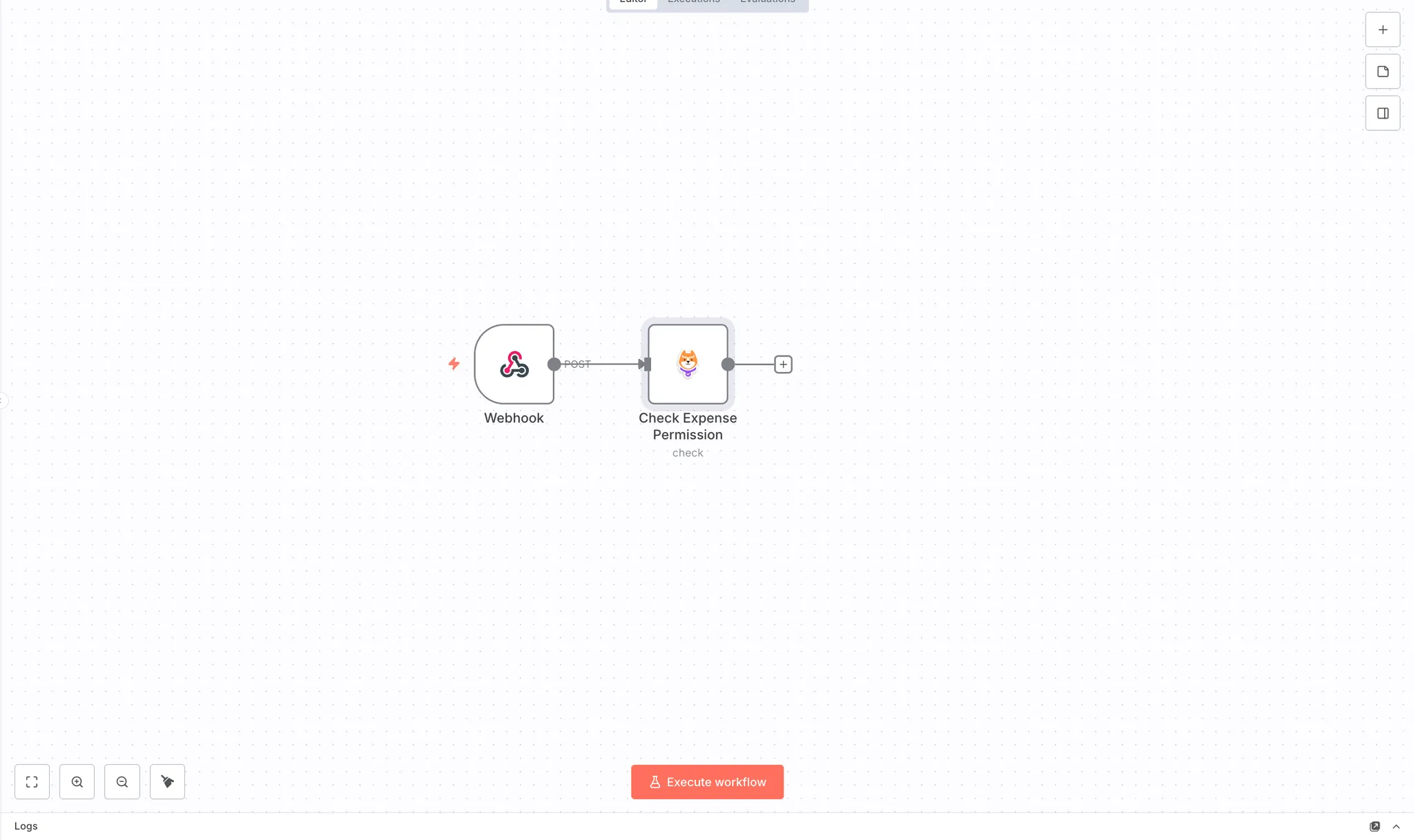
Add the Permit node to check if the user can submit the expense.
Add the Permit node:
- Search for "Permit" in the node search panel on the right
- Click on it to add to the workflow
- Click "Add to workflow" in the Node details panel
Configure the Permit node:
Click on the Permit node to open its configuration panel. Rename the node to "Check Expense Permission" for clarity.
- Credential to connect with: Select "Permit account" (the credential you configured earlier)
- Operation: Select "Check"
- User: Map the employee email from the webhook using n8n's expression syntax:
{{ $node["Webhook"].json.body.employee_email }}
This expression extracts the employee_email field from the webhook payload. Learn more about n8n expressions.
- Action: Enter
submit
- Tenant: Enter
default
- Resource: Enter
expense
- Enable ABAC: Toggle this ON
- Resource Key: Leave empty (not needed for ABAC)
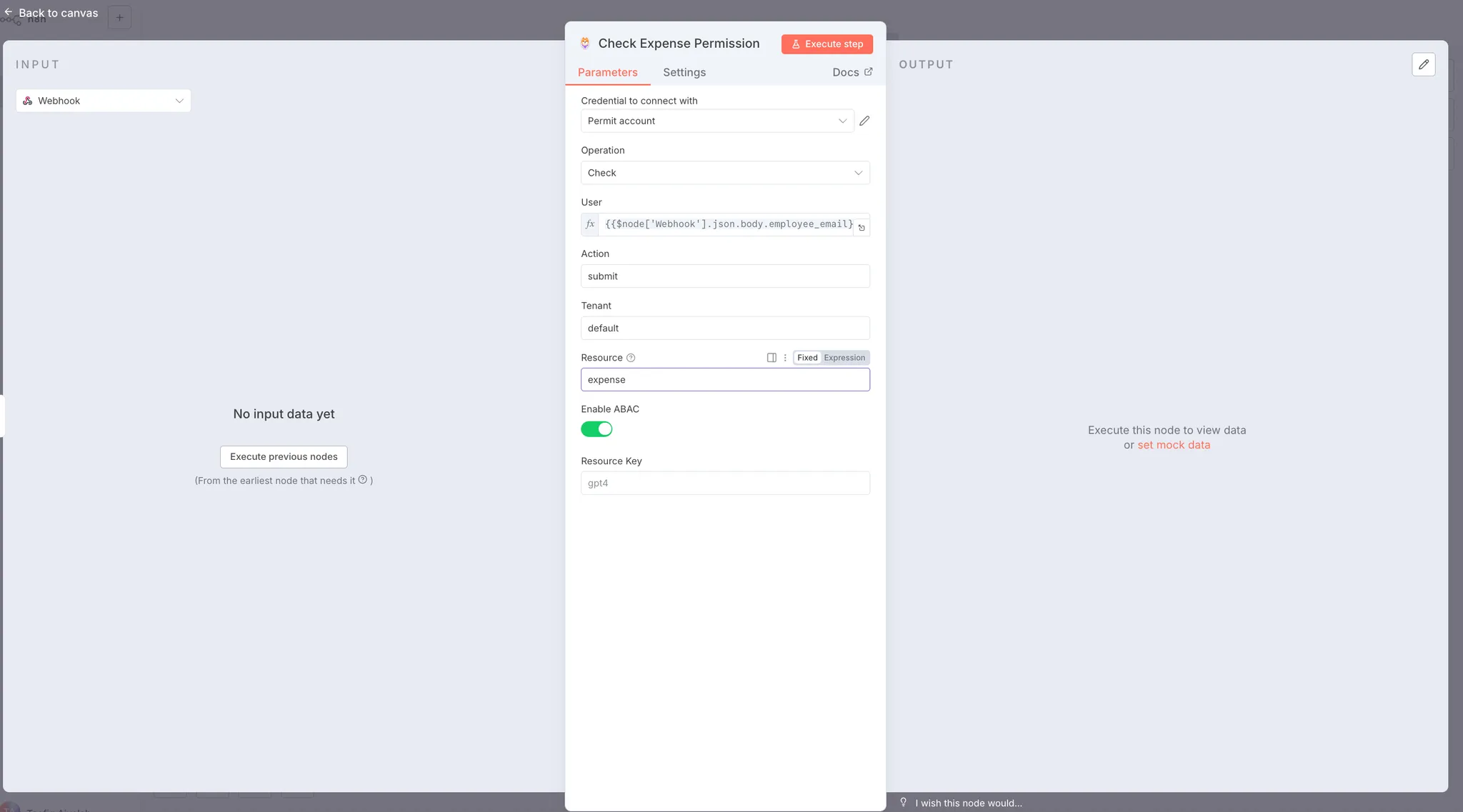
The Enable ABAC toggle is important, when enabled, the Permit node automatically extracts all fields from the webhook body (expense_amount, category, submitter_department, urgency) and sends them as resource attributes to Permit.io. The ABAC policies you defined then evaluate these attributes to determine if the user can submit this specific expense.
Testing the Permission Check
Send a new webhook request to trigger both nodes:
curl -X POST https://taofiqworkflows.app.n8n.cloud/webhook-test/f9a8c245-5efb-41ad \
  -H "Content-Type: application/json" \
  -d '{
    "employee_email": "taofeek2sure@gmail.com",
    "expense_amount": 1500,
    "category": "travel",
    "submitter_department": "Engineering",
    "urgency": "normal"
  }'
Replace the webhook URL with your own Test URL.
Check the result:
Click on the Permit node's OUTPUT tab. You should see a response with an allow field:
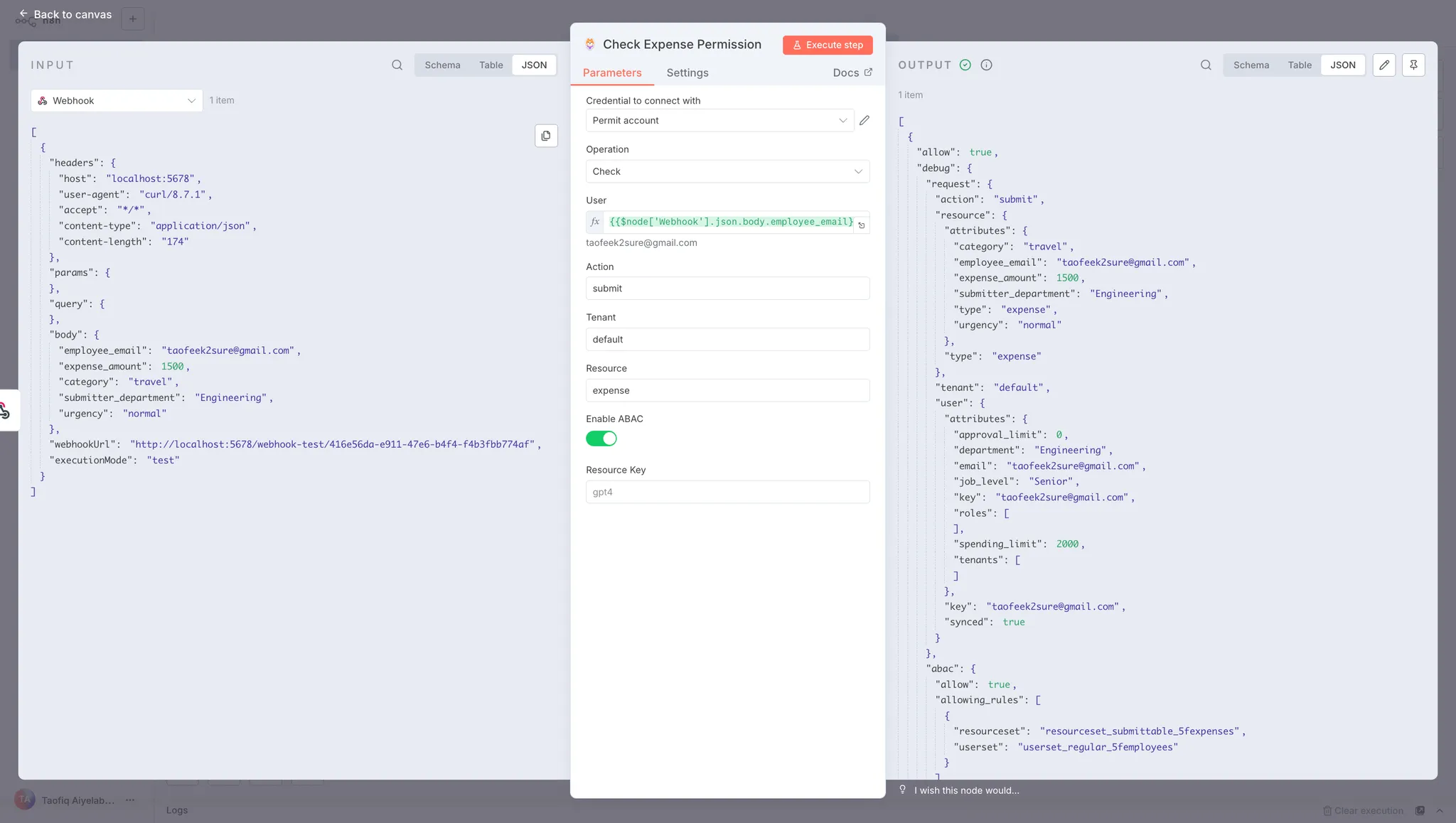
The response shows:
- allow: true - Permission granted
- abac.allowing_rules - Shows which ABAC rule matched (regular employees can submit expenses within their spending limit)
- user.attributes - User's attributes from Permit.io Directory
- resource.attributes - Expense attributes from the webhook payload
If allow is true, the user can submit the expense within their spending limit. If false, the expense exceeds their limit or violates other policy conditions.
Adding the IF Node for Routing
Add an IF node to route the workflow based on the permission check result.
Add the IF node:
- Search for "If" in the node search panel
- Click on it to add to the workflow
Configure the IF node:
Click on the IF node to open its configuration panel.
- Conditions: Set up the condition to check if permission was granted
- Click in the first field and enter the expression:
{{ $json.allow }}
- Operator: Select "is equal to"
- Value: Enter
true
- Convert types where required: Toggle ON
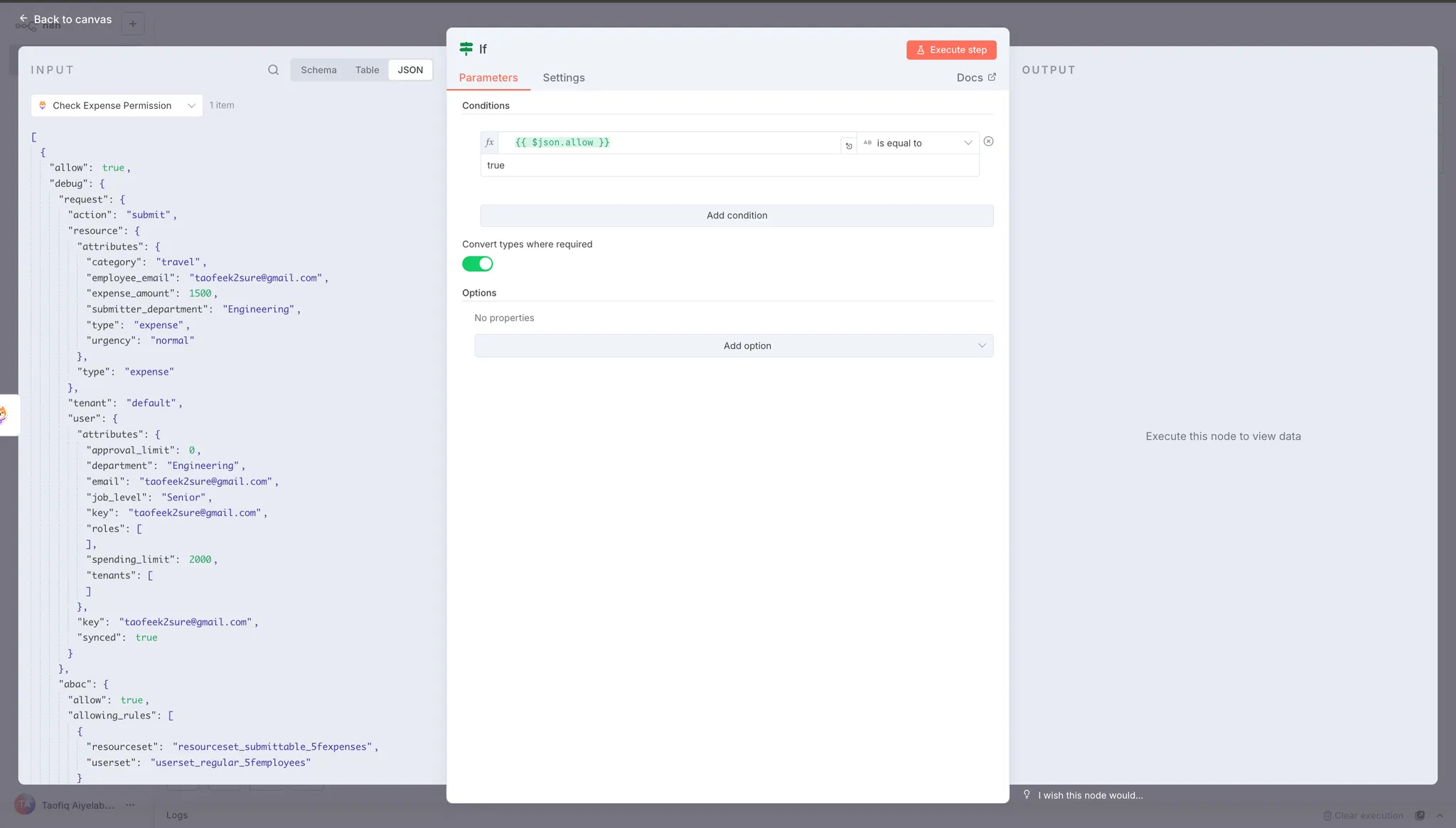
This condition checks the allow field from the Permit node's response. If allow equals true, the workflow follows the true branch. If allow equals false, it follows the false branch.
Understanding the branches:
The IF node creates two output paths:
- True branch: Permission granted → Find authorized approvers and send notification
- False branch: Permission denied → Return rejection response to the submitter
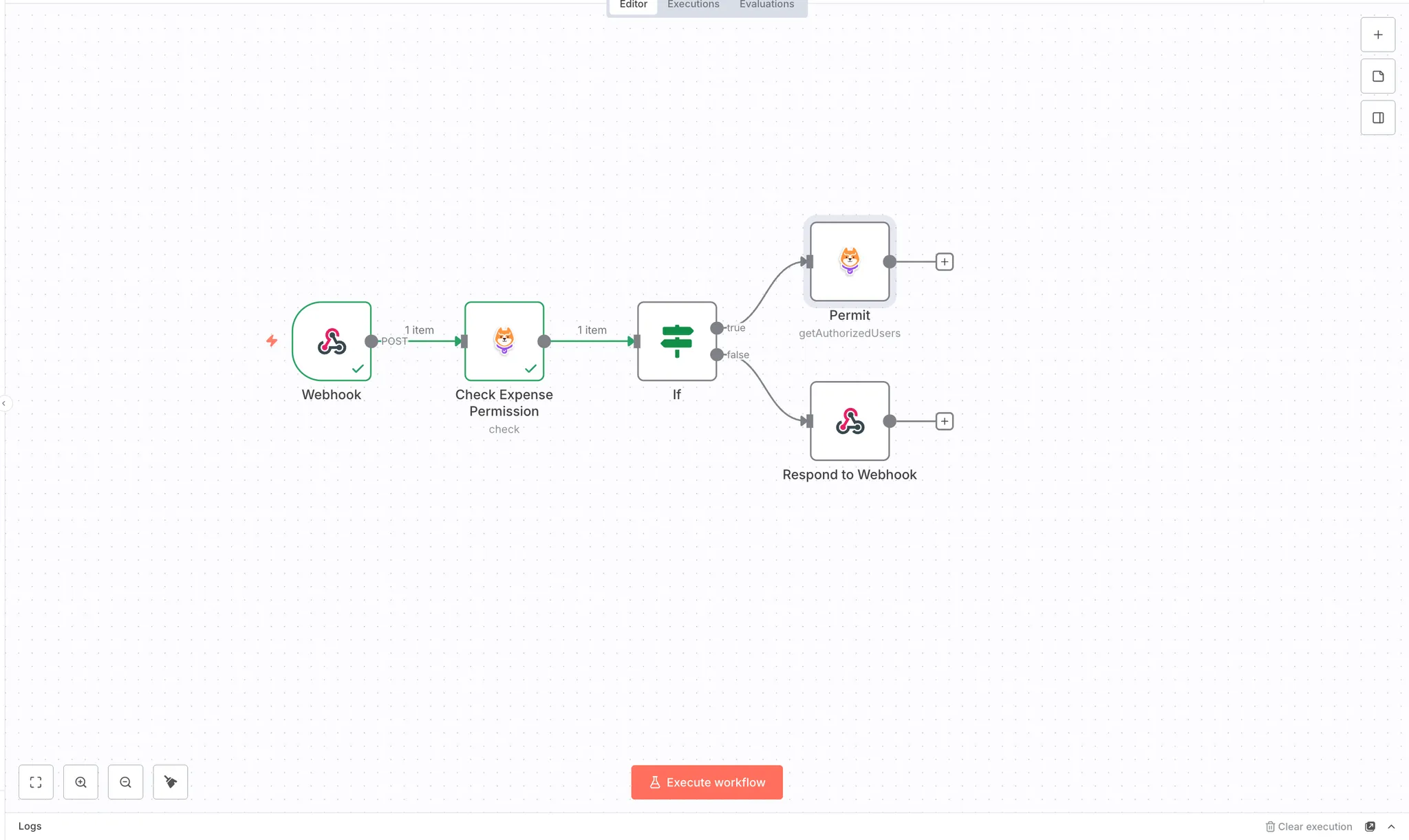
The workflow now routes expenses based on the authorization decision from Permit.io. Approved expenses proceed to the approval workflow, while rejected expenses receive an immediate response.
Handling Rejected Submissions (False Branch)
When permission is denied, the workflow needs to send a rejection response back to the submitter. Add a Respond to Webhook node to the false branch.
Add Respond to Webhook node:
- Search for "Respond to Webhook" in the node search panel
- Click on it to add to the workflow
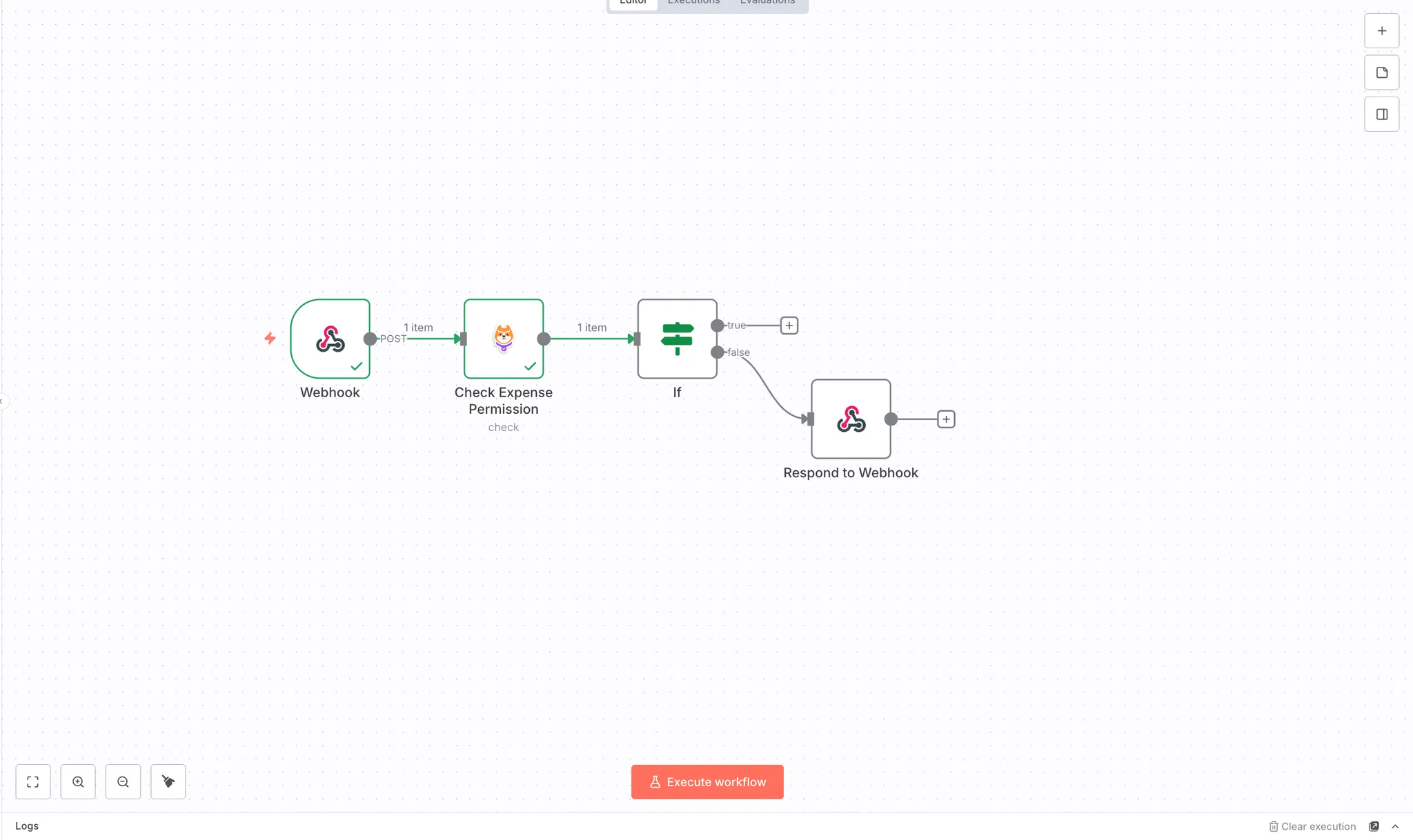
Configure the node:
Click on the Respond to Webhook node:
- Respond With: Select "All Incoming Items"
This returns the permission decision along with the expense details back to the webhook caller.
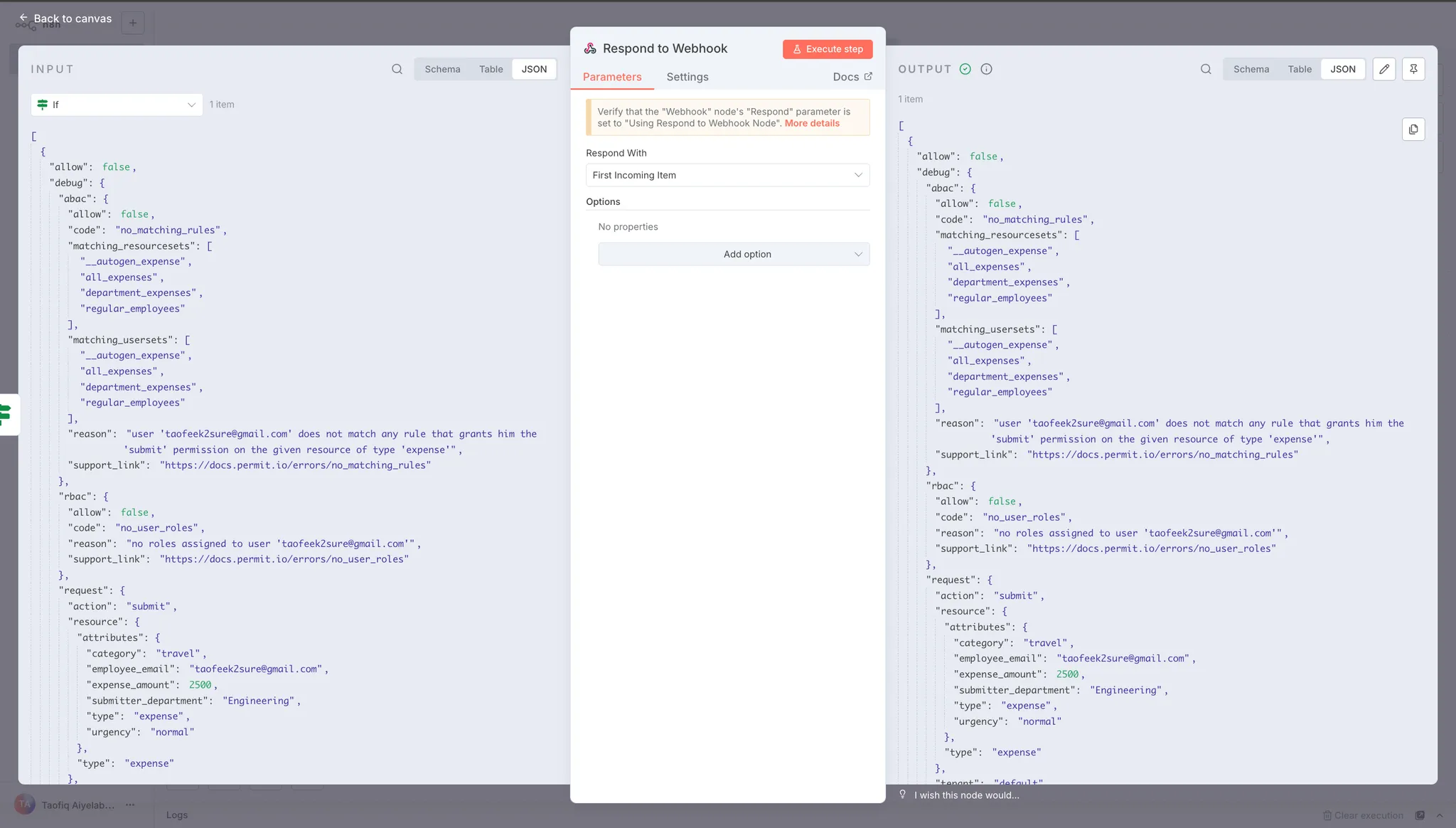
This node returns the data from the IF node back to the webhook caller. When permission is denied, the response includes the expense details and the allow: false decision from Permit.io.
Test the rejection flow:
Send a webhook request with an expense amount that exceeds the user's spending limit:
curl -X POST https://taofiqworkflows.app.n8n.cloud/webhook-test/f9a8c245-5efb-41ad \
  -H "Content-Type: application/json" \
  -d '{
    "employee_email": "taofeek2sure@gmail.com",
    "expense_amount": 2500,
    "category": "travel",
    "submitter_department": "Engineering",
    "urgency": "normal"
  }'
Replace the webhook URL with your own Test URL.
Since Taofeek's spending limit is $2,000, this $2,500 expense should be rejected. The workflow follows the false branch and returns a response indicating the expense was denied.
Finding Authorized Approvers (True Branch)
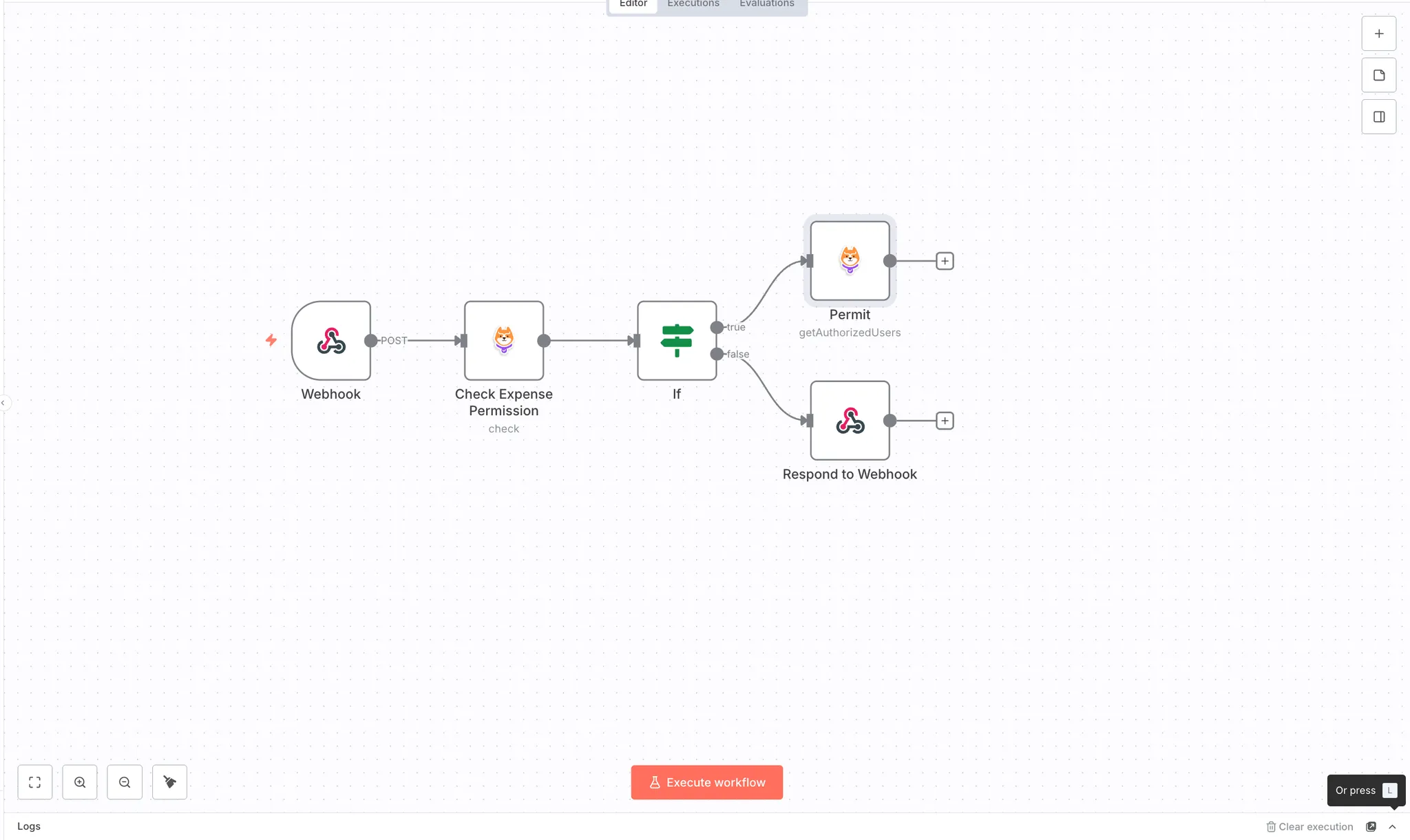
When permission is granted, the workflow needs to find who can approve this expense. Add another Permit node to the true branch to get authorized approvers.
Add the Permit node:
- Search for "Permit" in the node search panel
- Click on it to add to the workflow
- Rename this node to
Get Authorized Approvers
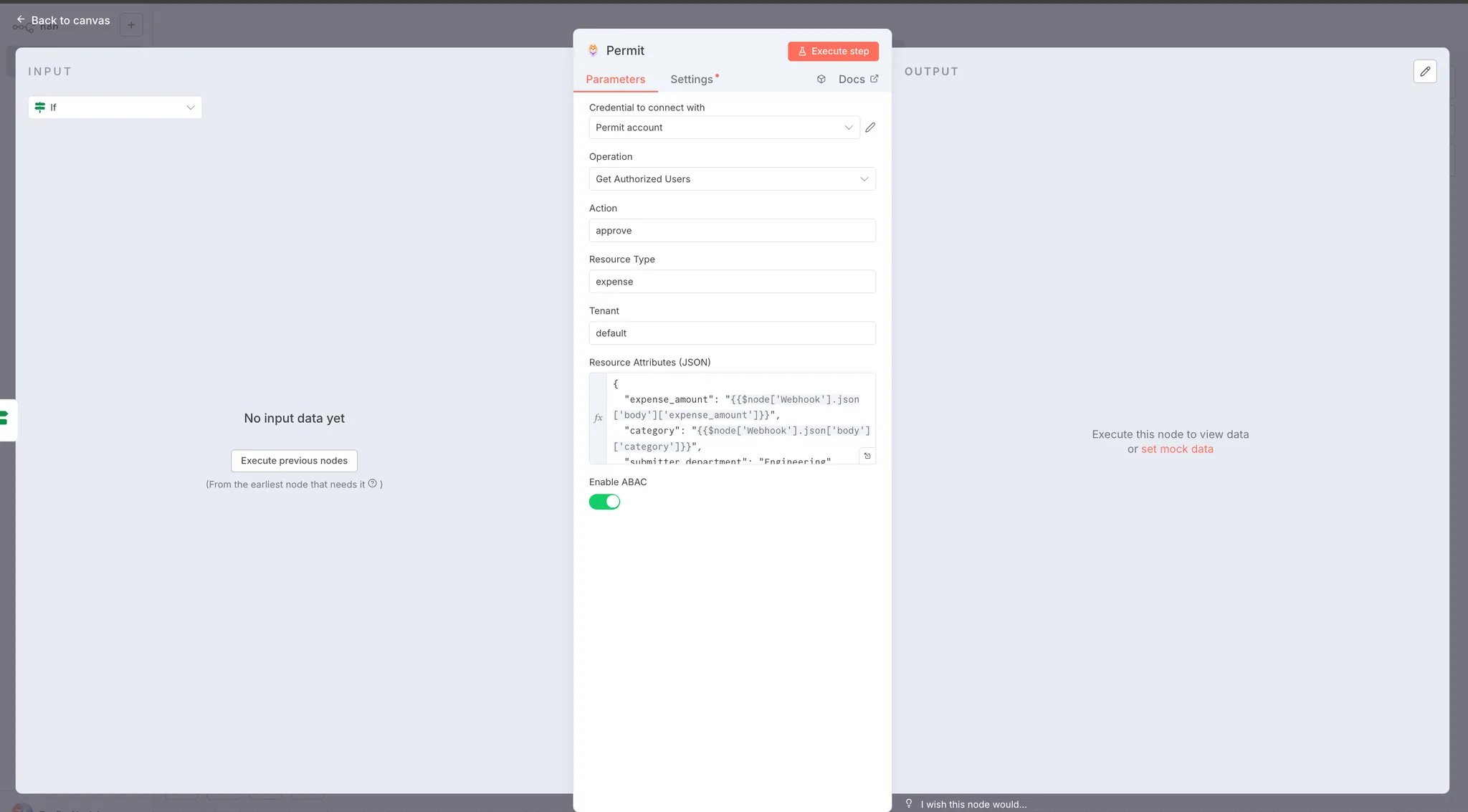
Configure the Permit node:
Click on the Permit node and rename it to "Get Authorized Approvers".
- Credential to connect with: Select "Permit account"
- Operation: Select "Get Authorized Users"
- Action: Enter
approve
- Resource Type: Enter
expense
- Tenant: Enter
default
- Resource Attributes (JSON): Enter the expense attributes as JSON:
{
  "expense_amount": "{{ $node['Webhook'].json['body']['expense_amount'] }}",
  "category": "{{ $node['Webhook'].json['body']['category'] }}",
  "submitter_department": "{{ $node['Webhook'].json['body']['submitter_department'] }}"
}
This node queries your Permit.io environment to find all users who have permission to approve this specific expense based on the ABAC policies. The response includes users from user sets like department_managers, senior_managers, or finance_team, depending on the expense amount, department, and other attributes.
The authorized users list will be used by the next node to send approval notifications.
Test the authorized users lookup:
Click "Execute step" on the Get Authorized Approvers node to see who can approve this expense.
Check the OUTPUT tab. You should see a response showing authorized users:
{
  "resource": "expense:*",
  "tenant": "default",
  "users": {
    "abumahfuz21@gmail.com": [
      {
        "user": "abumahfuz21@gmail.com",
        "tenant": "default",
        "resource": "resourceset_all_5fexpenses",
        "role": "userset_finance_5fteam"
      }
    ]
  }
}
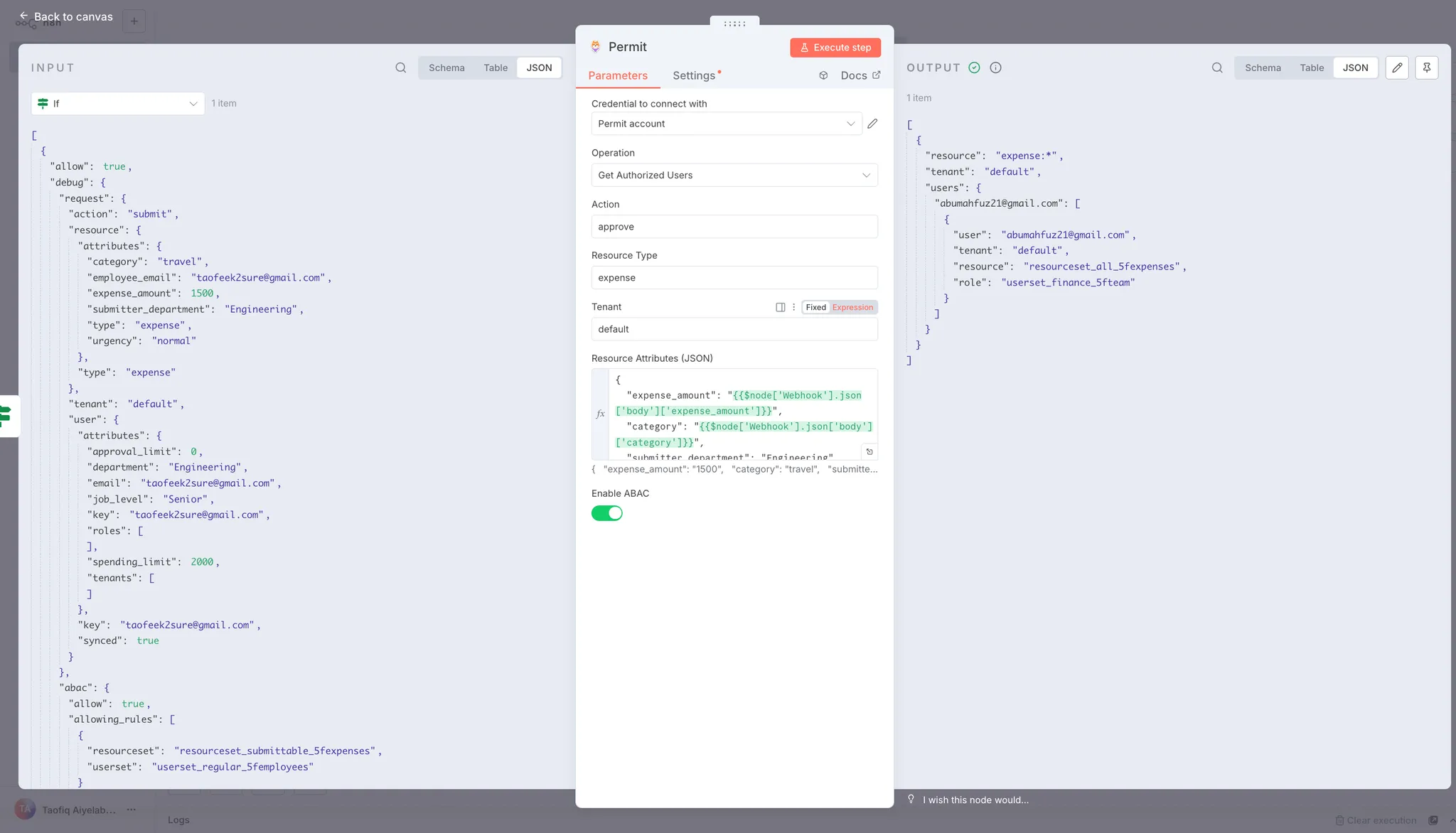
The response shows that James Wilson (Finance team member) is authorized to approve this $1,500 Engineering expense. Since finance team members can approve any expense regardless of amount or department, he appears in the authorized users list.
For a $6,000 expense, you'd see senior managers in the results instead, as those expenses require senior manager approval.
Sending Approval Notifications
Add a Send Email node to notify authorized approvers about the pending expense.
Add the Send Email node:
- Search for "Send Email" in the node search panel
- Click on it to see available options
- Select "Send an Email" (the plain email action)
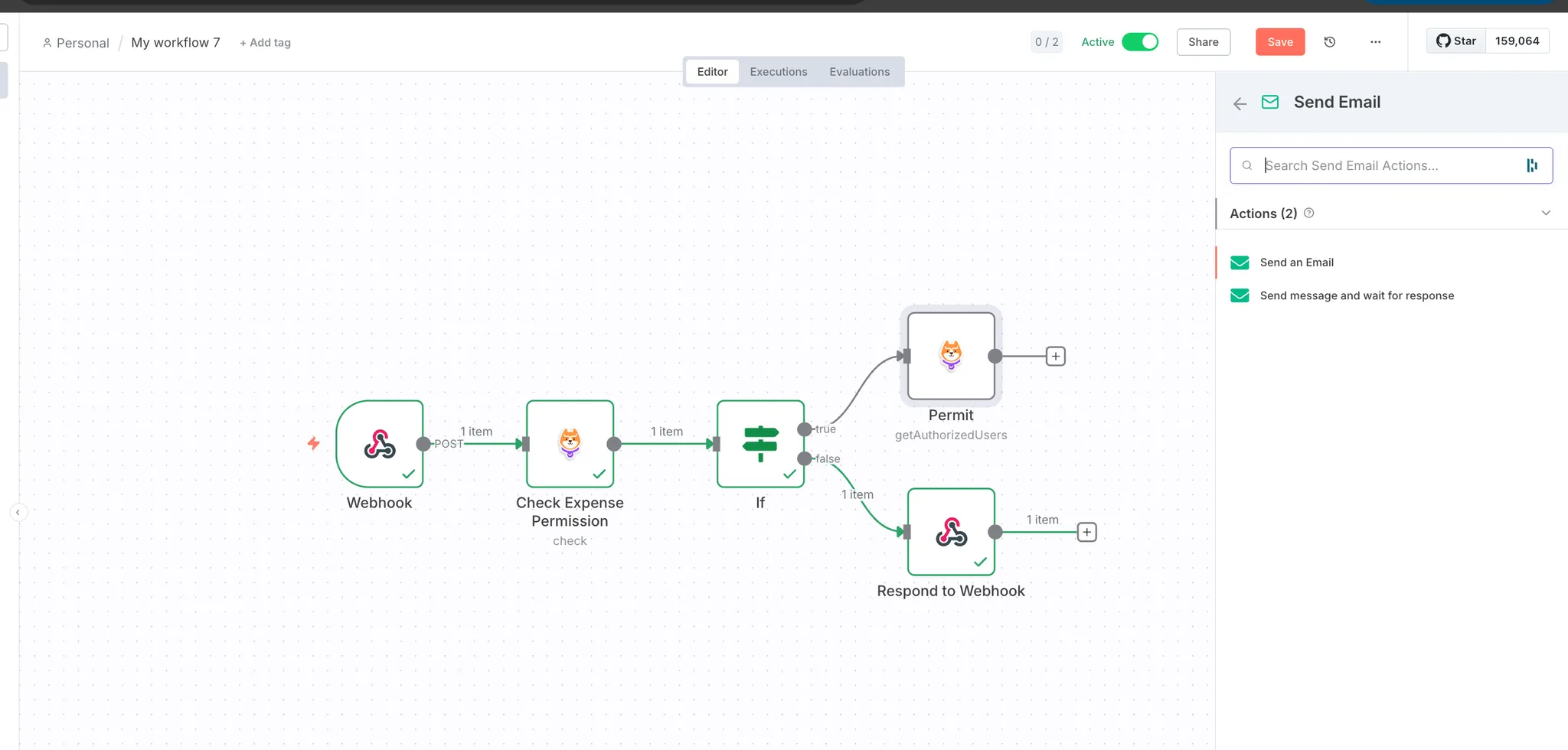
Configure SMTP credentials:
Before configuring the email, you need to set up SMTP credentials. Click on "Credential to connect with" and select "Create New Credential".
Fill in your SMTP details:
- User: Your email address
- Password: Your email password or app-specific password
- Host: Your SMTP server (e.g., smtp.gmail.com)
- Port: 465 (for SSL/TLS)
- SSL/TLS: Toggle ON
Configure the email:
- Credential to connect with: Select your SMTP account
- From Email: Your sender email address
- To Email: Extract the first authorized approver's email using an expression:
{{ Object.keys($('Get Authorized Approvers').first().json.users)[0] }}
This expression gets the email address of the first authorized approver from the Get Authorized Approvers node's output.
- Subject: Dynamic subject with expense amount:
Expense Approval Required - ${{ $node['Webhook'].json.body.expense_amount }}
- Email Format: Select HTML
- HTML: Email body with expense details:
<h3>Expense Approval Request</h3>
<p><strong>Employee:</strong> {{ $node['Webhook'].json.body.employee_email }}</p>
<p><strong>Amount:</strong> ${{ $node['Webhook'].json.body.expense_amount }}</p>
<p><strong>Category:</strong> {{ $node['Webhook'].json.body.category }}</p>
<p><strong>Department:</strong> {{ $node['Webhook'].json.body.submitter_department }}</p>
<p><strong>Urgency:</strong> {{ $node['Webhook'].json.body.urgency }}</p>
<br>
<p>Please review and approve this expense.</p>
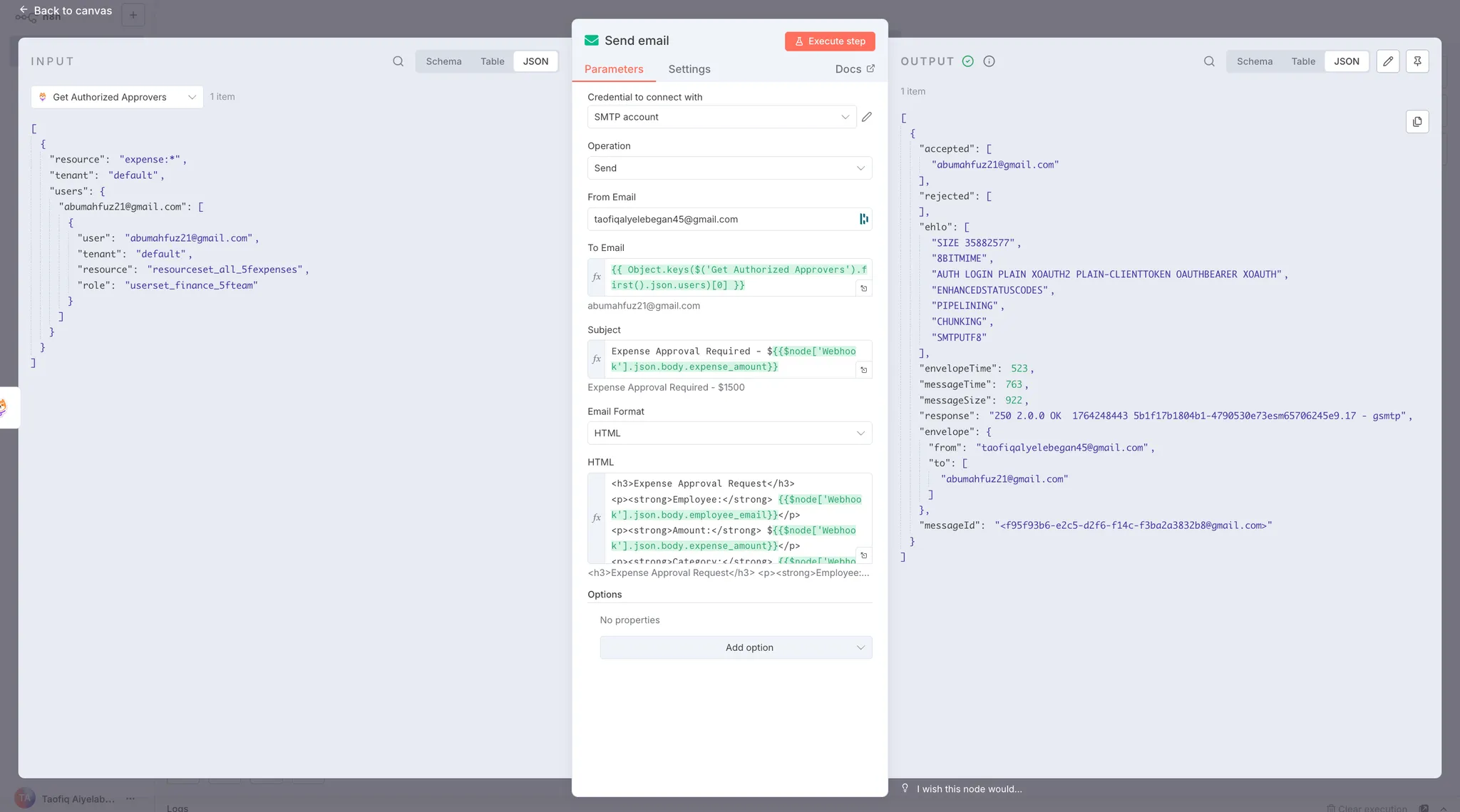
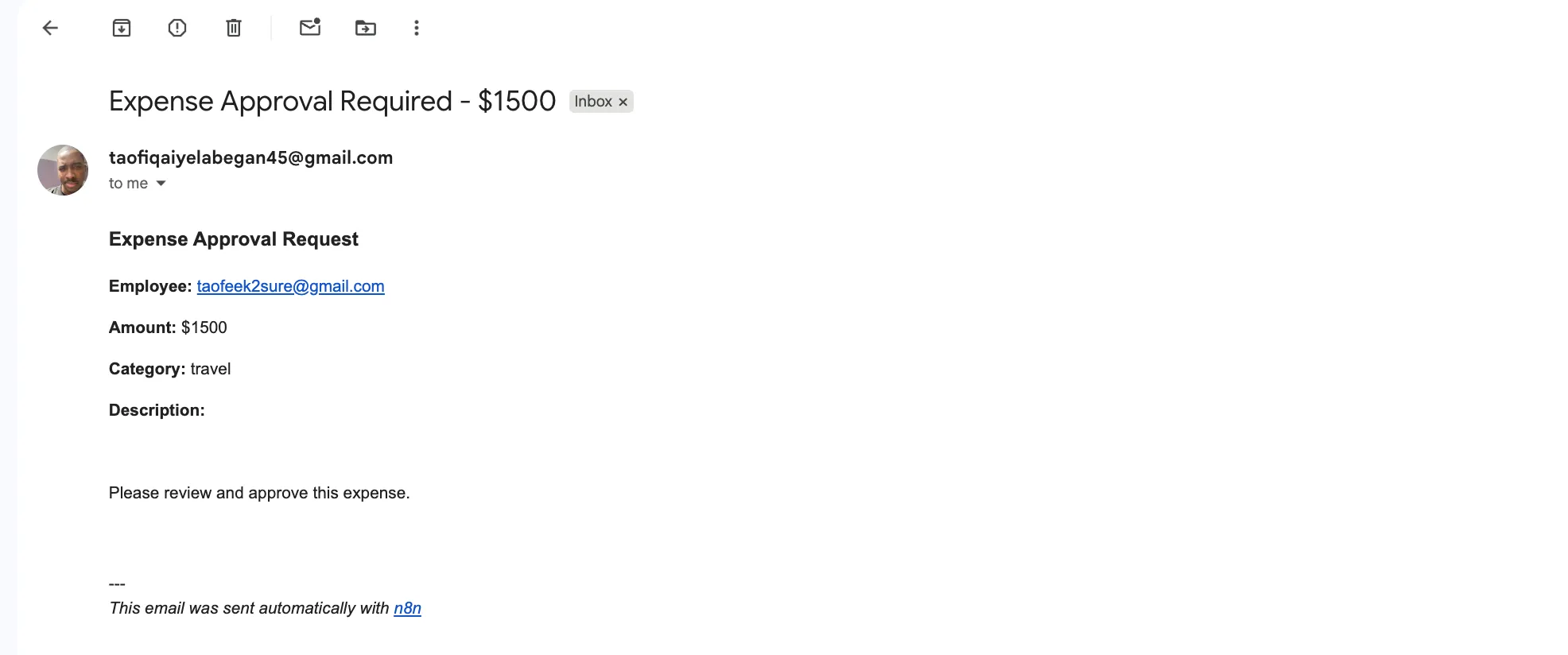
The workflow is now complete. When an expense is submitted and authorized, the email node sends a notification to the appropriate approver with all the expense details.
Testing the Complete Workflow
Let's test the expense approval system with three scenarios to demonstrate how ABAC policies control workflow routing.
Test Case 1: Approved Submission Within Limit
Send an expense submission within the user's spending limit:
curl -X POST  https://taofiqworkflows.app.n8n.cloud/webhook-test/f9a8c245-5efb-41ad \
  -H "Content-Type: application/json" \
  -d '{
    "employee_email": "taofeek2sure@gmail.com",
    "expense_amount": 1500,
    "category": "travel",
    "submitter_department": "Engineering",
    "urgency": "normal"
  }'
Replace the webhook URL with your own Test URL.
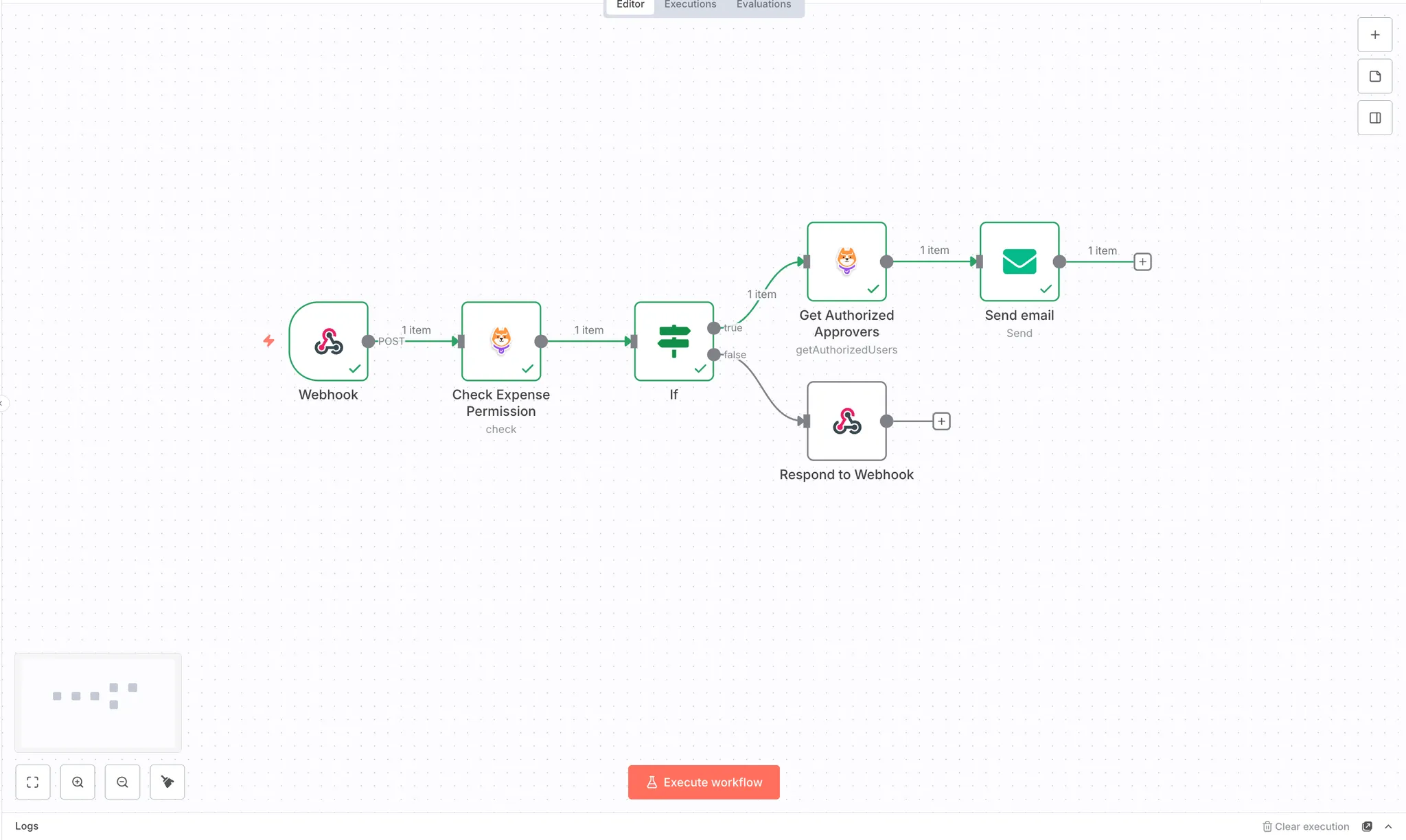
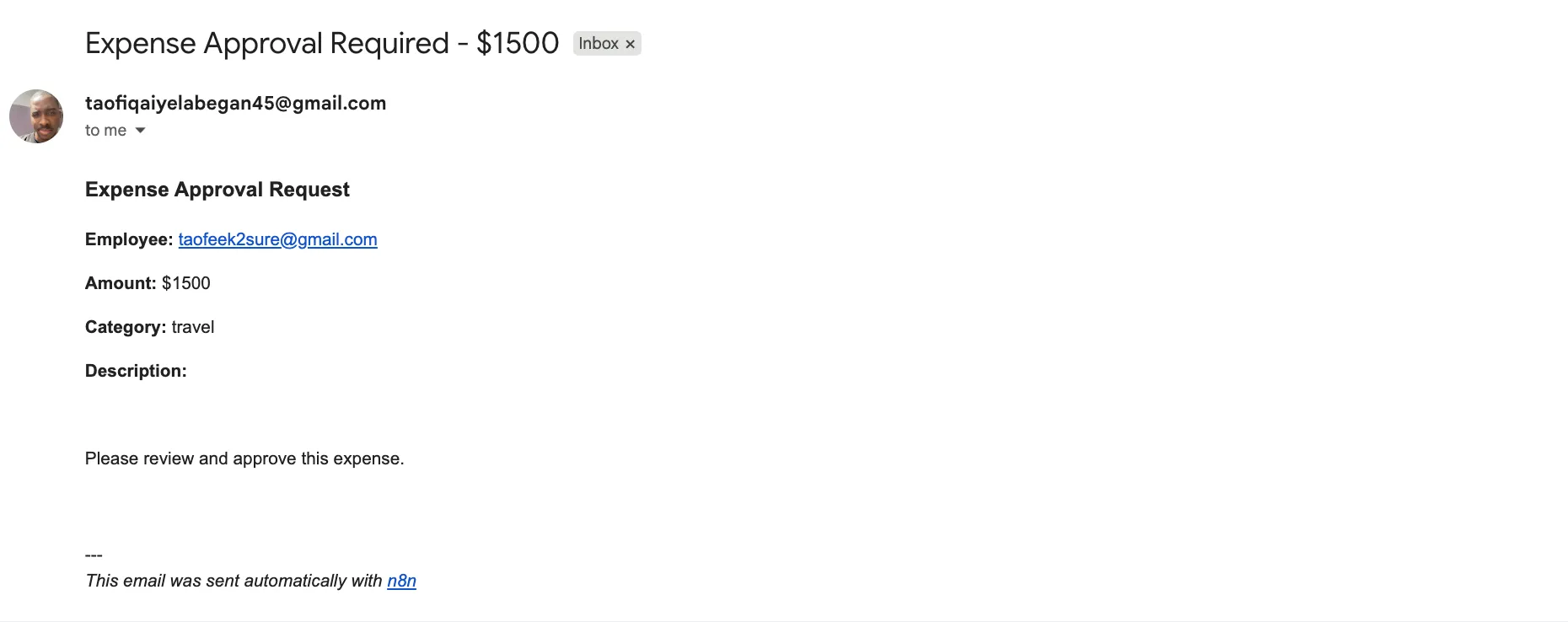
Expected Result:
The workflow grants permission since $1,500 is within Taofeek's $2,000 spending limit. The Get Authorized Approvers node identifies James (Finance team) as an authorized approver, and an email is sent with the expense details.
Test Case 2: Rejected Submission Exceeds Limit
Send an expense that exceeds the user's spending limit:
curl -X POST  https://taofiqworkflows.app.n8n.cloud/webhook-test/f9a8c245-5efb-41ad \
  -H "Content-Type: application/json" \
  -d '{
    "employee_email": "taofeek2sure@gmail.com",
    "expense_amount": 2500,
    "category": "travel",
    "submitter_department": "Engineering",
    "urgency": "normal"
  }'
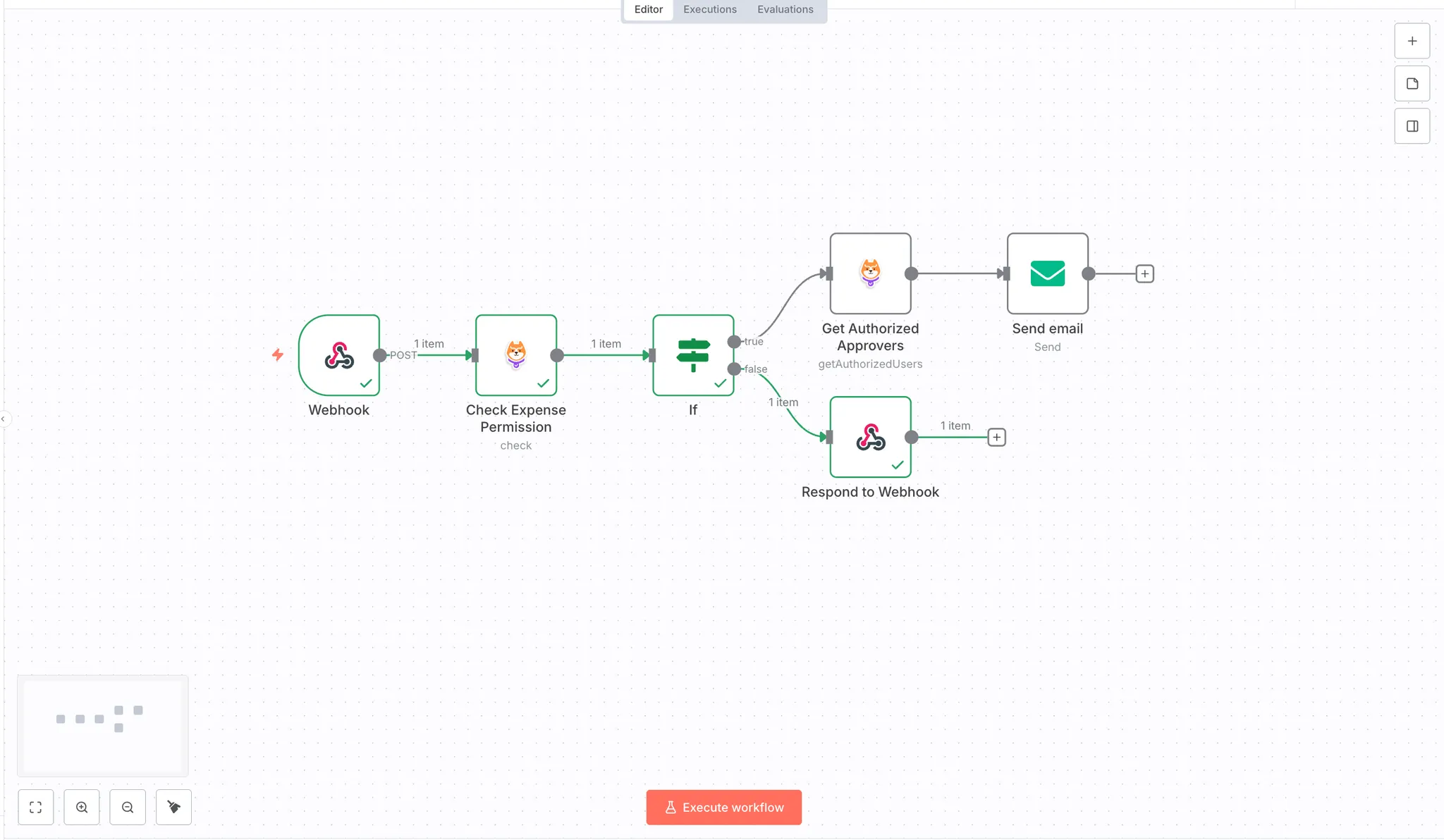
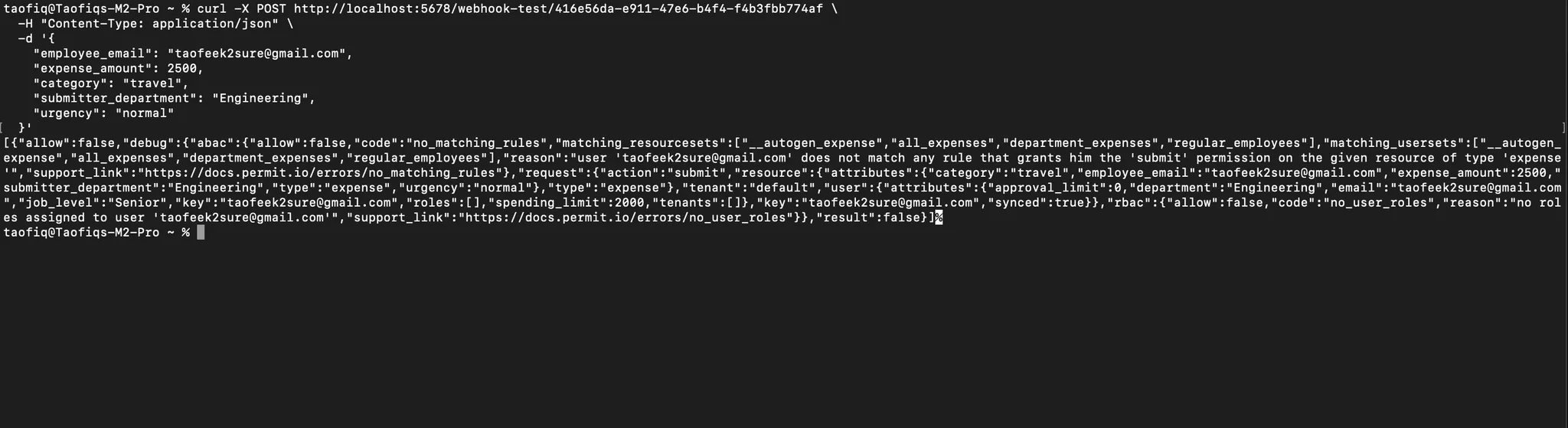
Expected Result:
The workflow denies permission since $2,500 exceeds Taofeek's $2,000 limit. The workflow follows the false branch and returns a rejection response. No email is sent.
Test Case 3: Different User, Different Approver
Send an expense from a user in a different department with a lower spending limit:
curl -X POST  https://taofiqworkflows.app.n8n.cloud/webhook-test/f9a8c245-5efb-41ad \
  -H "Content-Type: application/json" \
  -d '{
    "employee_email": "emma.davis@company.com",
    "expense_amount": 400,
    "category": "supplies",
    "submitter_department": "Sales",
    "urgency": "normal"
  }'
Expected Result:
The workflow grants permission since $400 is within Emma's $500 spending limit. The ABAC policies evaluate Emma's department (Sales) and expense attributes to determine the appropriate approver.
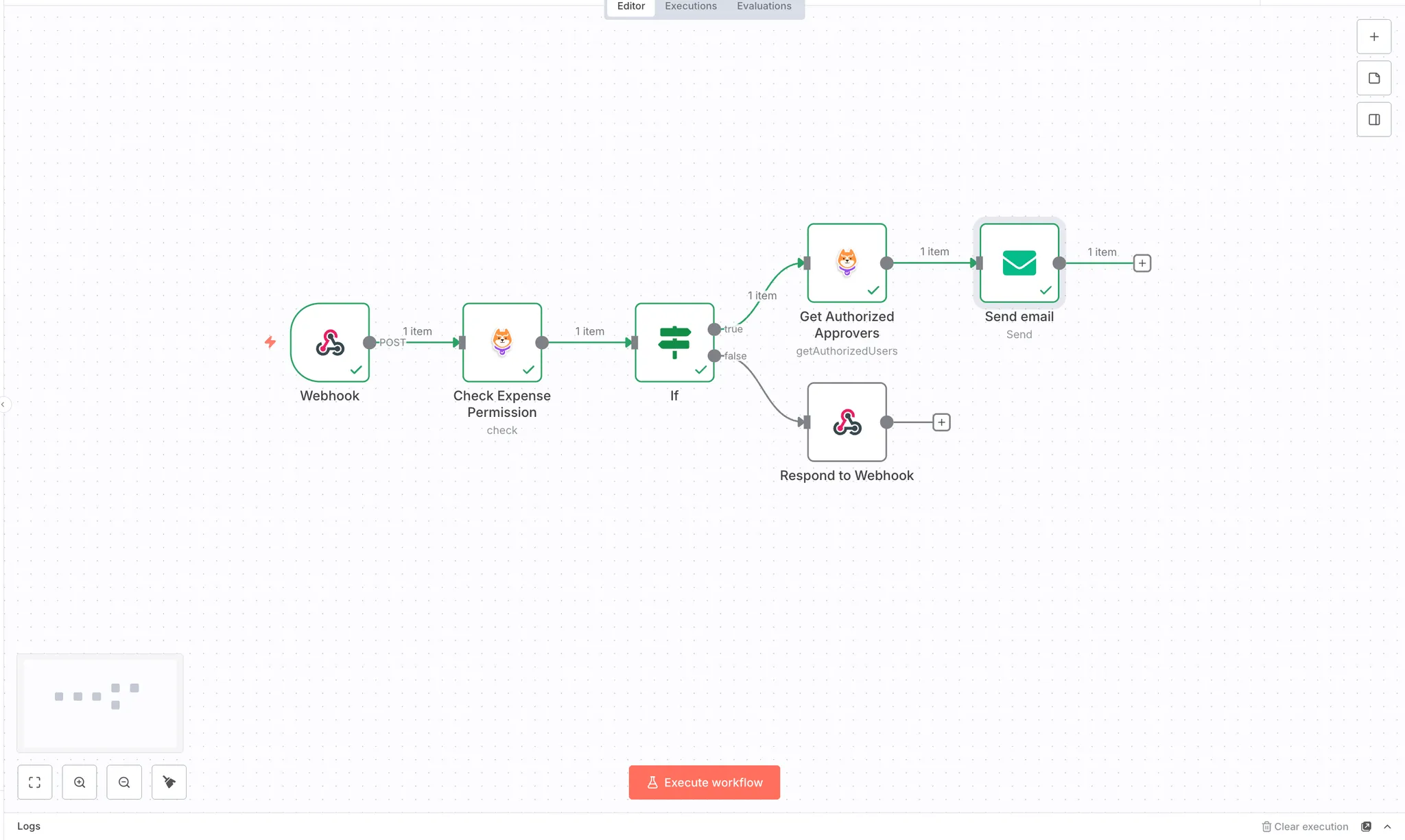
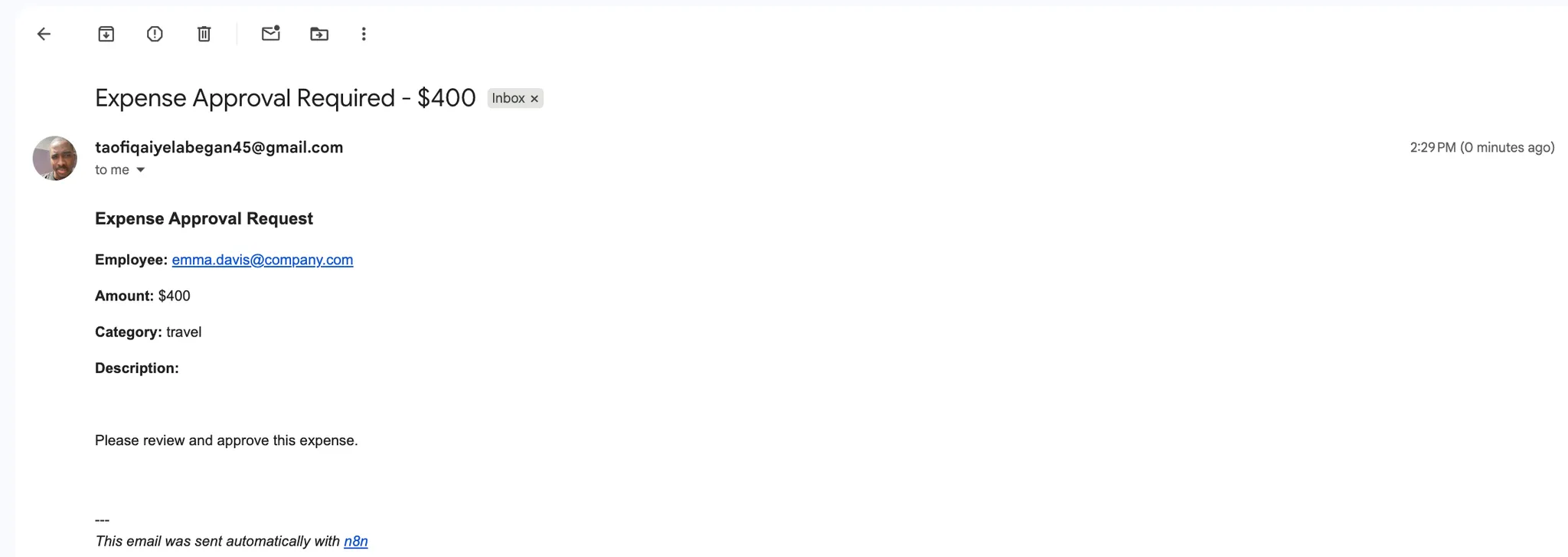
These tests demonstrate how Permit.io's ABAC policies dynamically control workflow behavior based on user and resource attributes. The same workflow handles different users, departments, and expense amounts without any code changes—all authorization logic is centralized in Permit.io and evaluated at runtime.
Conclusion
This guide set out to solve an identified gap in n8n workflows: the lack of runtime authorization for during n8n workflow execution. While n8n provides platform-level access control for who can build and edit workflows, it doesn't natively support checking whether users can perform specific actions during workflow execution.
We addressed this by implementing a complete expense approval system using Permit.io's ABAC policies integrated with n8n through the @permitio/n8n-nodes-permitio community node. The implementation involved four key stages:
- Planning an ABAC policy structure with user attributes (spending limits, departments, job levels) and resource attributes (expense amounts, categories, urgency)
- Configuring the entire authorization schema directly in the Permit.io Dashboard (user attributes, resources, user sets, resource sets, and rules)
- Adding user data with their attribute values in the Permit.io Directory
- Building an n8n workflow that enforces these policies at runtime through permission checks and authorized user lookups
The result is a centralized authorization system where policy changes in Permit.io instantly apply across all n8n workflows, no workflow modifications or redeployment required. When a department manager's approval limit increases or a user changes departments, the authorization decisions automatically reflect these updates. This eliminates the need for custom database lookups, hardcoded IF nodes, and scattered authorization logic across multiple workflows.
Further Reading: