As AI agents become more autonomous and capable, their role is shifting from passive assistants to proactive actors. Today’s large language models (LLMs) don’t just generate text—they execute tasks, access APIs, modify databases, and even control infrastructure.
AI agents are taking actions that were once reserved strictly for human users, whether it’s scheduling a meeting, deploying a service, or accessing a sensitive document.
When agents operate without guardrails, they can inadvertently make harmful or unauthorized decisions. A single hallucinated command, misunderstood prompt, or overly broad permission can result in data leaks, compliance violations, or broken systems.
That’s why integrating human-in-the-loop (HITL) workflows is essential for agent safety and accountability.
Permit.io’s Access Request MCP is a framework designed to enable AI agents with the ability to request sensitive actions, while allowing humans to remain the final decision-makers.
Built on Permit.io’s policy engine and integrated into popular agent frameworks like LangChain and LangGraph, this system lets you insert approval workflows directly into your LLM-powered applications.
In this tutorial, you’ll learn:
- Why delegating sensitive permissions to humans is critical for trustworthy AI,
- How Permit.io’s Model Context Protocol (MCP) enables access request workflows,
- How to build a real-world system that blends LLM intelligence with human oversight—using LangGraph’s
interrupt() feature.
Before we dive into our demo application and implementation steps, let’s briefly discuss the importance of delegating AI permissions to humans.
Why Delegating AI Permissions to Humans Is Critical
AI agents are powerful, but, as we all know, they’re not infallible.
They follow instructions, but they don’t understand context like humans do. They generate responses, but they can’t judge consequences. And when those agents are integrated into real systems—banking tools, internal dashboards, infrastructure controls—that’s a dangerous gap.
In this context, everything that can go wrong is pretty clear:
- Over-permissive agents: LLMs may be granted access to tools they shouldn’t touch, either by design or accident.
- Hallucinated tool calls: Agents can fabricate commands, arguments, or IDs that never existed.
- Lack of auditability: Without human checkpoints, there’s no clear record of who approved what, or why.
Delegation is the solution.
Instead of giving agents unchecked power, we give them a protocol: “You may ask, but a human decides.”
By introducing human-in-the-loop (HITL) approval at key decision points, you get:
- Safety: Prevent irreversible actions before they happen.
- Accountability: Require explicit human sign-off for high-stakes operations.
- Control: Let people set the rules—who can approve, what can be approved, and when.
It’s the difference between an agent doing something and an agent requesting to do something.
And it’s exactly what Permit.io’s Access Request MCP enables.
Permit.io’s Access Request MCP
The Access Request MCP is a core part of Permit.io’s Model Context Protocol (MCP)—a specification that gives AI agents safe, policy-aware access to tools and resources.
Think of it as a bridge between LLMs that want to act and humans who need control.
What it does
Permit’s Access Request MCP enables AI agents to:
- Request access to restricted resources (e.g., "Can I access this restaurant?")
- Request approval to perform sensitive operations (e.g., "Can I order this restricted dish?")
- Wait for human input before proceeding—via LangGraph’s
interrupt() mechanism
- Log the request and decision for auditing and compliance
Behind the scenes, it uses Permit.io’s authorization capabilities built to support:
Plug-and-play with LangChain and LangGraph
Permit’s MCP is integrated directly into the LangChain MCP Adapter and LangGraph ecosystem:
- You can expose Permit Elements as LangGraph-compatible tools.
- You can pause the agent with
interrupt() when sensitive actions occur.
- You can resume execution based on real human decisions.
It’s the easiest way to inject human judgment into AI behavior—no custom backend needed.
Understanding the implementation and its benefits, let’s get into our demo application.
What We’ll Build - Demo Application Overview
In this tutorial, we’ll build a real-time approval workflow in which an AI agent can request access or perform sensitive actions, but only a human can approve them.
Scenario: Family Food Ordering System
To see how Permit’s MCP can help enable an HITL workflow in a user application, we’ll model a food ordering system for a family:
- Parents can access and manage all restaurants and dishes.
- Children can view public items, but must request access to restricted restaurants or expensive dishes.
- When a child submits a request, a parent receives it for review and must explicitly approve or deny it before the action proceeds.
This use case reflects a common pattern: “Agents can help, but humans decide.”
Tech Stack
We’ll build this HITL-enabled agent using:
- Permit.io - Handles authorization, roles, policies, and approvals
- Permit MCP Server - Exposes Permit workflows as tools that the agent can use
- LangChain MCP Adapters - Bridges Permit’s MCP tools into LangGraph & LangChain
- LangGraph - Orchestrates the agent’s workflow with
interrupt() support
- Gemini 2.0 Flash - Lightweight, multimodal LLM used as the agent’s reasoning engine
- Python - The glue holding it all together
You’ll end up with a working system where agents can collaborate with humans to ensure safe, intentional behavior—using real policies, real tools, and real-time approvals.
A repository with the full code for this application is available here.
Step-by-Step Tutorial
In this section, we’ll walk through how to implement a fully functional human-in-the-loop agent system using Permit.io and LangGraph.
We’ll cover:
- Modeling Permissions with Permit
- Setting Up the Permit MCP Server
- Creating a LangGraph + LangChain MCP Client
- Adding Human-in-the-Loop with
interrupt()
- Running the Full Workflow
Let’s get into it -
Modeling Permissions with Permit
We’ll start by defining your system’s access rules inside the Permit.io dashboard. This lets you model which users can do what, and what actions should trigger an approval flow.
Create a ReBAC Resource
Navigate to the Policy page from the sidebar, then:
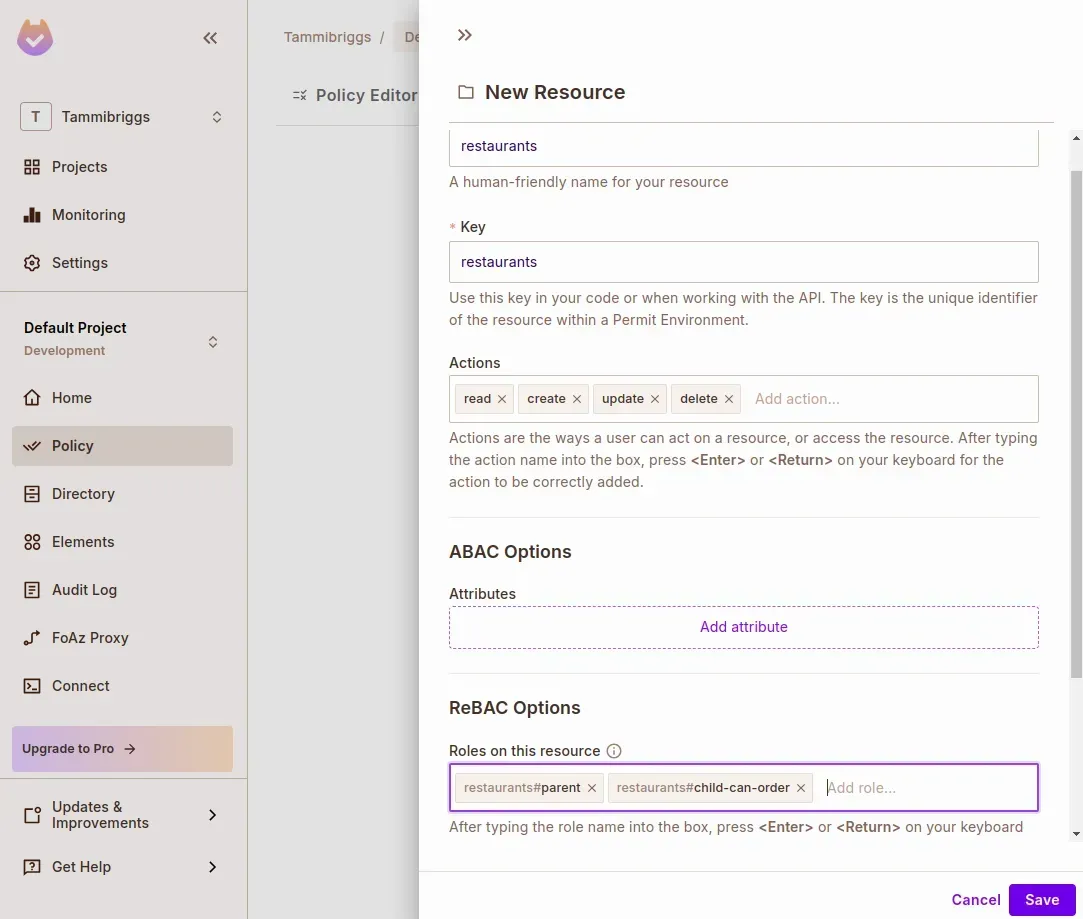
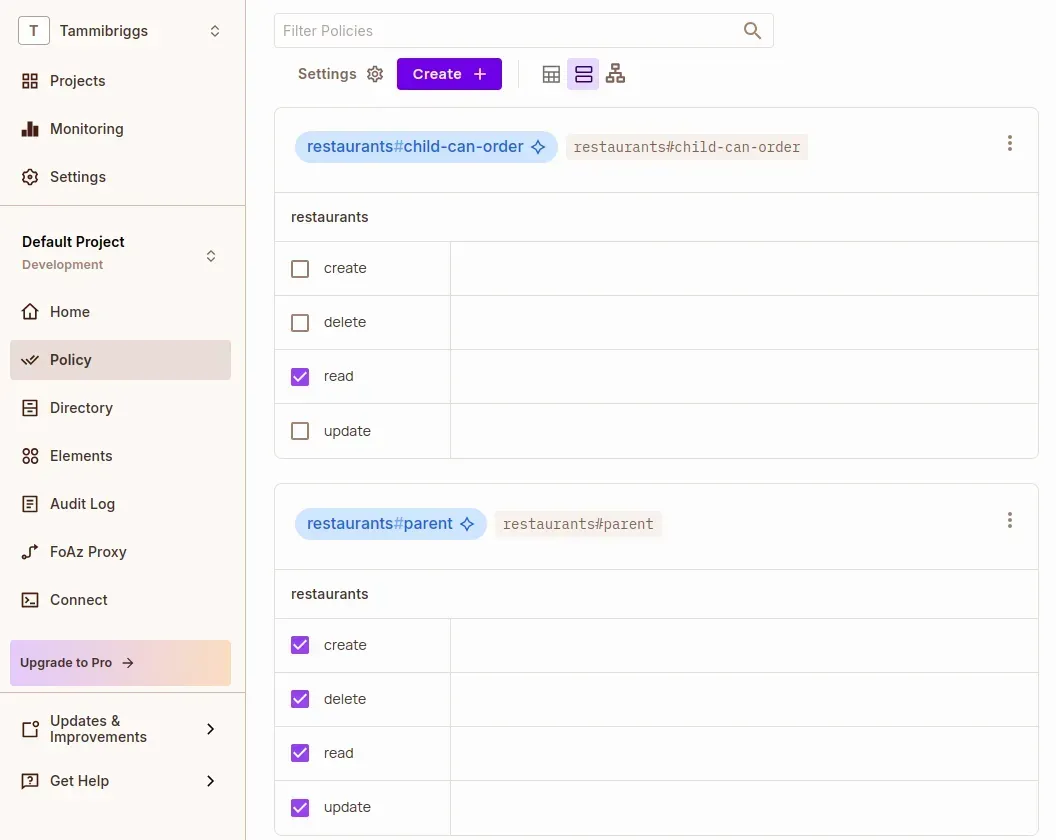
Now go to the Policy Editor tab and assign permissions:
parent: full access (create, read, update, delete)child-can-order: read
Set Up Permit Elements
Go to the Elements tab from the sidebar. In the User Management section, click Create Element.
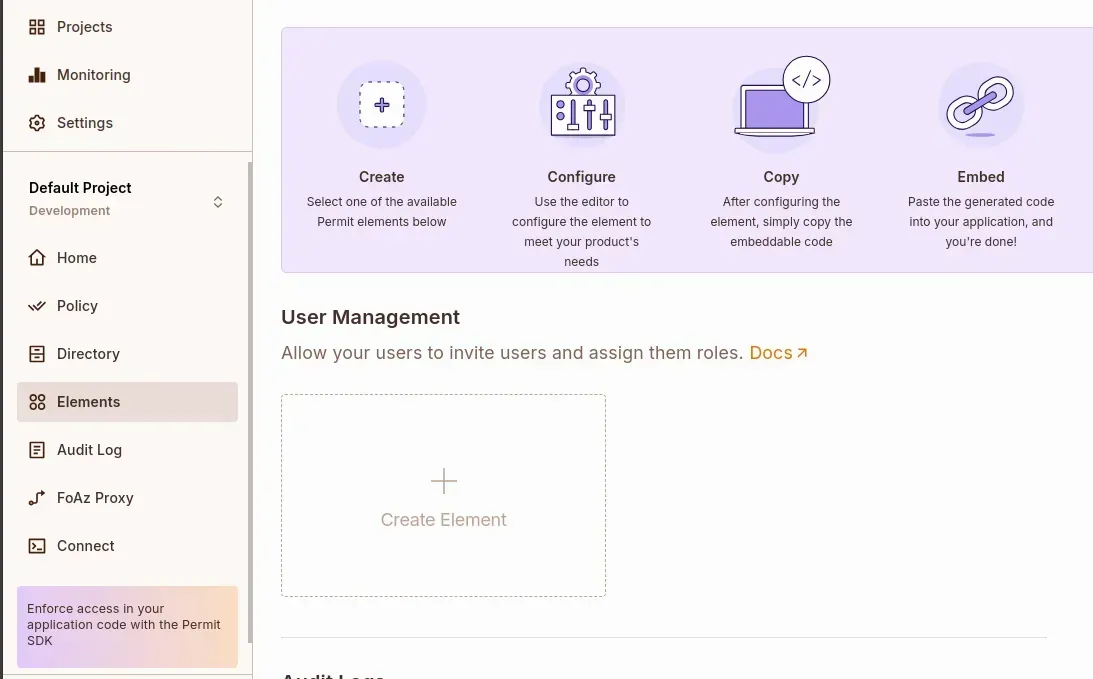
Configure the element as follows:
Name: Restaurant Requests
Configure elements based on: ReBAC Resource Roles
Resource Type: restaurants
Role permission levels
- Level 1 – Workspace Owner:
parent
- Assignable Roles:
child-can-order
Click Create
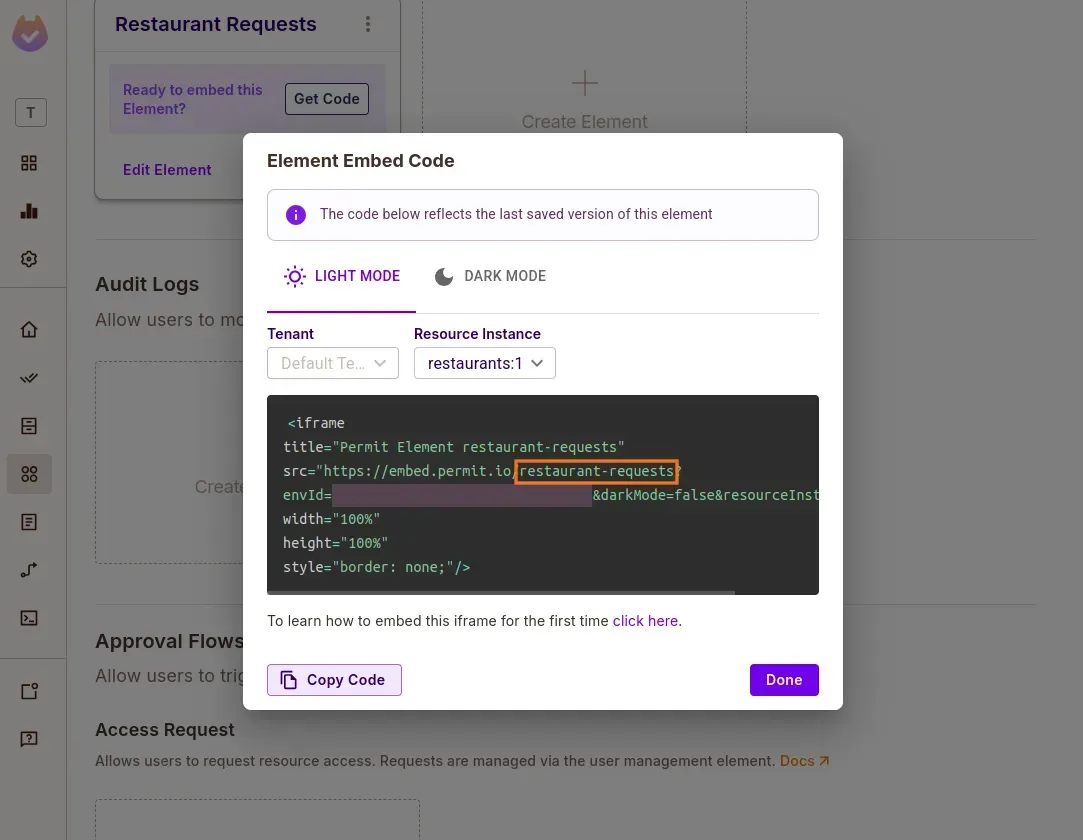
In the newly created element card, click Get Code and take note of the config ID: restaurant-requests. We’ll use this later in the .env file.
Add Operation Approval Elements
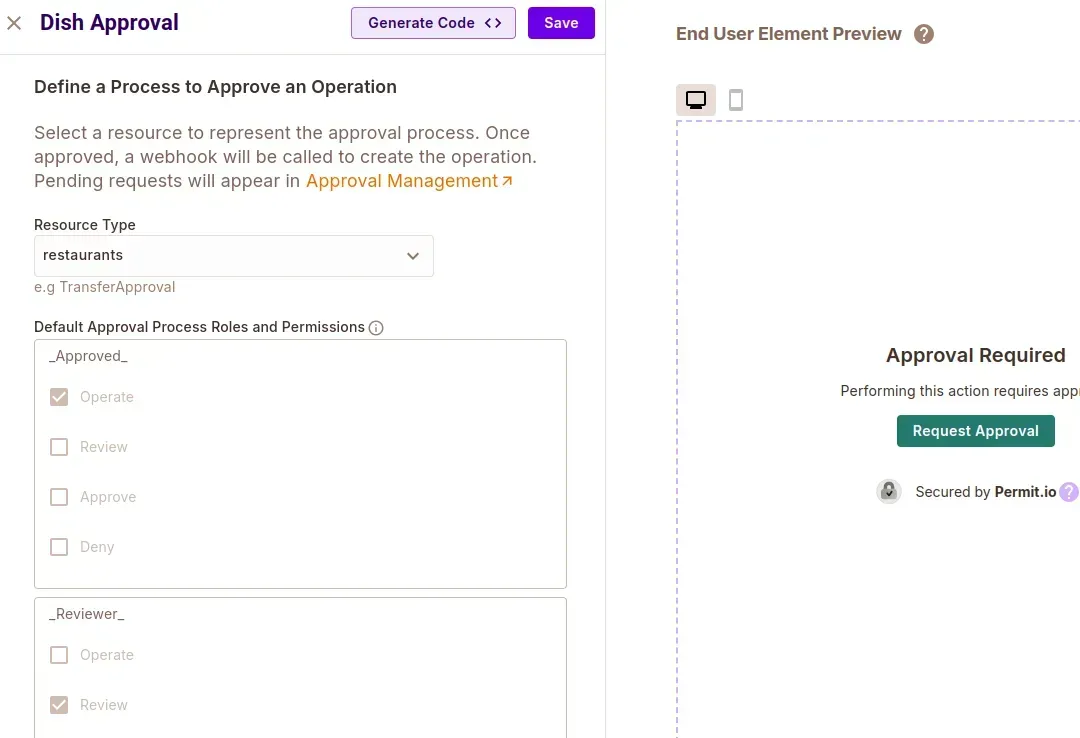
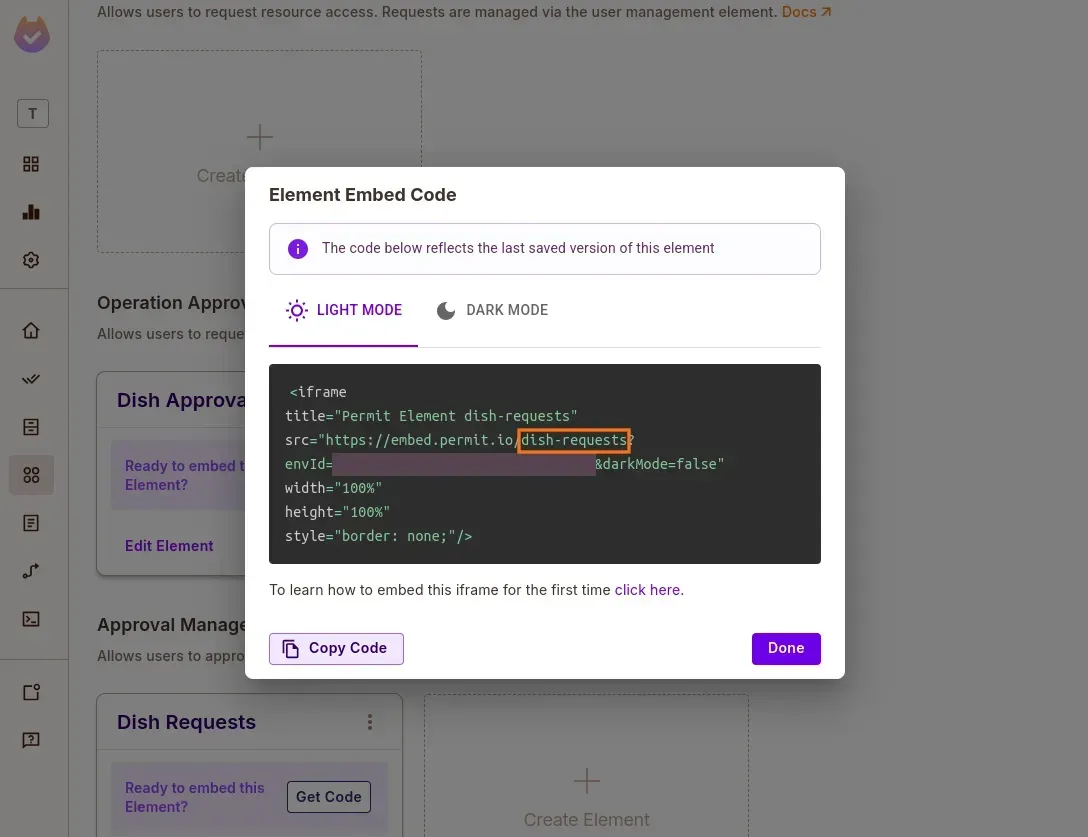
Add Test Users & Resource Instances
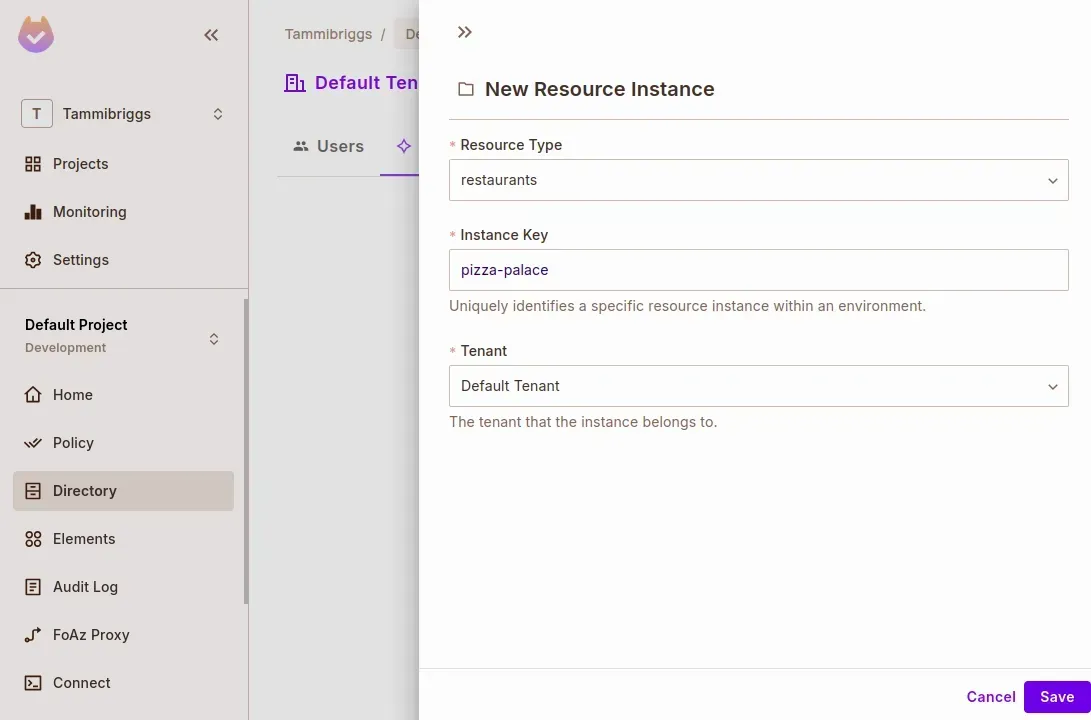
Once Permit is configured, we’re ready to clone the MCP server and connect your policies to a working agent.
Setting Up the Permit MCP Server
With your policies modeled in the Permit dashboard, it’s time to bring them to life by setting up the Permit MCP server—a local service that exposes your access request and approval flows as tools that an AI agent can use.
Clone and Install the MCP Server
Start by cloning the MCP server repository and setting up a virtual environment.
git clone <https://github.com/permitio/permit-mcp>
cd permit-mcp

# Create virtual environment, activate it and install dependencies
uv venv
source .venv/bin/activate # For Windows: .venv\\Scripts\\activate
uv pip install -e .
Add Environment Configuration
Create a .env file at the root of the project based on the provided .env.example, and populate it with the correct values from your Permit setup:
bash
CopyEdit
RESOURCE_KEY=restaurants
ACCESS_ELEMENTS_CONFIG_ID=restaurant-requests
OPERATION_ELEMENTS_CONFIG_ID=dish-requests
TENANT= # e.g. default
LOCAL_PDP_URL=
PERMIT_API_KEY=
PROJECT_ID=
ENV_ID=
You can retrieve these values using the following resources:
⚠️ Note: We are using Permit’s Local PDP (Policy Decision Point) for this tutorial to support ReBAC evaluation and low-latency, offline testing.
Start the Server
With everything in place, you can now run the MCP server locally:
uv run -m src.permit_mcp
Once the server is running, it will expose your configured Permit Elements (access request, approval management, etc.) as tools the agent can call through the MCP protocol.
Creating a LangGraph + LangChain MCP Client
Now that the Permit MCP server is up and running, we’ll build an AI agent client that can interact with it. This client will:
- Use a Gemini-powered LLM to decide what actions to takeDynamically invoke MCP tools like
request_access, approve_operation_approval, etc.
- Run entirely within a LangGraph workflow
- Pause for human review using
interrupt() (in the next section)
Let’s connect the dots.
Install Required Dependencies
Inside your MCP project directory, install the necessary packages:
uv add langchain-mcp-adapters langgraph langchain-google-genai
This gives you:
langchain-mcp-adapters: Automatically converts Permit MCP tools into LangGraph-compatible toolslanggraph: For orchestrating graph-based workflowslangchain-google-genai: For interacting with Gemini 2.0 Flash
Add Google API Key
You’ll need an API key from Google AI Studio to use Gemini.
Add the key to your .env file:
GOOGLE_API_KEY=your-key-here
Build the MCP Client
Create a file named client.py in your project root.
We’ll break this file down into logical blocks:
- Imports and Setup
Start by importing dependencies and loading environment variables:
import os
from typing_extensions import TypedDict, Literal, Annotated
from dotenv import load_dotenv
from langchain_google_genai import ChatGoogleGenerativeAI
from langgraph.graph import StateGraph, START, END
from langgraph.types import Command, interrupt
from langgraph.checkpoint.memory import MemorySaver
from langgraph.prebuilt import ToolNode
from mcp import ClientSession, StdioServerParameters
from mcp.client.stdio import stdio_client
from langchain_mcp_adapters.tools import load_mcp_tools
import asyncio
from langgraph.graph.message import add_messages
Then, load the environment and set up your Gemini LLM:
load_dotenv()

global_llm_with_tools = None

llm = ChatGoogleGenerativeAI(
    model="gemini-2.0-flash",
    google_api_key=os.getenv('GOOGLE_API_KEY')
)
- Configure MCP Server Parameters
Tell LangGraph how to communicate with the running MCP server:
server_params = StdioServerParameters(
    command="python",
    args=["src/permit_mcp/server.py"],
)
Define the shared agent state:
class State(TypedDict):
    messages: Annotated[list, add_messages]
- Define Workflow Nodes and the graph builder:
Here’s the logic to route between calling the LLM and invoking tools:
async def call_llm(state):
    response = await global_llm_with_tools.ainvoke(state["messages"])
    return {"messages": [response]}

def route_after_llm(state) -> Literal[END, "run_tool"]:
    return END if len(state["messages"][-1].tool_calls) == 0 else "run_tool"

async def setup_graph(tools):
    builder = StateGraph(State)
    run_tool = ToolNode(tools)
    builder.add_node(call_llm)
    builder.add_node('run_tool', run_tool)

    builder.add_edge(START, "call_llm")
    builder.add_conditional_edges("call_llm", route_after_llm)
    builder.add_edge("run_tool", "call_llm")

    memory = MemorySaver()
    return builder.compile(checkpointer=memory)
In the above code, we have defined an LLM node and its conditional edge, which routes to the run_tool node if there is a tool call in the state's message, or ends the graph. We have also defined a function to set up and compile the graph with an in-memory checkpointer.
Next, add the following line of code to stream response from the graph and add an interactive chat loop, which will run until it’s explicitly exited.
- Stream Output and Handle Chat Input, and an infinite loop for user interaction:
async def stream_responses(graph, config, invokeWith):
    async for event in graph.astream(invokeWith, config, stream_mode='updates'):
        for key, value in event.items():
            if key == 'call_llm':
                content = value["messages"][-1].content
                if content:
                    print('\\n' + ", ".join(content)
                          if isinstance(content, list) else content)

async def chat_loop(graph):
    while True:
        try:
            user_input = input("\\nQuery: ").strip()
            if user_input in ["quit", "exit", "q"]:
                print("Goodbye!")
                break

            sys_m = """
            Always provide the resource instance key during tool calls, as the ReBAC authorization model is being used. To obtain the resource instance key, use the list_resource_instances tool to view available resource instances.

            Always parse the provided data before displaying it.
            If the user has initially provided their ID, use that for subsequent tool calls without asking them again.
            """

            invokeWith = {"messages": [
                {"role": "user", "content": sys_m + '\\n\\n' + user_input}]}
            config = {"configurable": {"thread_id": "1"}}

            await stream_responses(graph, config, invokeWith)

        except Exception as e:
            print(f"Error: {e}")
- **Final Assembly
**Add the main entry point where we will convert the Permit MCP server tool to LangGraph-compatible tools, bind our LLM to the resulting tools, set up the graph, draw it to a file, and fire up the chat loop:
python
CopyEdit
async def main():
    async with stdio_client(server_params) as (read, write):
        async with ClientSession(read, write) as session:
            await session.initialize()

            tools = await load_mcp_tools(session)
            llm_with_tools = llm.bind_tools(tools)
            graph = await setup_graph(tools)

            global global_llm_with_tools
            global_llm_with_tools = llm_with_tools

            with open("workflow_graph.png", "wb") as f:
                f.write(graph.get_graph().draw_mermaid_png())

            await chat_loop(graph)

if __name__ == "__main__":
    asyncio.run(main())
Once you’ve saved everything, start the client:
uv run client.py
After running, a new image file called workflow_graph.png will be created, which shows the graph.
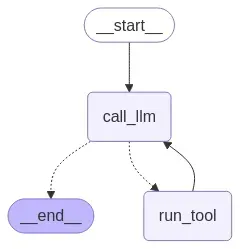
With everything set up, we can now specify queries like this:
Query: My user id is henry, request access to pizza palace with the reason: I am now 18, and the role child-can-order
Query: My user id is joe, list all access requests
Your agent is now able to call MCP tools dynamically!
Adding Human-in-the-Loop with interrupt()
With your LangGraph-powered MCP client up and running, Permit tools can now be invoked automatically. But what happens when the action is sensitive, like granting access to a restricted resource or approving a high-risk operation?
That’s where LangGraph’s interrupt() becomes useful.
We’ll now add a human approval node to intercept and pause the workflow whenever the agent tries to invoke critical tools like:
approve_access_requestapprove_operation_approval
A human will be asked to manually approve or deny the tool call before the agent proceeds.
Define the Human Review Node
At the top of your client.py file (before setup_graph), add the following function:
async def human_review_node(state) -> Command[Literal["call_llm", "run_tool"]]:
    """Handle human review process."""
    last_message = state["messages"][-1]
    tool_call = last_message.tool_calls[-1]

    high_risk_tools = ['approve_access_request', 'approve_operation_approval']
    if tool_call["name"] not in high_risk_tools:
        return Command(goto="run_tool")

    human_review = interrupt({
        "question": "Do you approve this tool call? (yes/no)",
        "tool_call": tool_call,
    })

    review_action = human_review["action"]

    if review_action == "yes":
        return Command(goto="run_tool")

    return Command(goto="call_llm", update={"messages": [{
        "role": "tool",
        "content": f"The user declined your request to execute the {tool_call.get('name', 'Unknown')} tool, with arguments {tool_call.get('args', 'N/A')}",
        "name": tool_call["name"],
        "tool_call_id": tool_call["id"],
    }]})
This node checks whether the tool being called is considered “high risk.” If it is, the graph is interrupted with a prompt asking for human confirmation.
Update Graph Routing
Modify the route_after_llm function so that the tool calls route to the human review node instead of running immediately:
def route_after_llm(state) -> Literal[END, "human_review_node"]:
    """Route logic after LLM processing."""
    return END if len(state["messages"][-1].tool_calls) == 0 else "human_review_node"
Wire in the HITL Node
Update the setup_graph function to add the human_review_node as a node in the graph:
async def setup_graph(tools):
    builder = StateGraph(State)
    run_tool = ToolNode(tools)
    builder.add_node(call_llm)
    builder.add_node('run_tool', run_tool)
    builder.add_node(human_review_node)  # Add the interrupt node here

    builder.add_edge(START, "call_llm")
    builder.add_conditional_edges("call_llm", route_after_llm)
    builder.add_edge("run_tool", "call_llm")

    memory = MemorySaver()
    return builder.compile(checkpointer=memory)
Handle Human Input During Runtime
Finally, let’s enhance your stream_responses function to detect when the graph is interrupted, prompt for a decision, and resume with human input using Command(resume={"action": user_input}).
After running the client, the graph should not look like this:
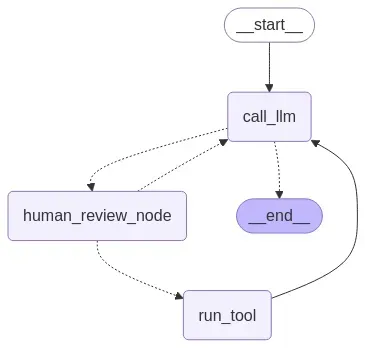
After running the client, your graph diagram (workflow_graph.png) will now include a human review node between the LLM and tool execution stages:
This ensures that you remain in control whenever the agent tries to make a decision that could alter permissions or bypass restrictions.
Sorry, your browser doesn't support embedded videos.
With this, you've successfully added human oversight to your AI agent, without rewriting your tools or backend logic.
Conclusion
In this tutorial, we built a secure, human-aware AI agent using Permit.io’s Access Request MCP, LangGraph, and LangChain MCP Adapters.
Instead of letting the agent operate unchecked, we gave it the power to request access and defer critical decisions to human users, just like a responsible team member would.
We covered:
- How to model permissions and approval flows using Permit Elements and ReBAC
- How to expose those flows via the Permit MCP server
- How to build a LangGraph-powered client that invokes these tools naturally
- And how to insert real-time human-in-the-loop (HITL) checks using
interrupt()
Want to see the full demo in action? Check out the GitHub Repo.
Further Reading -